This guide walks you through setting up your WhatsApp Business channel and launching targeted WhatsApp campaigns in Affinect. From connecting your business number to creating message templates and sending campaigns, you can engage customers directly on WhatsApp with compliant, high-impact messaging.
عاطفة
Access the WhatsApp Channel
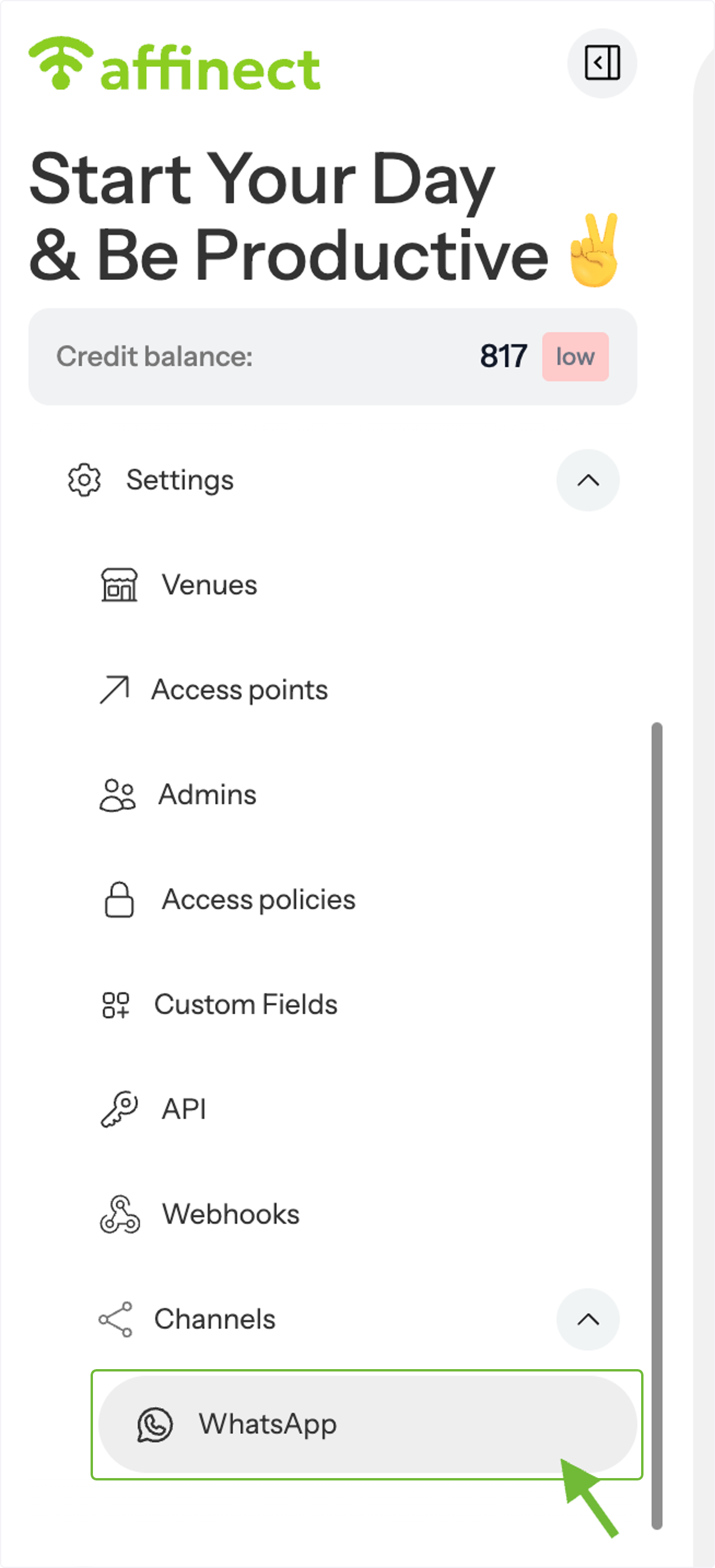
From the _Settings_ menu, scroll down and select WhatsApp Channel.
Open the WhatsApp Dashboard
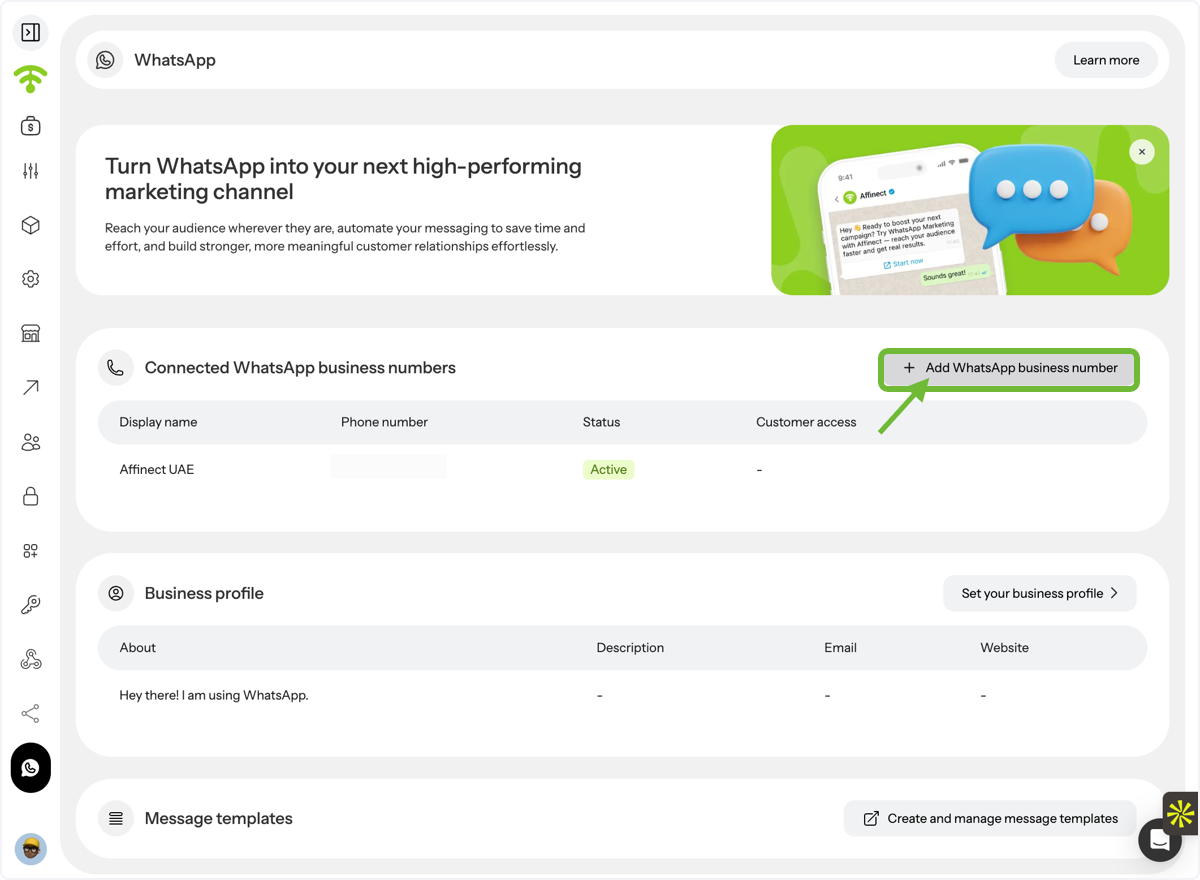
Once inside, you will see the WhatsApp dashboard. Click on Add WhatsApp Business Number to begin setup.
Add Your Business Number
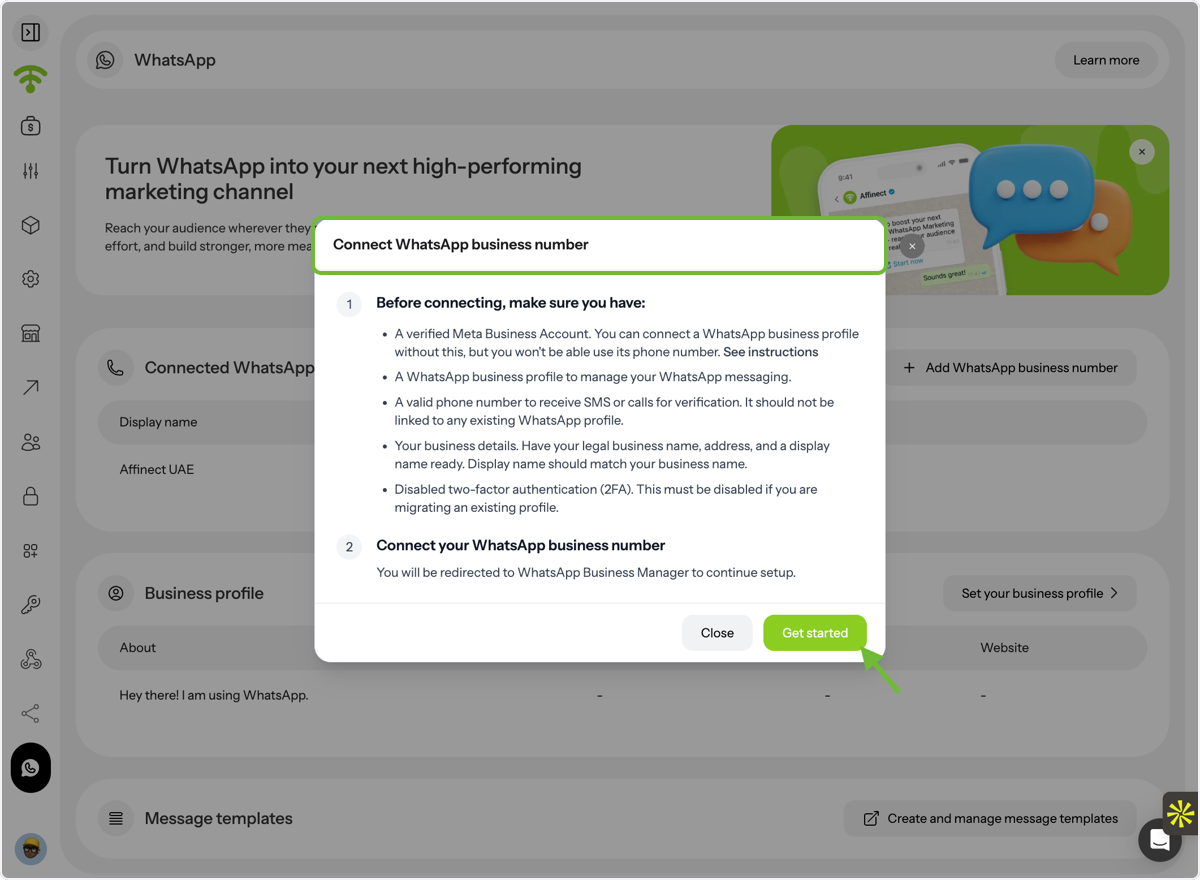
- Enter your WhatsApp Business number.
- Click Get Started to initiate the setup process.
Set Up Your Business Profile
Click on Set Your Business Profile to configure how your brand appears on WhatsApp.
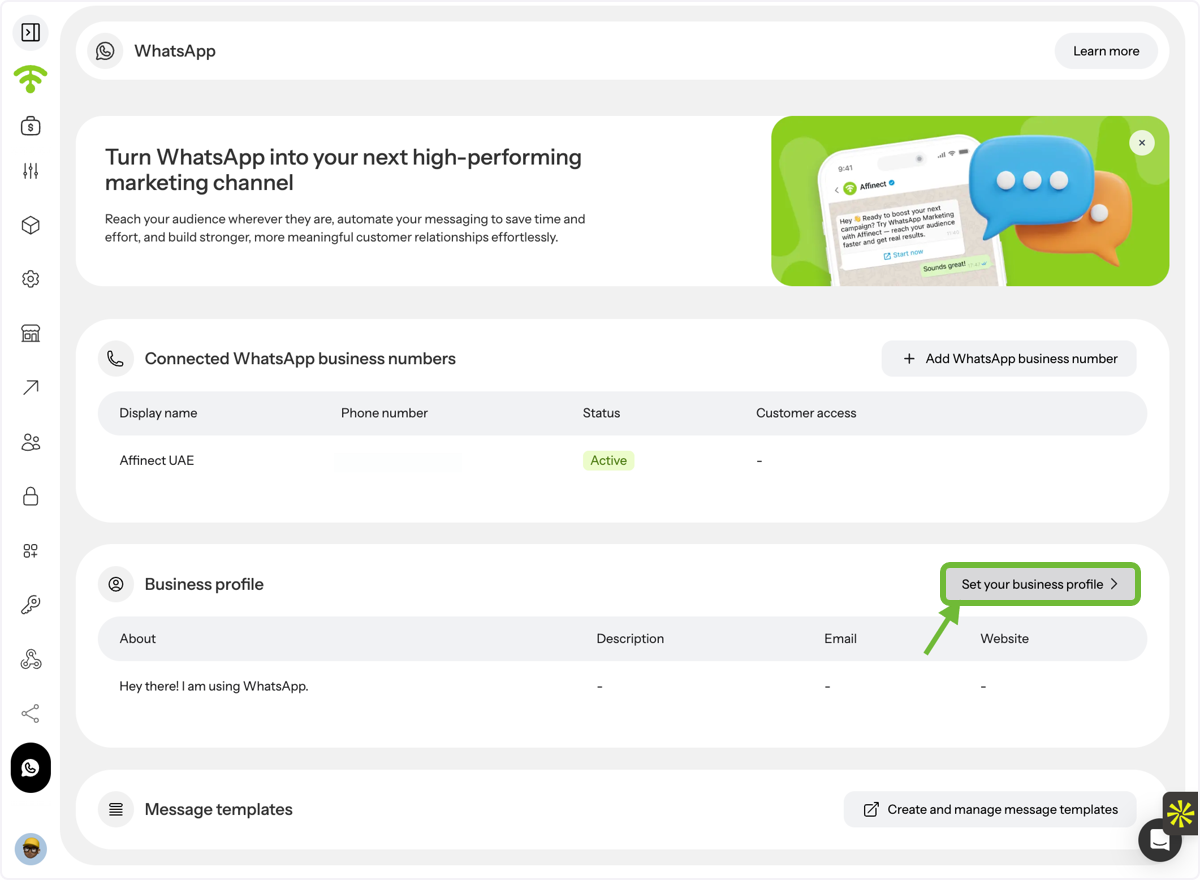
Complete Business Profile Details
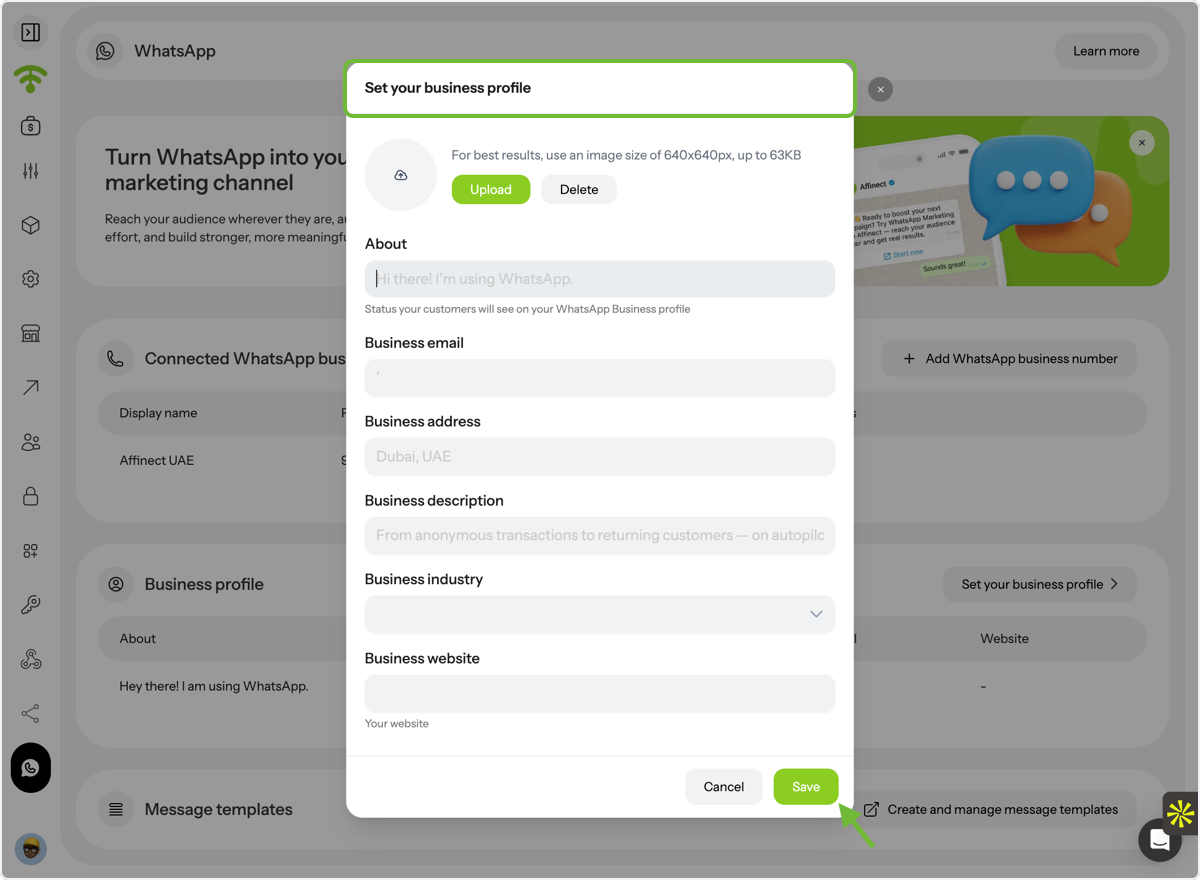
Add all required information, including:
- Logo or display image
- About section
- Business email
- Business address
- Business description
- Industry
- Website
Once done, click Save to continue.
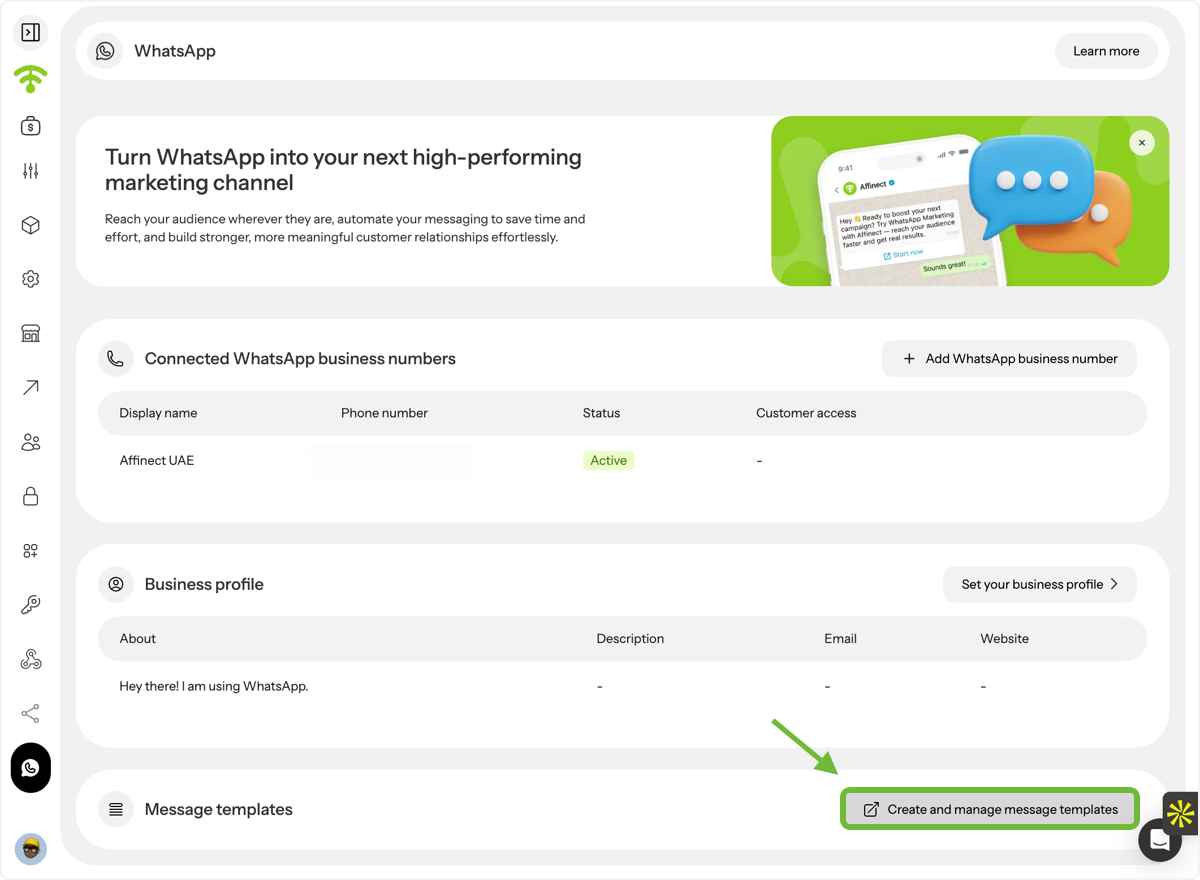
Create Message Templates
Go to Create and Manage Message Templates and design your templates with the desired content.
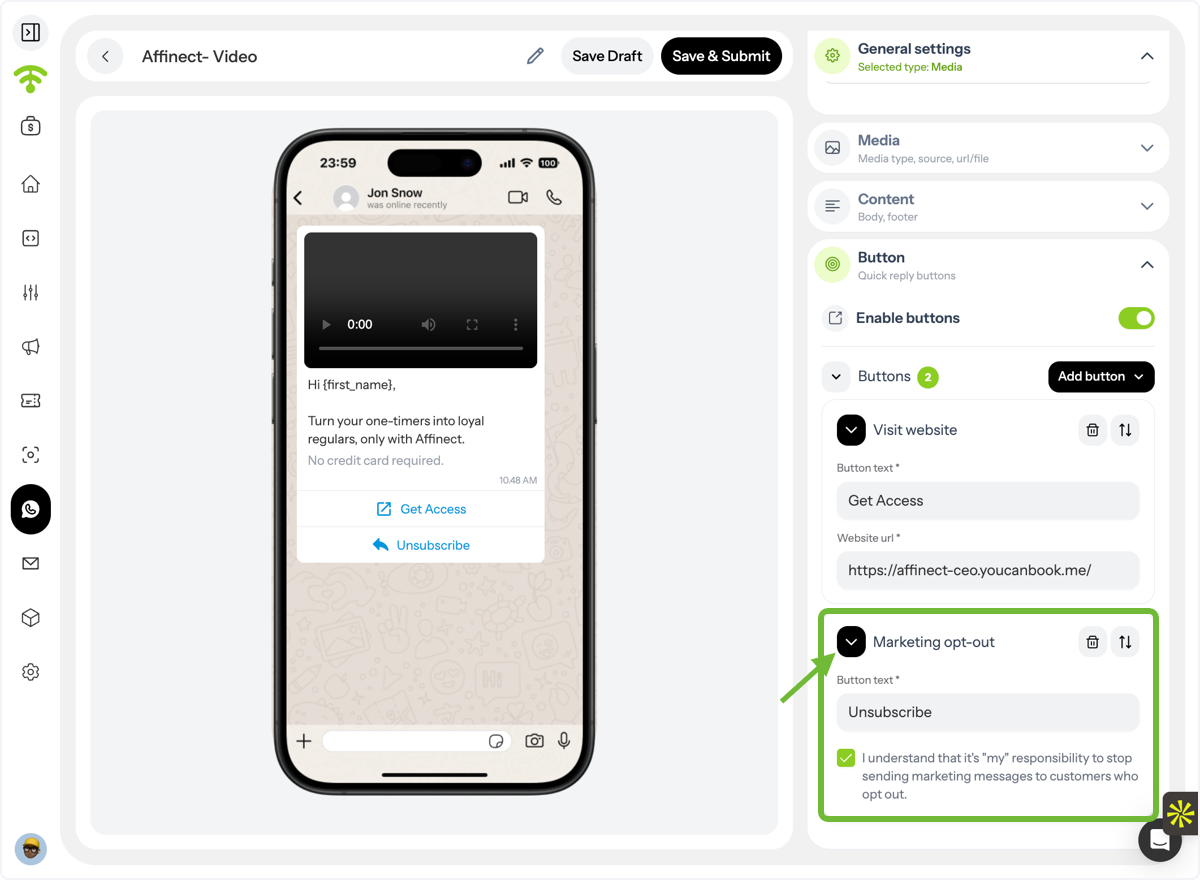
Ensure Compliance
Always include a marketing opt-out message in your templates to stay compliant with regulations.
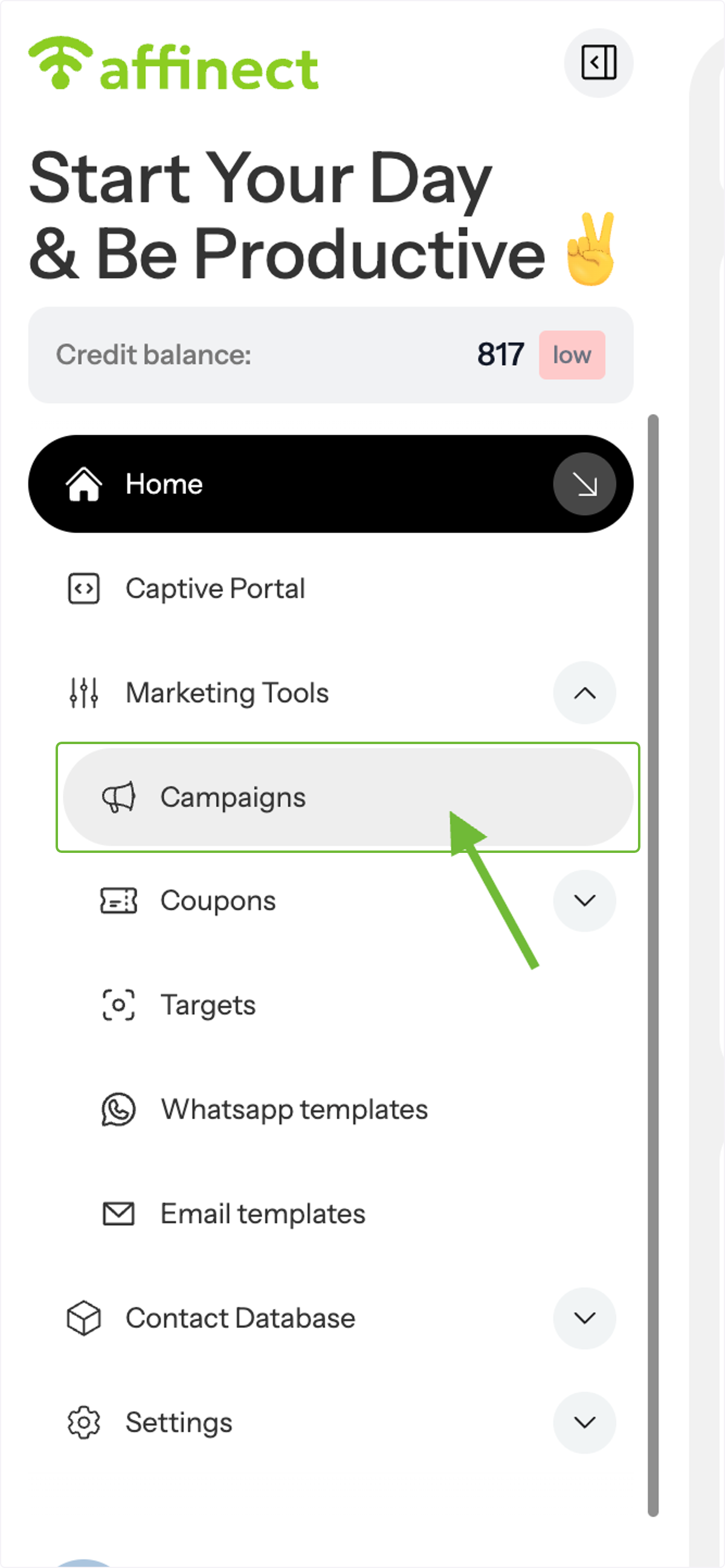
Navigate to Campaigns
Go to the Campaigns section to link your message template to a campaign.
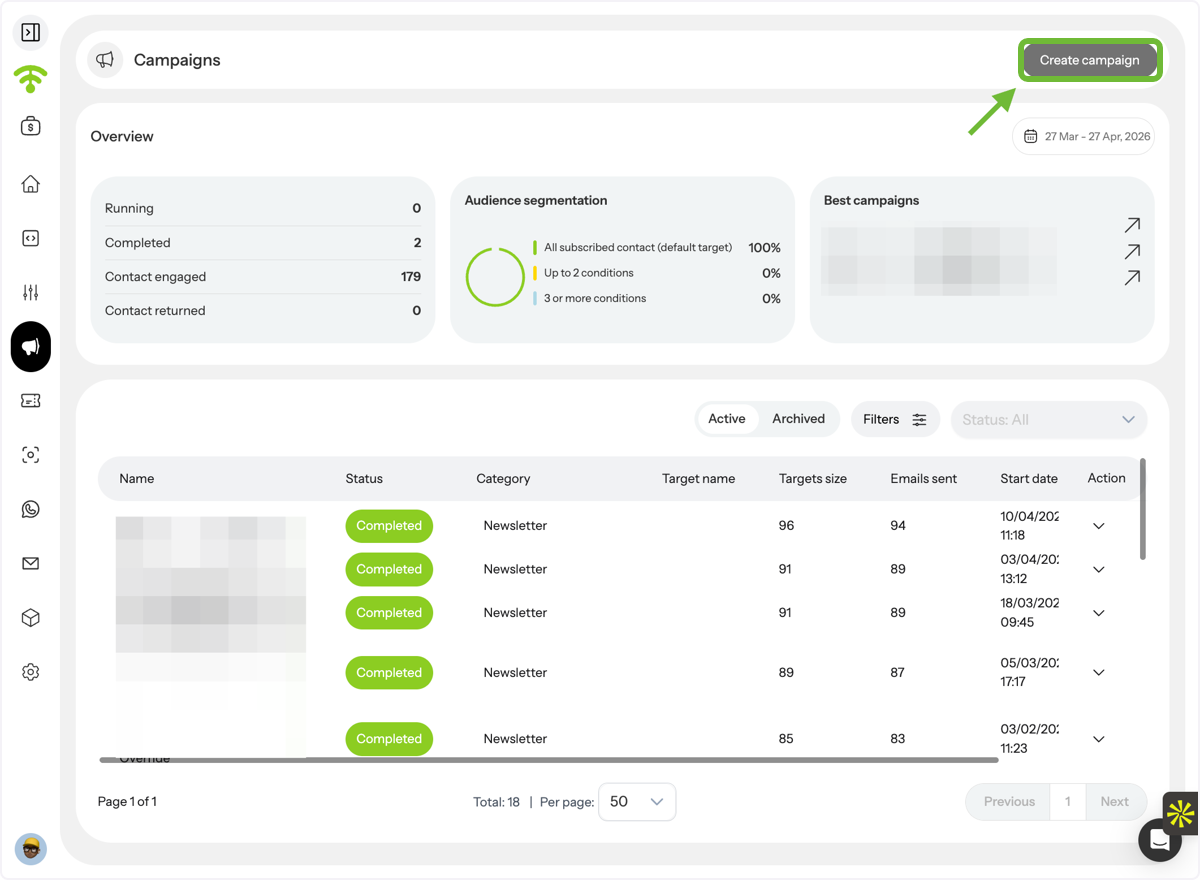
Create or Edit a Campaign
Click Create Campaign to start a new one, or edit an existing draft.
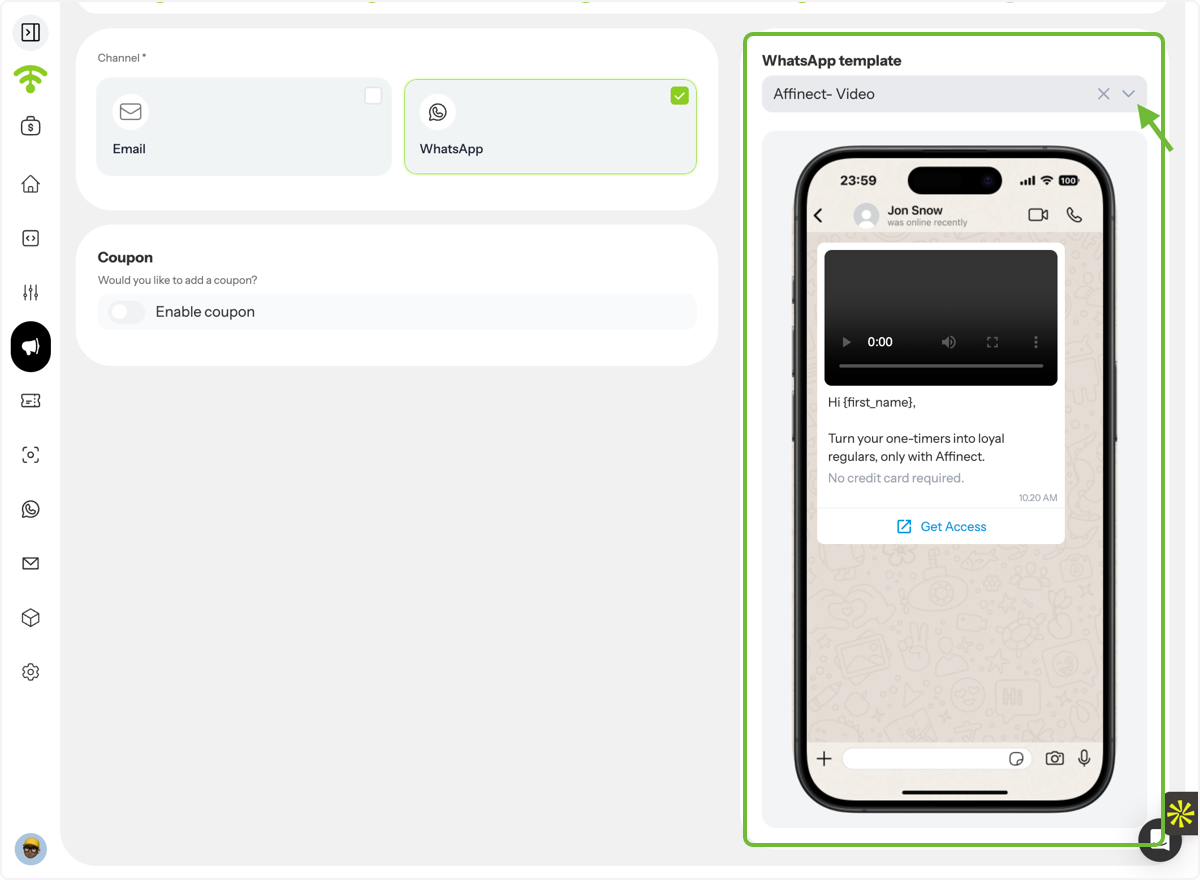
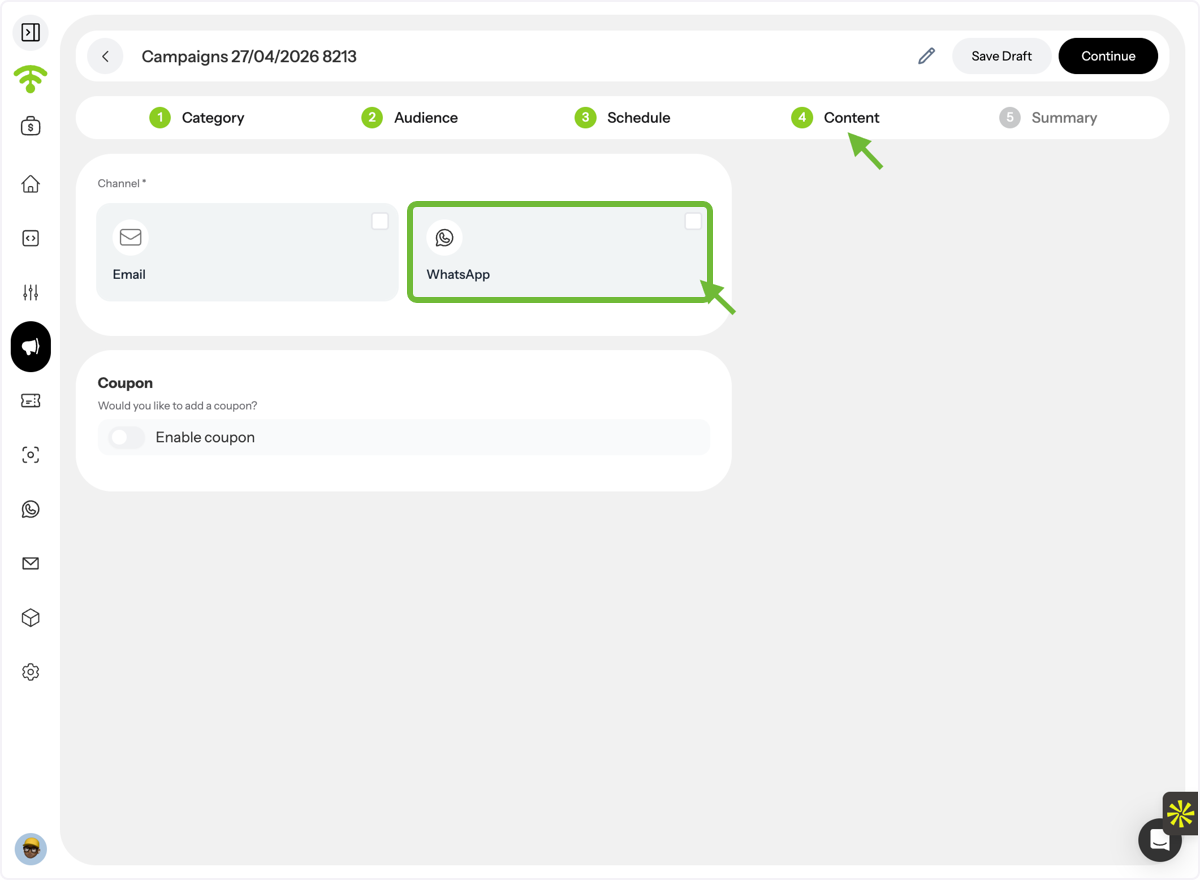
Select WhatsApp as the Channel
- Go to the Content section
- Choose واتساب as your campaign channel
Finalize and Launch
Select your message template, complete the remaining campaign details, and click Publish. Tada! Your WhatsApp campaign is now live.