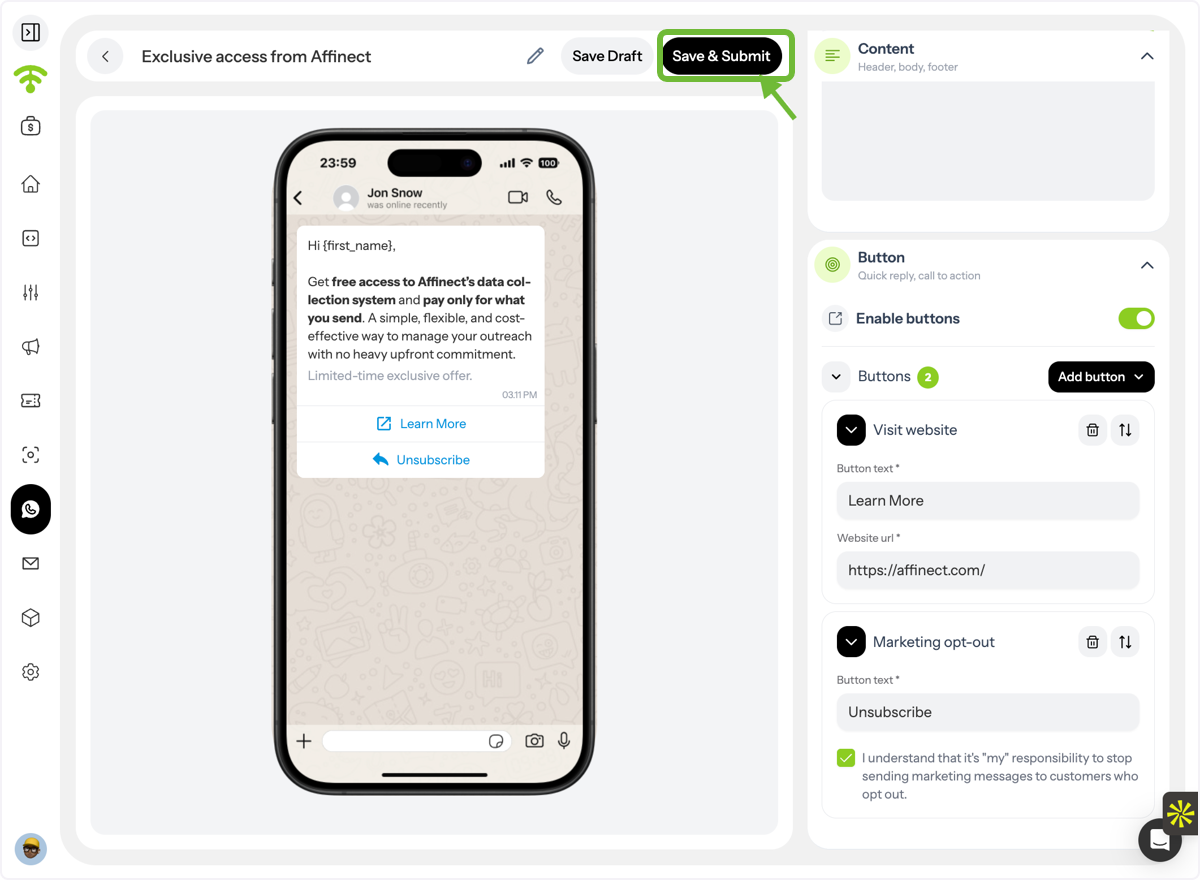
This guide walks you through creating a simple yet effective WhatsApp text message template in Affinect. Text messages are ideal for direct, clear communication—whether you're promoting an offer, sending updates, or re-engaging customers—with full personalization and compliance built in.
عاطفة
From the dashboard, click on Marketing Tools in the left-side menu and select WhatsApp Templates.
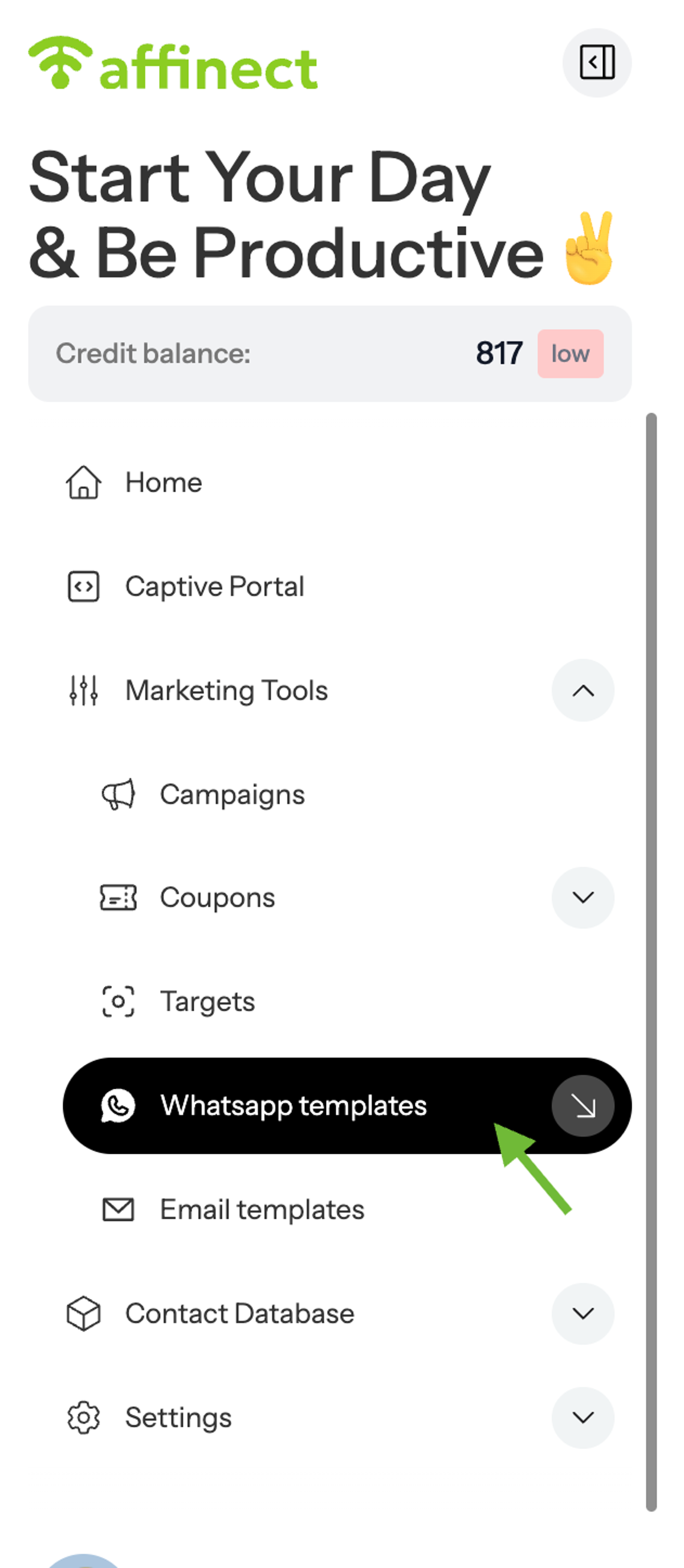
Enhance your message using:
- Text styles
- Emojis
- Personalization variables (e.g., first name, email, etc.)
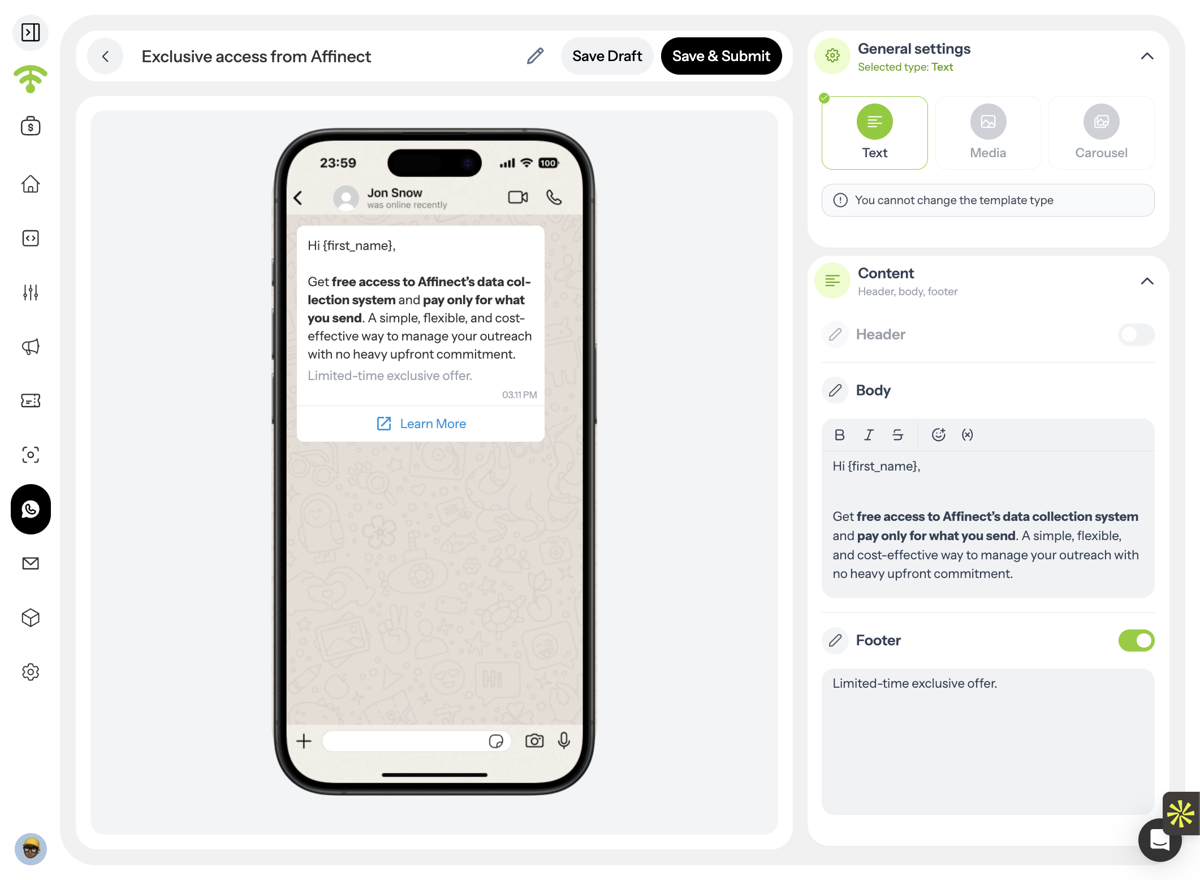
A. Go to Marketing Tools
B. Click on WhatsApp templates
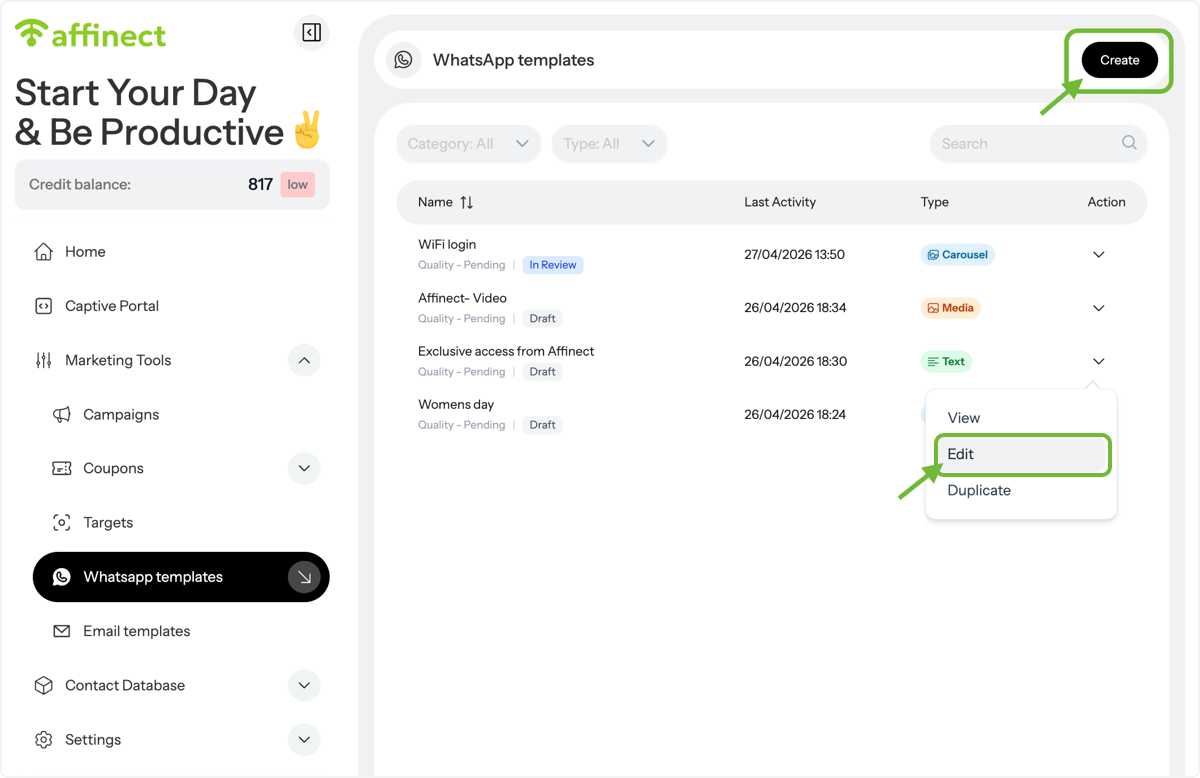
Create or Edit a Template
In the templates list:
- Click Edit to update an existing draft, or
- Click Create to start a new template
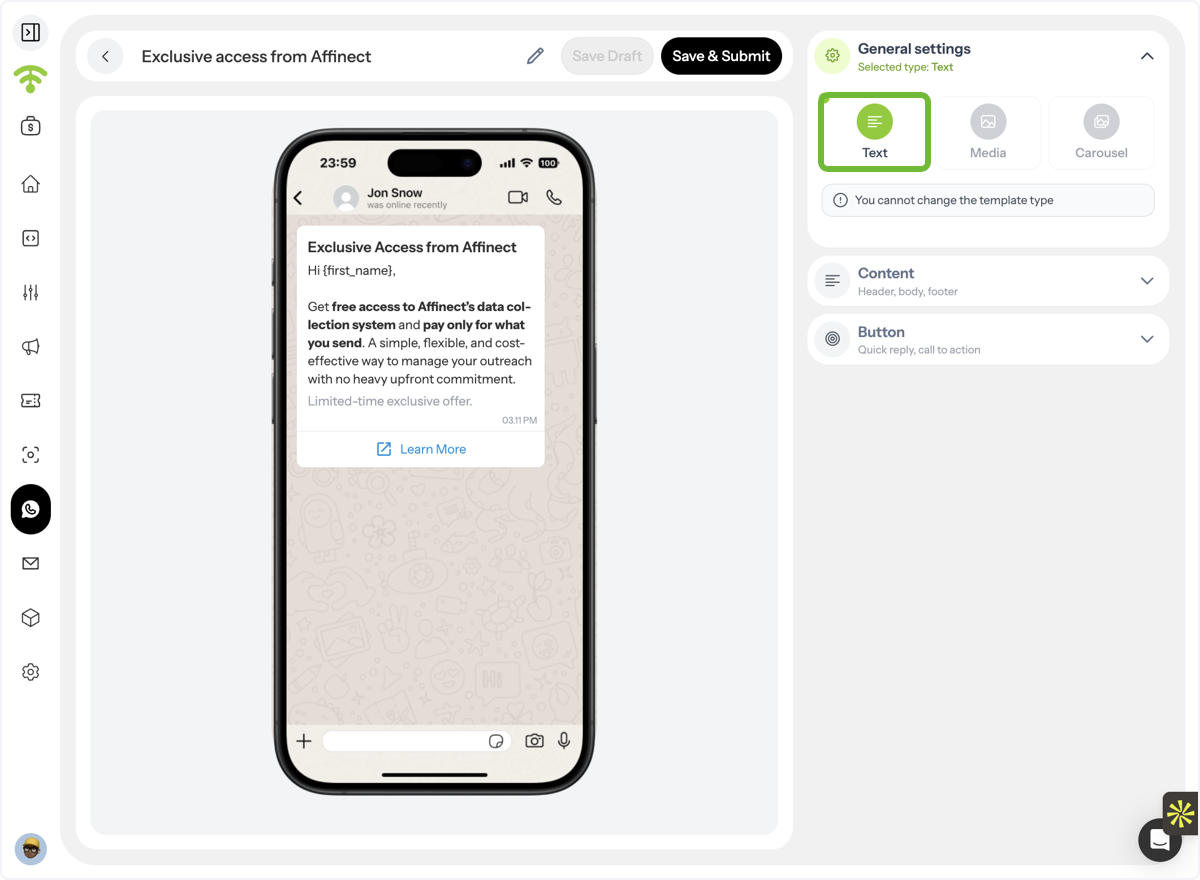
Select Template Format
Choose Text as your message format.
Add Message Content
Click on Content and start building your message by adding:
- Header (optional)
- Body
- Footer (optional)
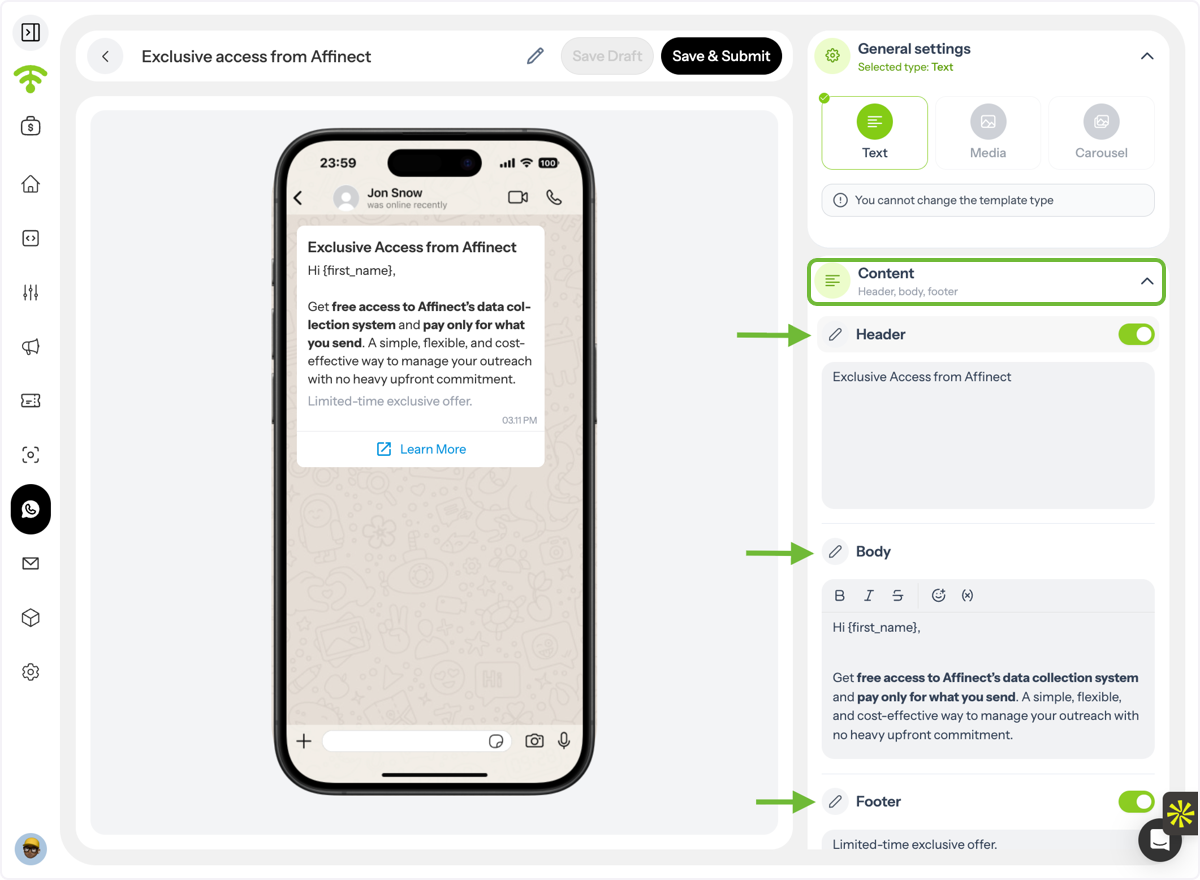
A. Customize Your Message
B. Write your body text and footer
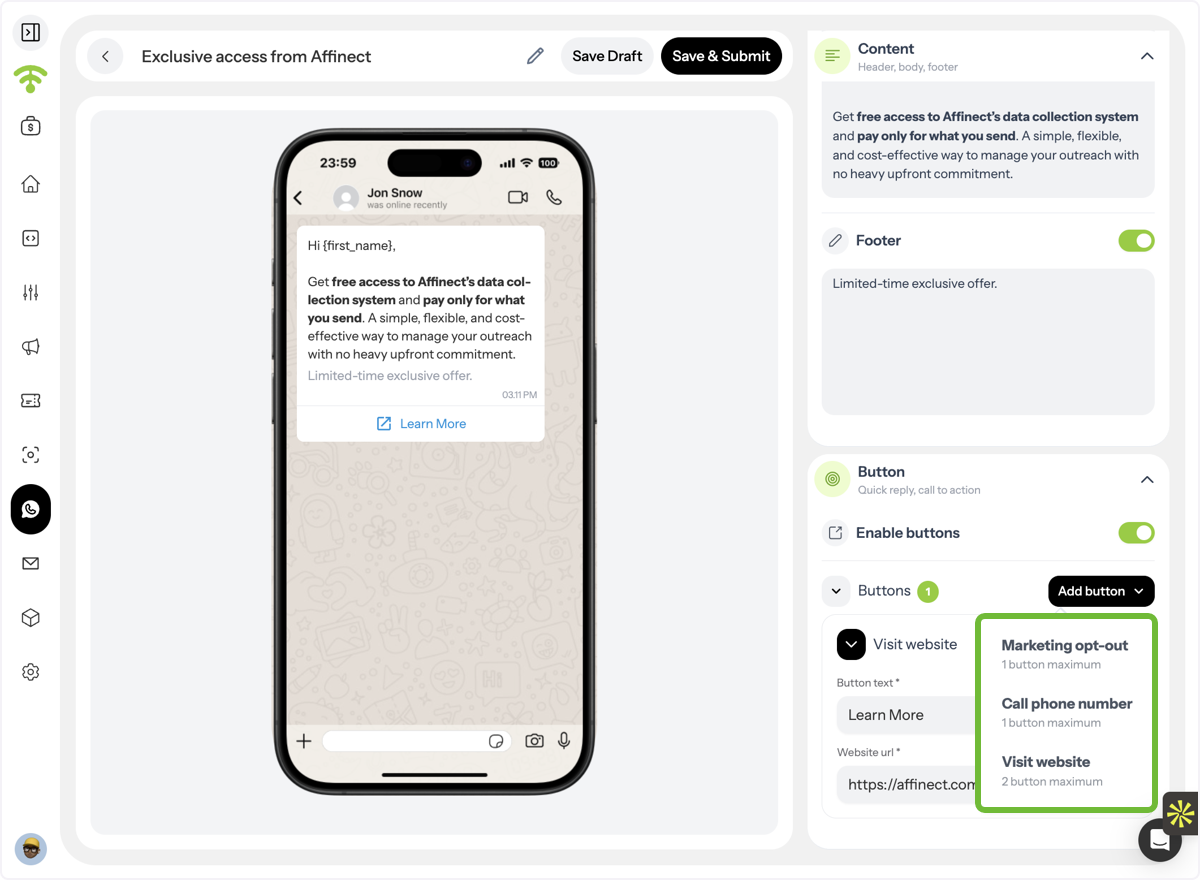
Add Call-to-Action Buttons
Go to Buttons and choose from:
- Website link
- Phone number
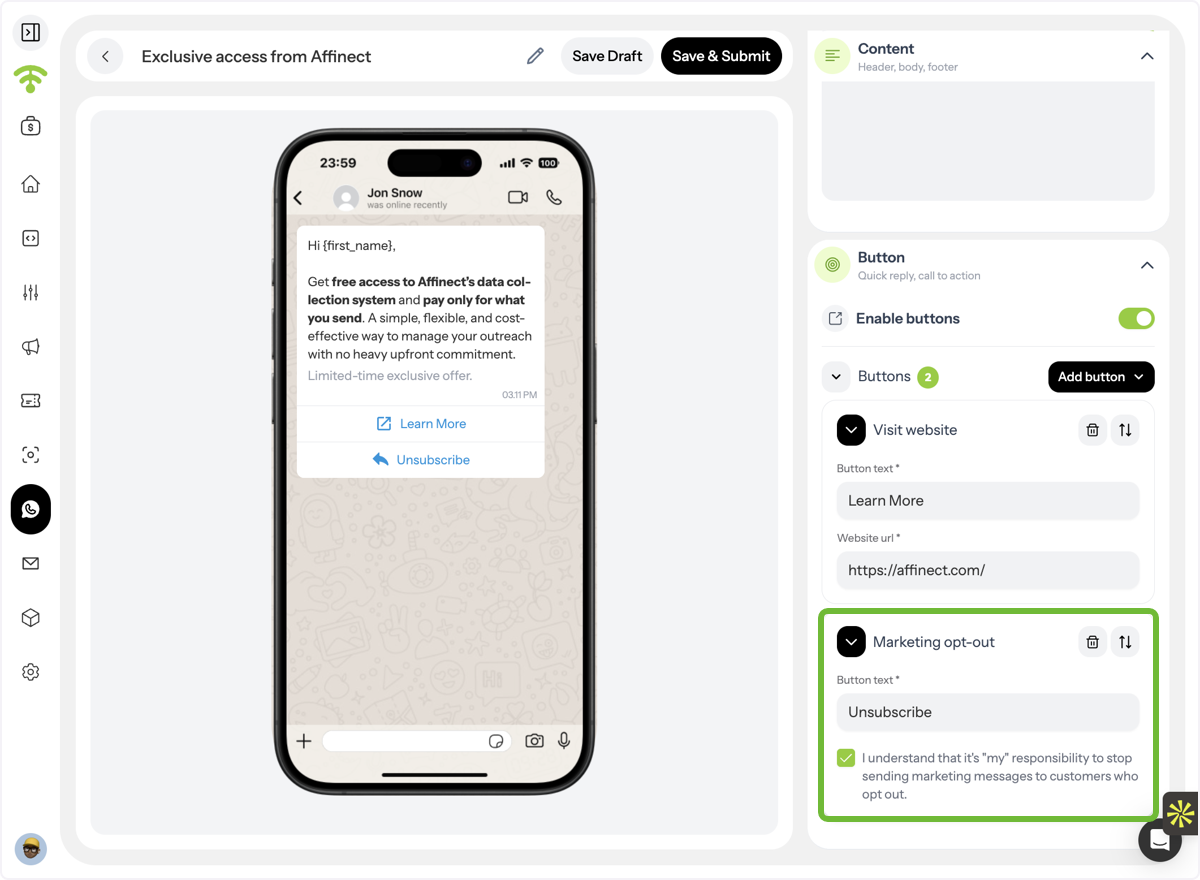
Ensure Compliance
Include a mandatory marketing opt-out button in every message.
Submit for Approval
Once done, click Save & Submit to send your template to Meta for approval.