View detailed visitor analytics and track key insights. Easily add custom tags to organize and segment your contacts for more personalized engagement.
عاطفة
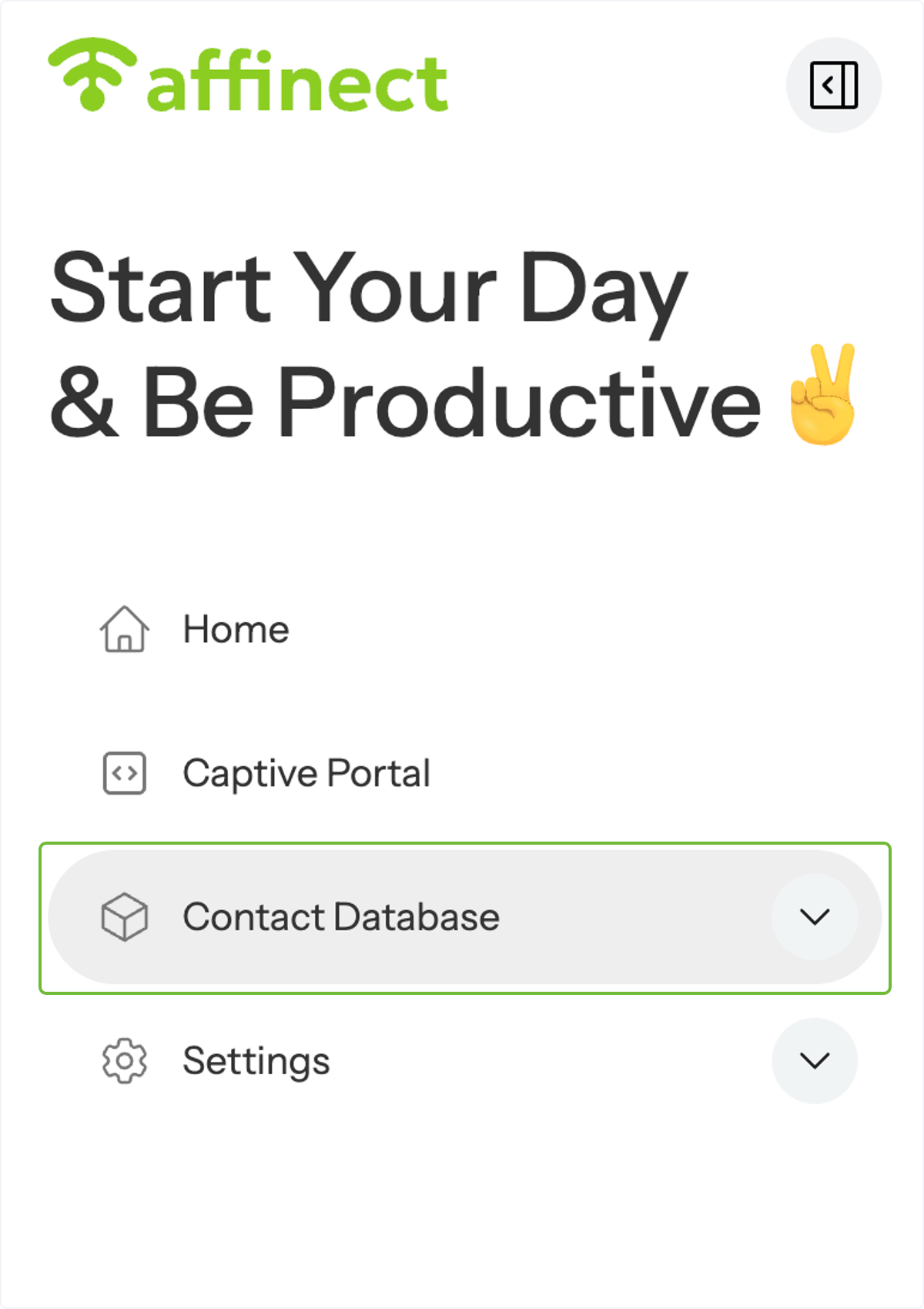
Navigate to the Contact Database
Click on Contact Database on the left-hand side of the dashboard.
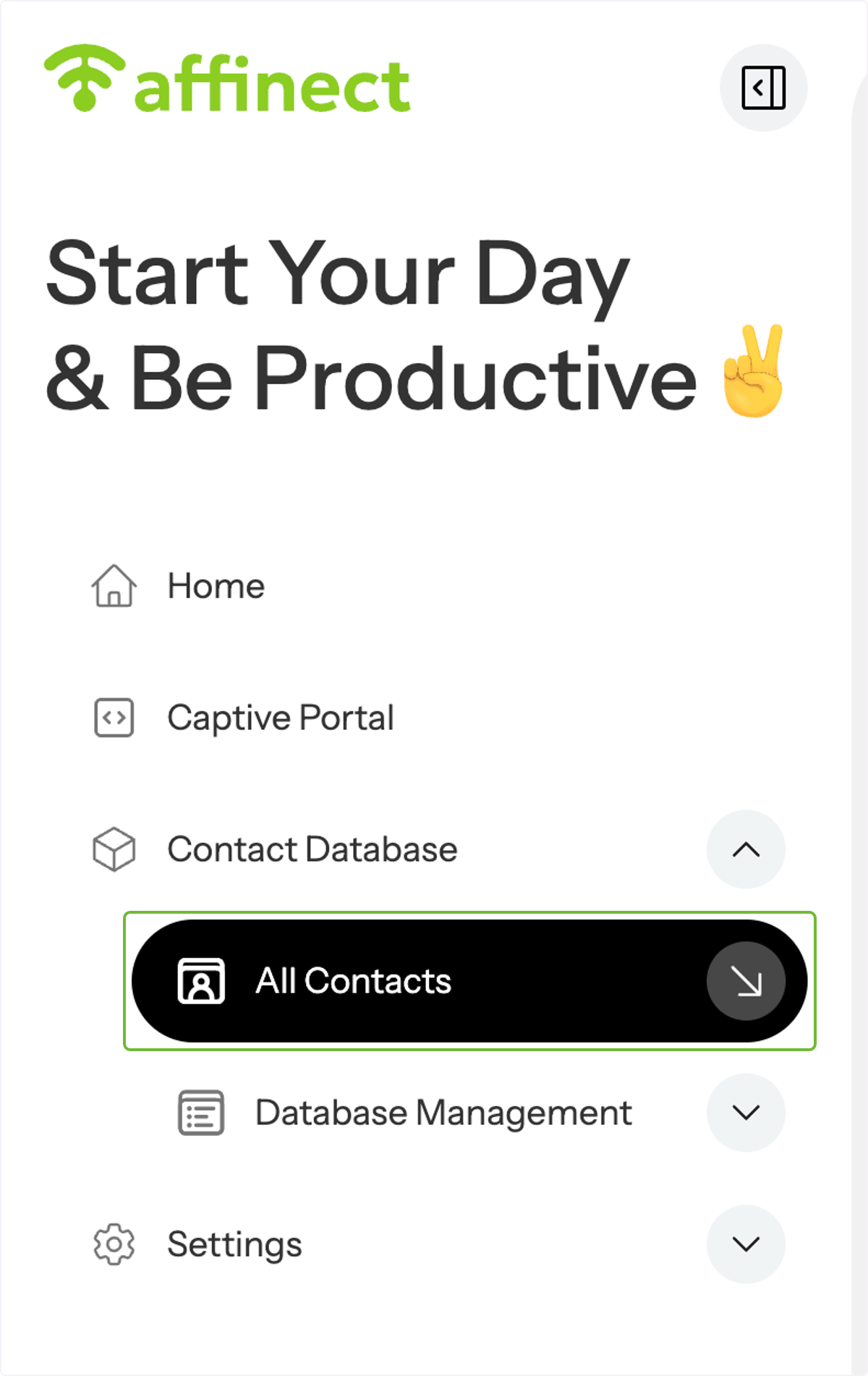
Access All Guest Profiles
A drop-down menu will appear. Click on 'All Contacts'.
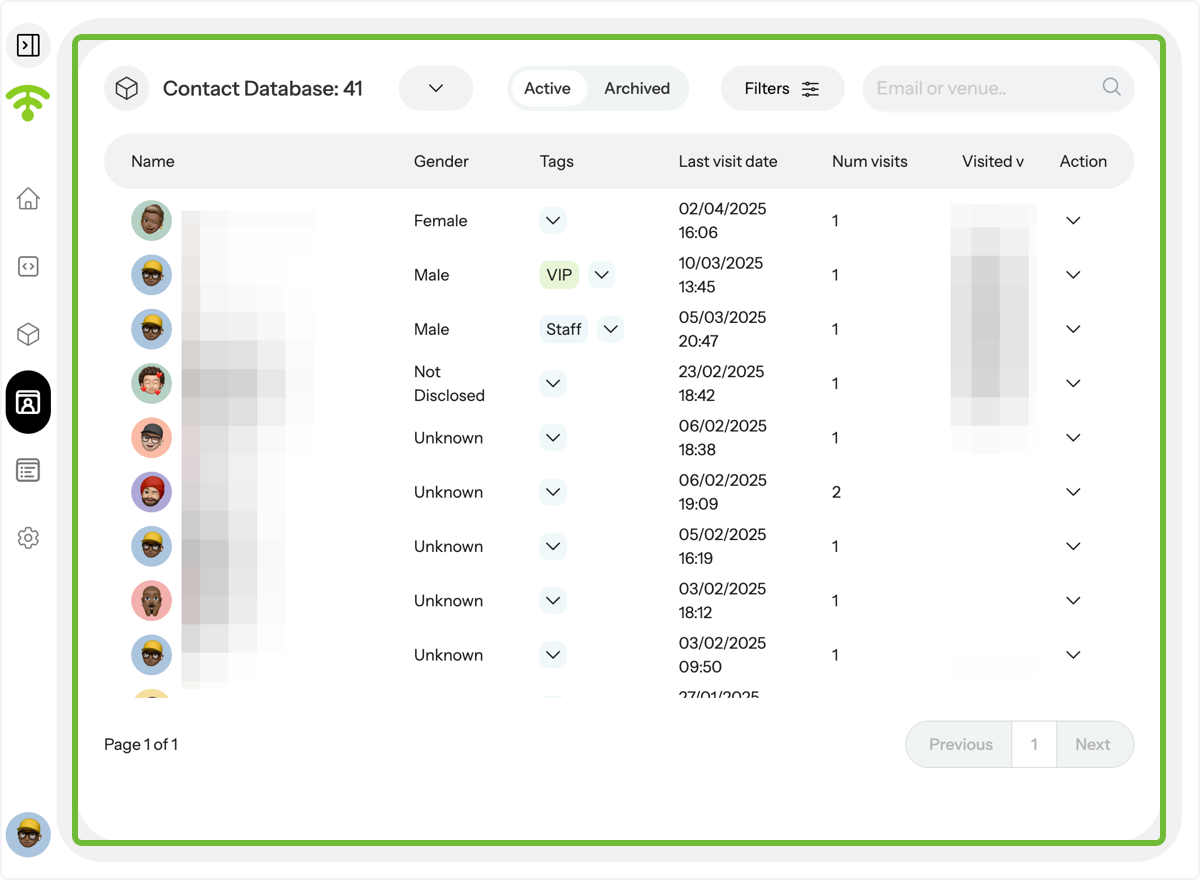
View Contacts' Profiles in Detail
A detailed view of your contacts' profiles will appear.
Use Filters to Narrow Down Contacts
Click on 'Filters' to quickly find and view specific contacts profiles.
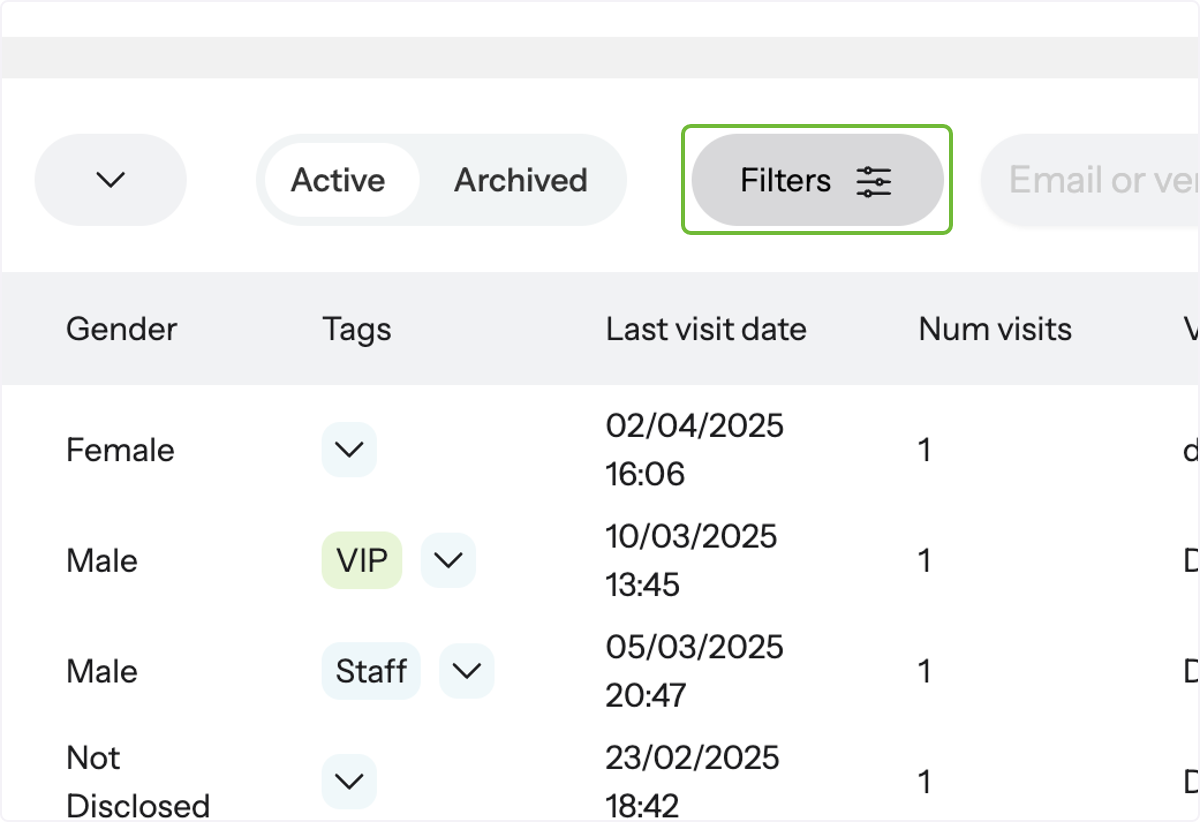
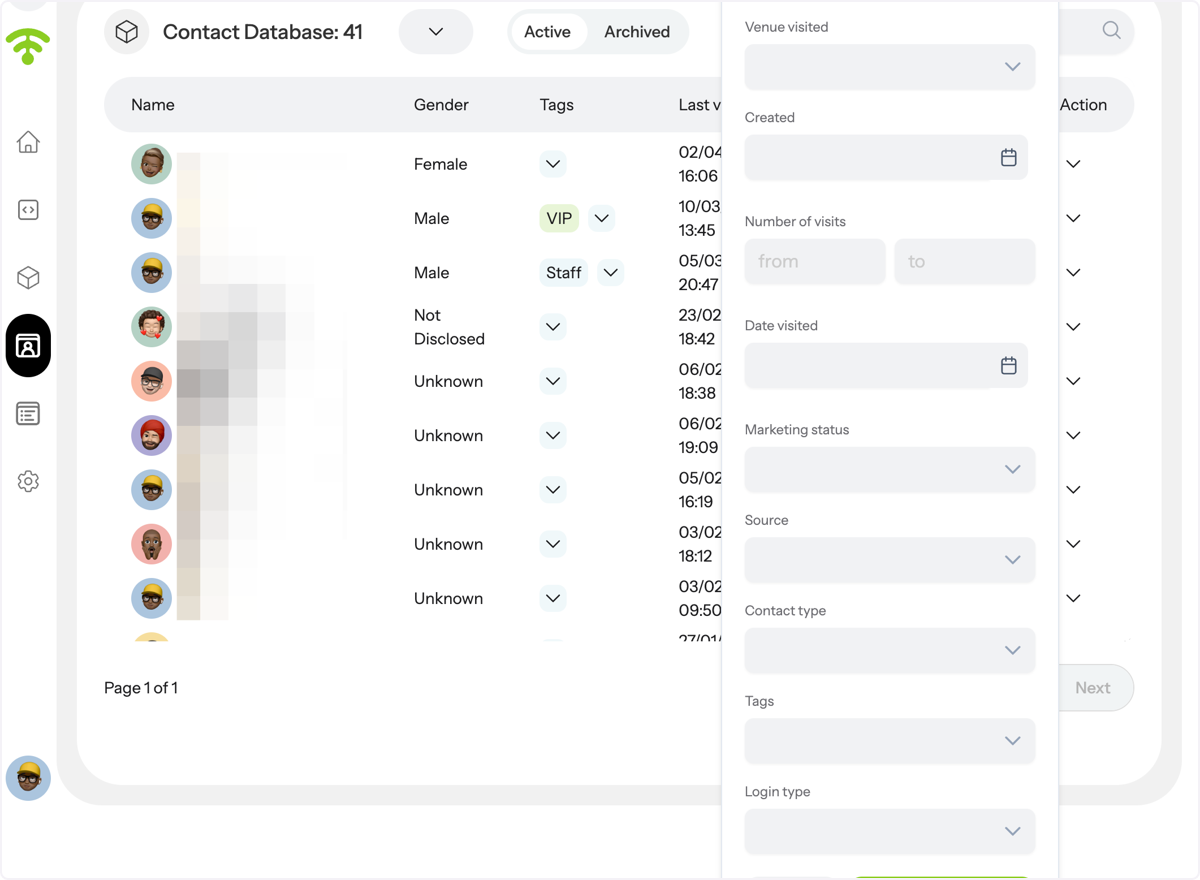
Filter by Key Visitor Attributes
With filters, find guests based on the venue they visited, profile creation date, visit frequency, visit date, marketing status, opt-in source, contact, and login type, and any tags you've assigned.
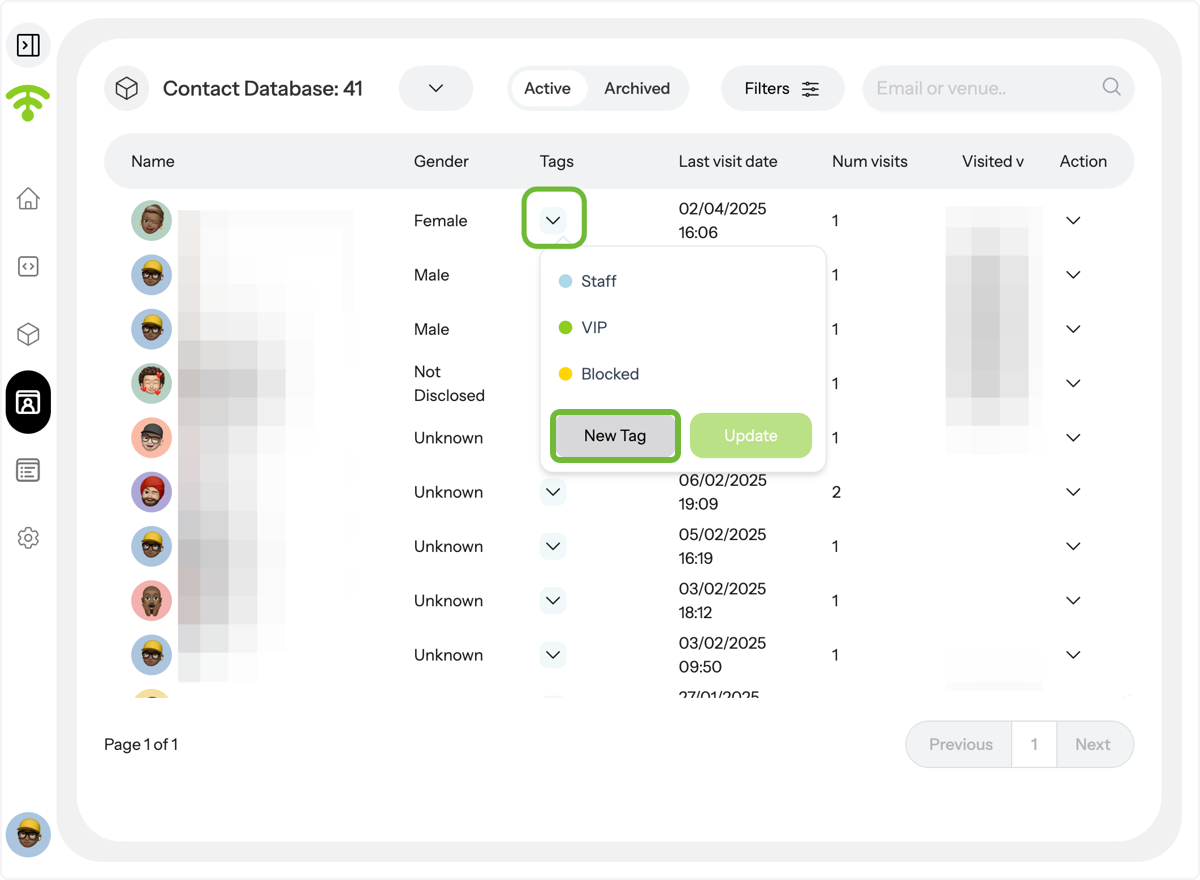
Explore and Apply Contact Tags
Click on the tags drop-down menu next to the guest profile. You'll see existing tags such as 'Staff' (employees at the venue), 'VIP' (your VIP guests), and 'Blocked' (guests who are restricted from Wi-Fi access and removed from analytics).
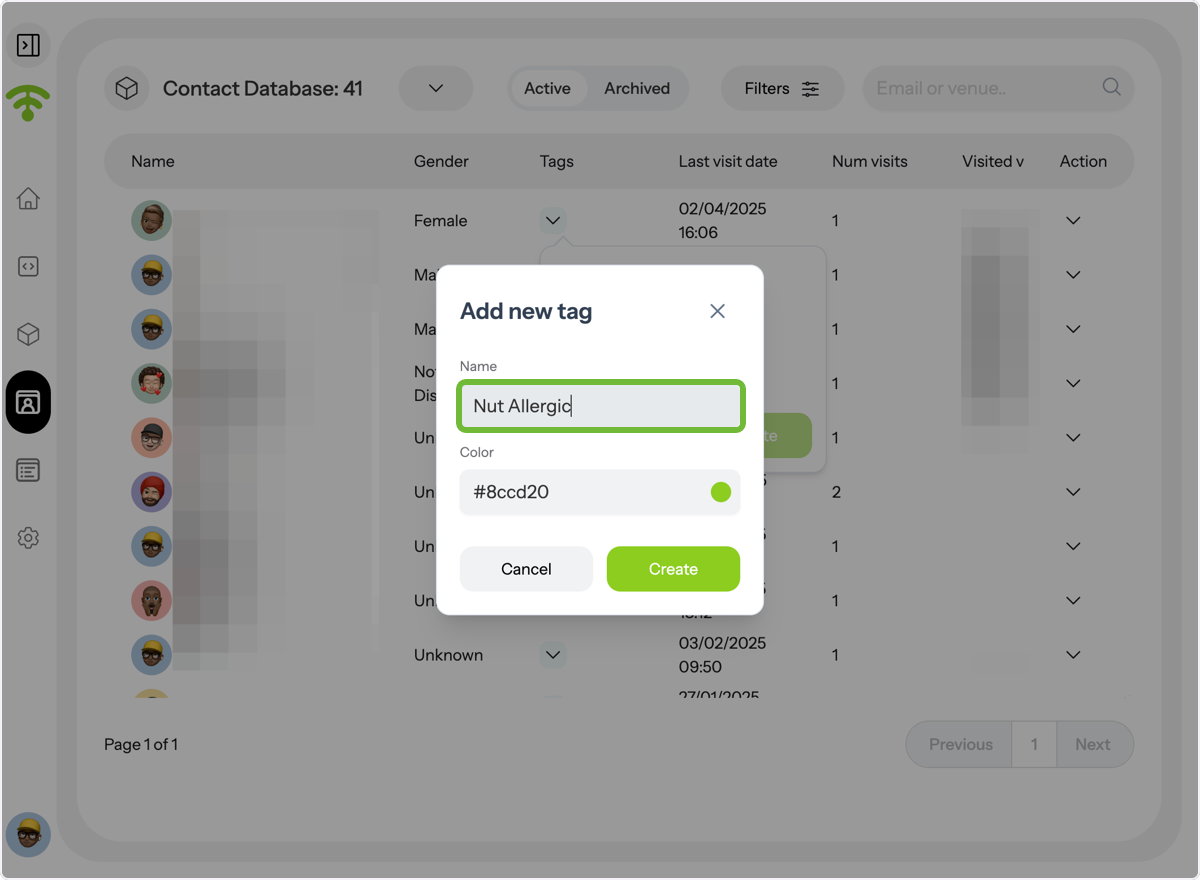
Create Custom Tags for Contacts
You can also add new tags as needed, such as 'Nut Allergic,' and choose a color for each tag to easily identify and manage guest preferences.
Access Individual Guest Profiles
To view the individual detailed profile of a contact, click on the drop-down menu under 'Actions' next to the profile you want to access, then select 'View Profile.'
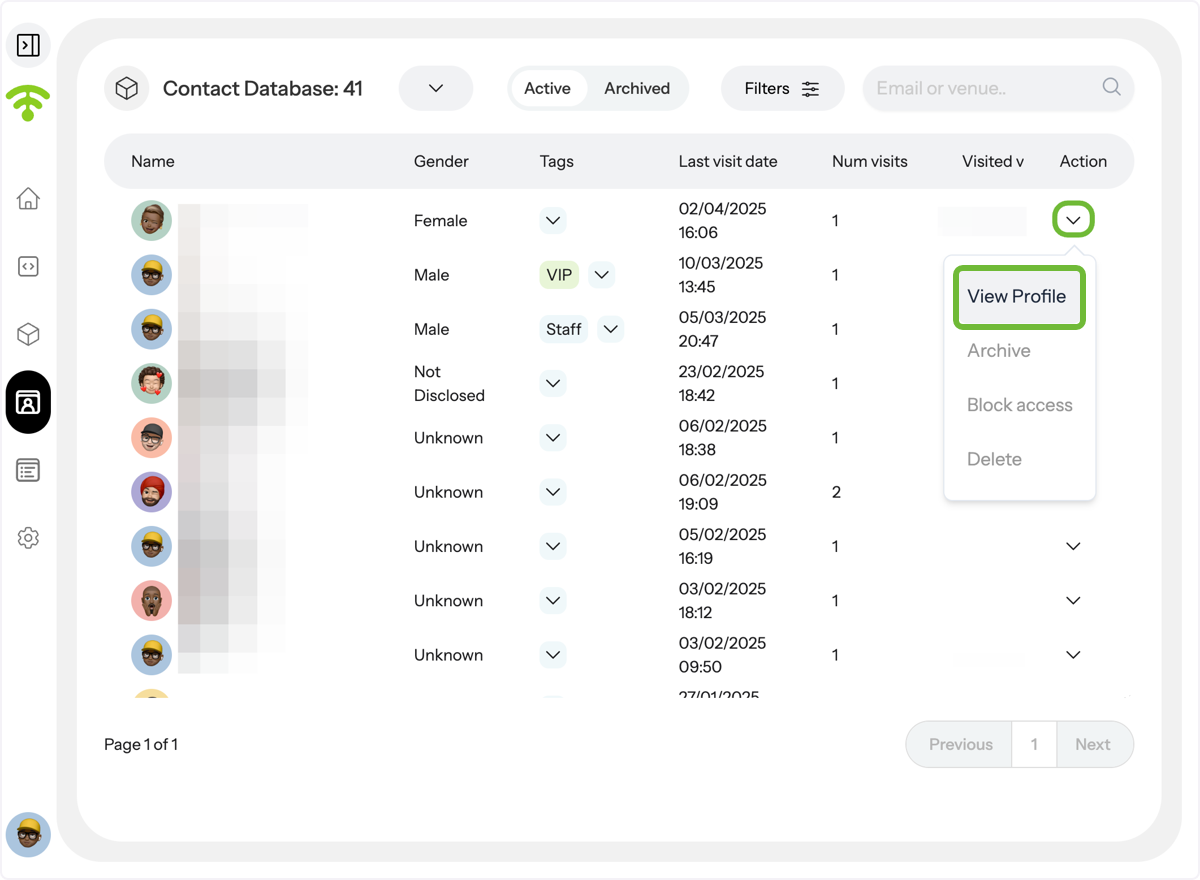
Preview Contact Profile Details
A preview of the contact's detailed profile will appear.
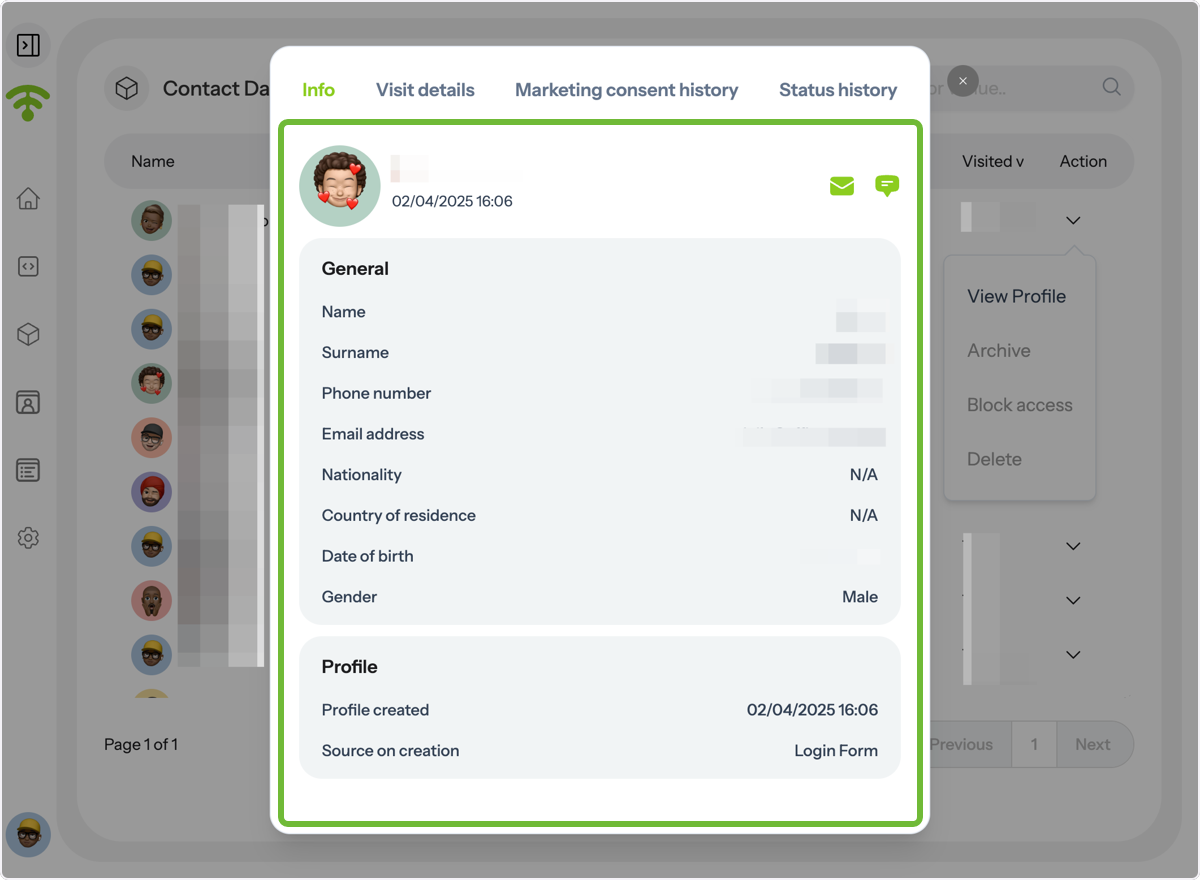
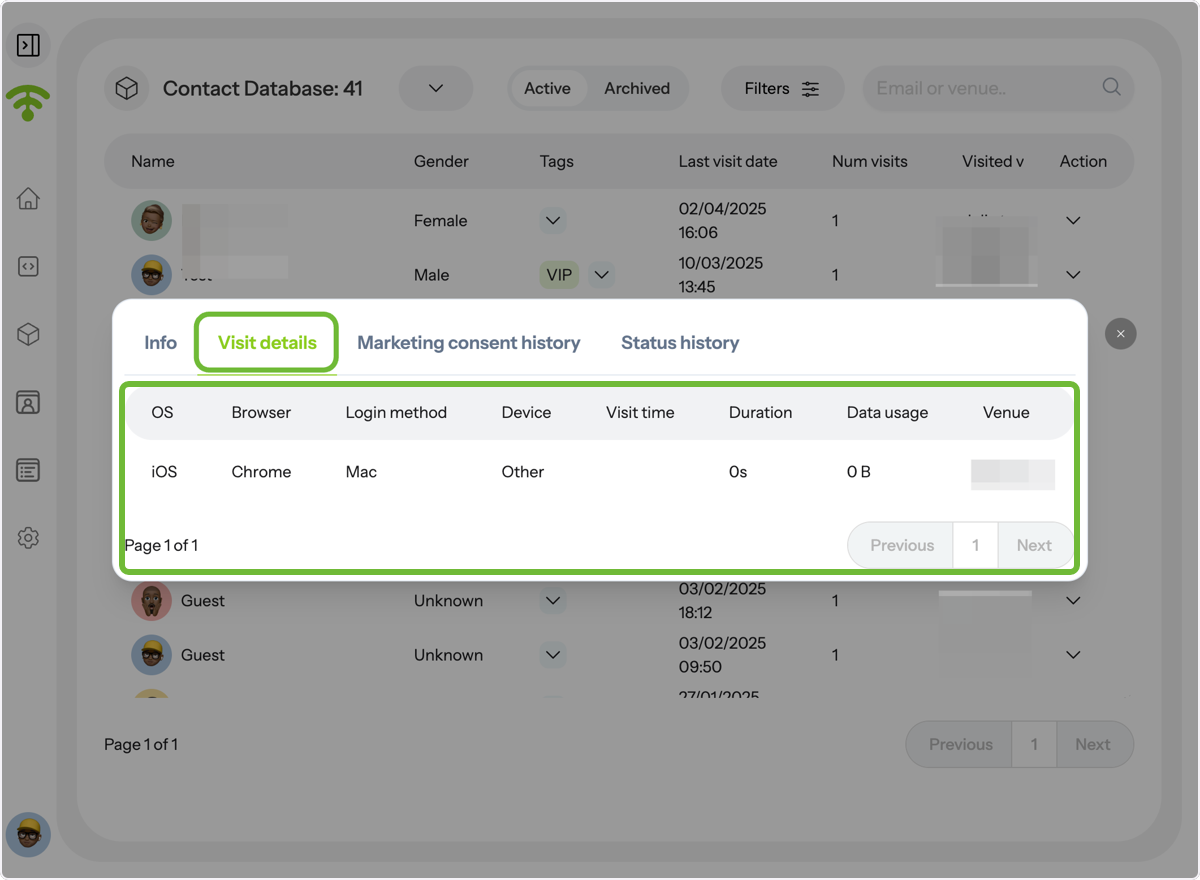
Dive into Visit Details
Click on 'Visit Details' to see the guest's system information (e.g., iOS), browser, login method, device, visit time, dwell time, data usage, and the venue they visited.
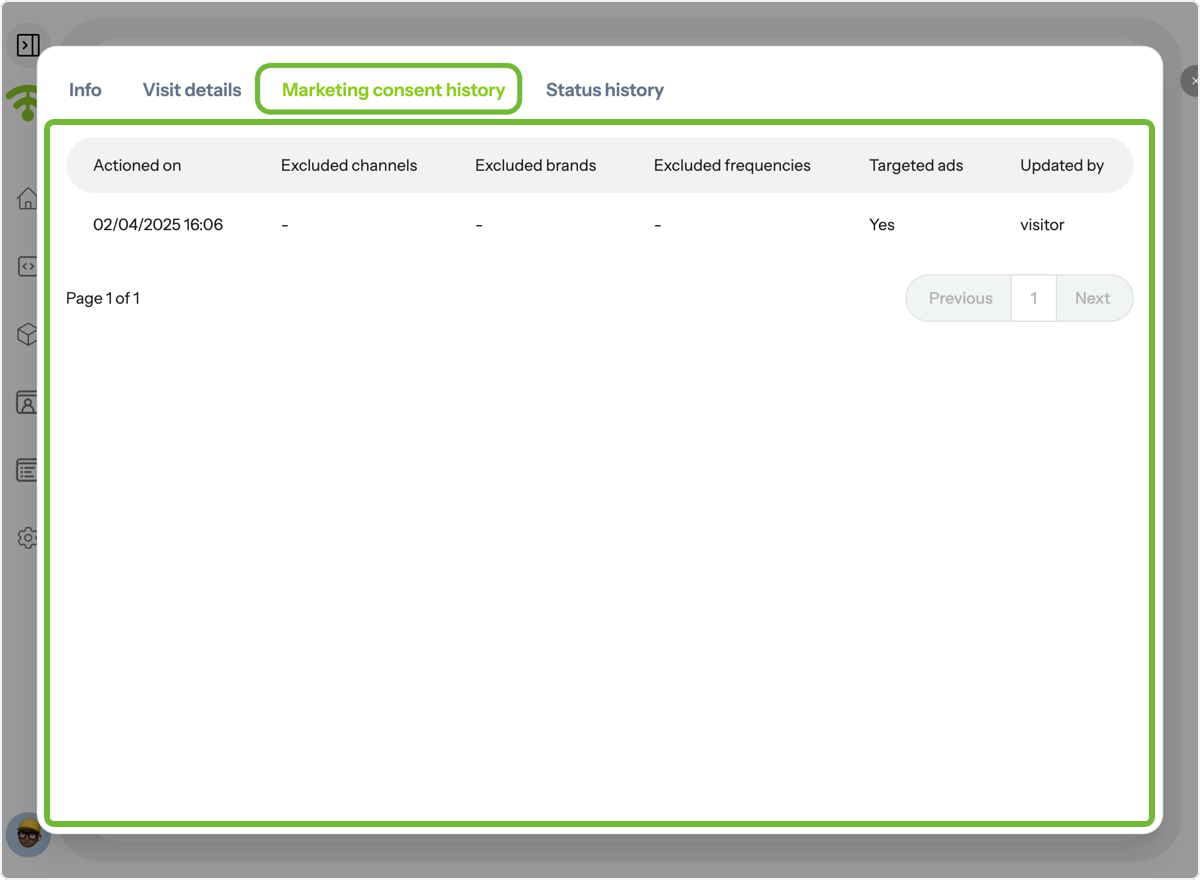
Review Marketing Consent History
Click on Marketing consent history to see contacts' preferences, including any excluded channels, brands, frequencies, and whether they have opted in for targeted ads.
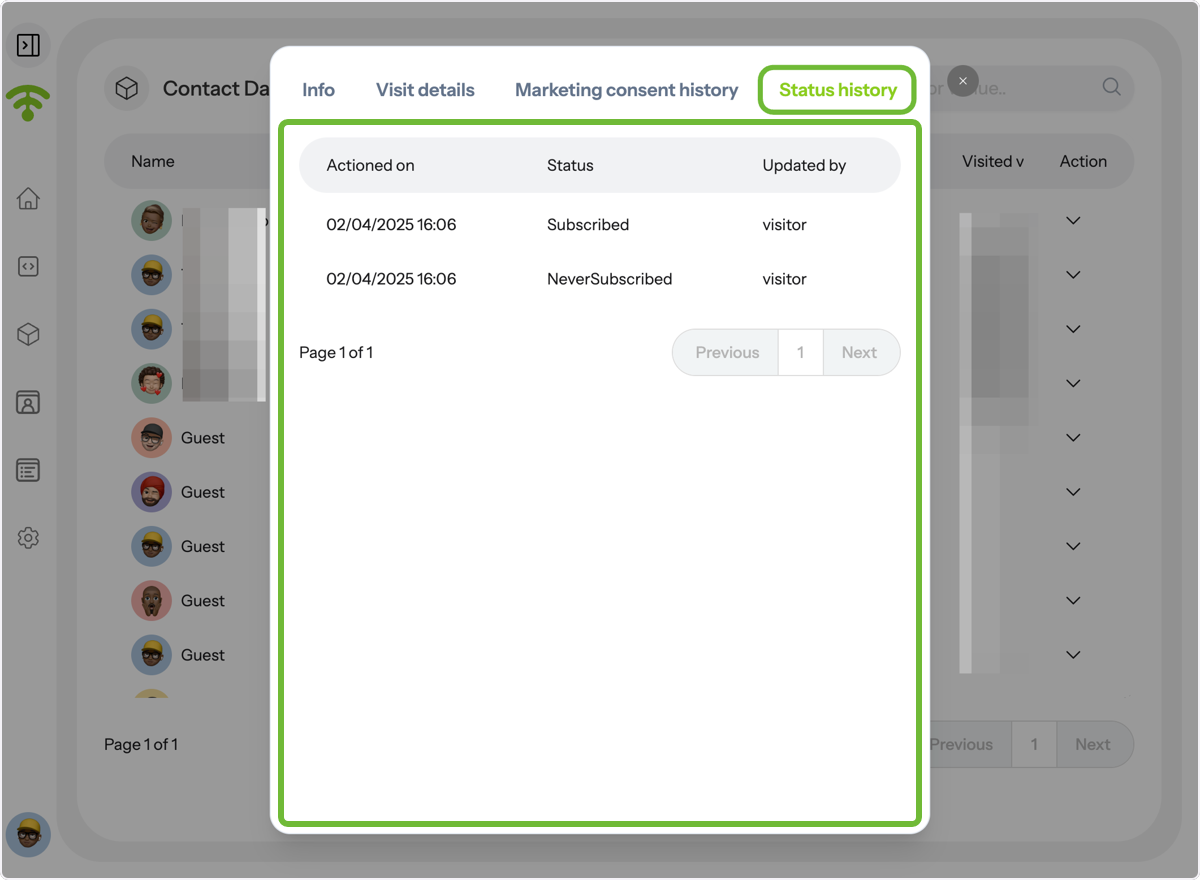
Check Subscription Status History
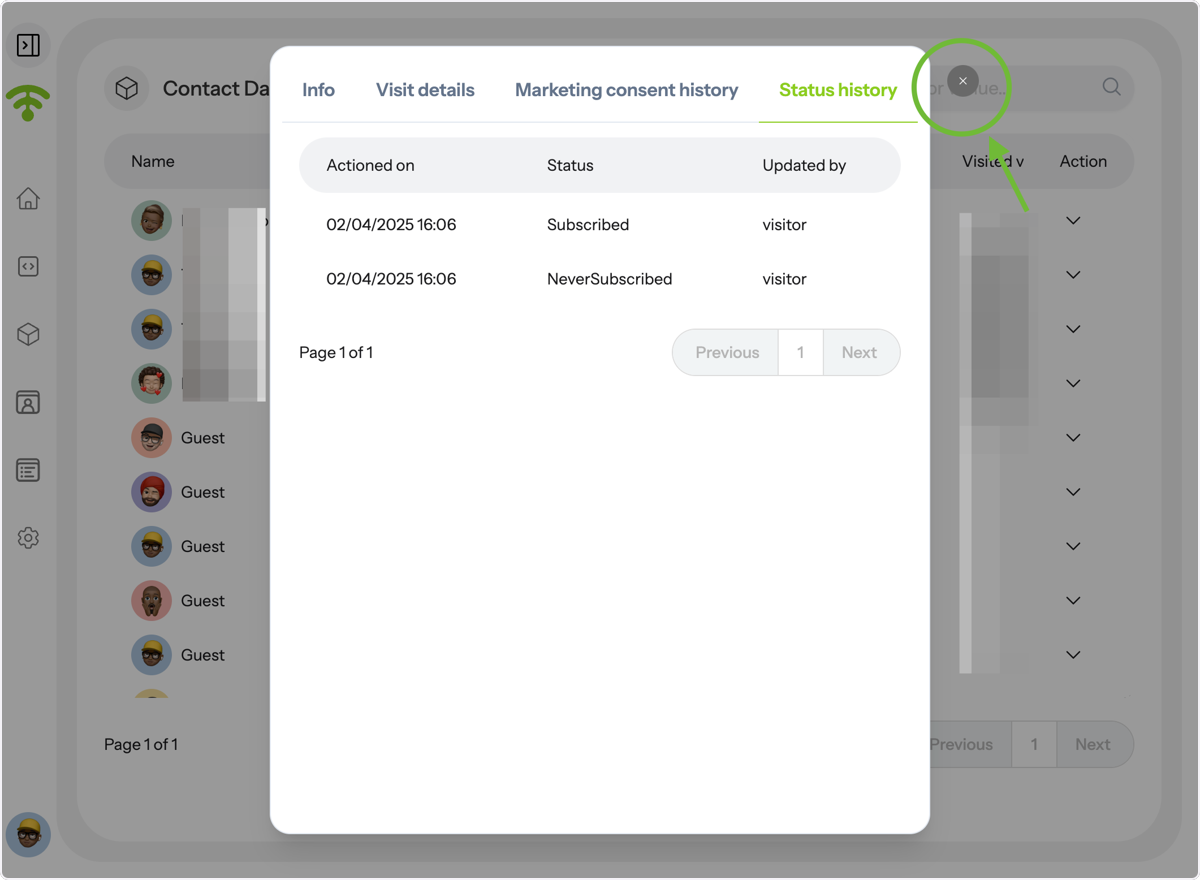
Click on 'Status History' to view when the contact took action and to check whether they subscribed or never subscribed.
Close the Profile View
To close the contact profile, click the X next to the profile tab. Tada! That's all. Happy Connecting and getting to know your guests better!