Learn how to personalize the login page in Affinect. Modify the layout, colors, logo, and other visual elements to align with your brand identity.
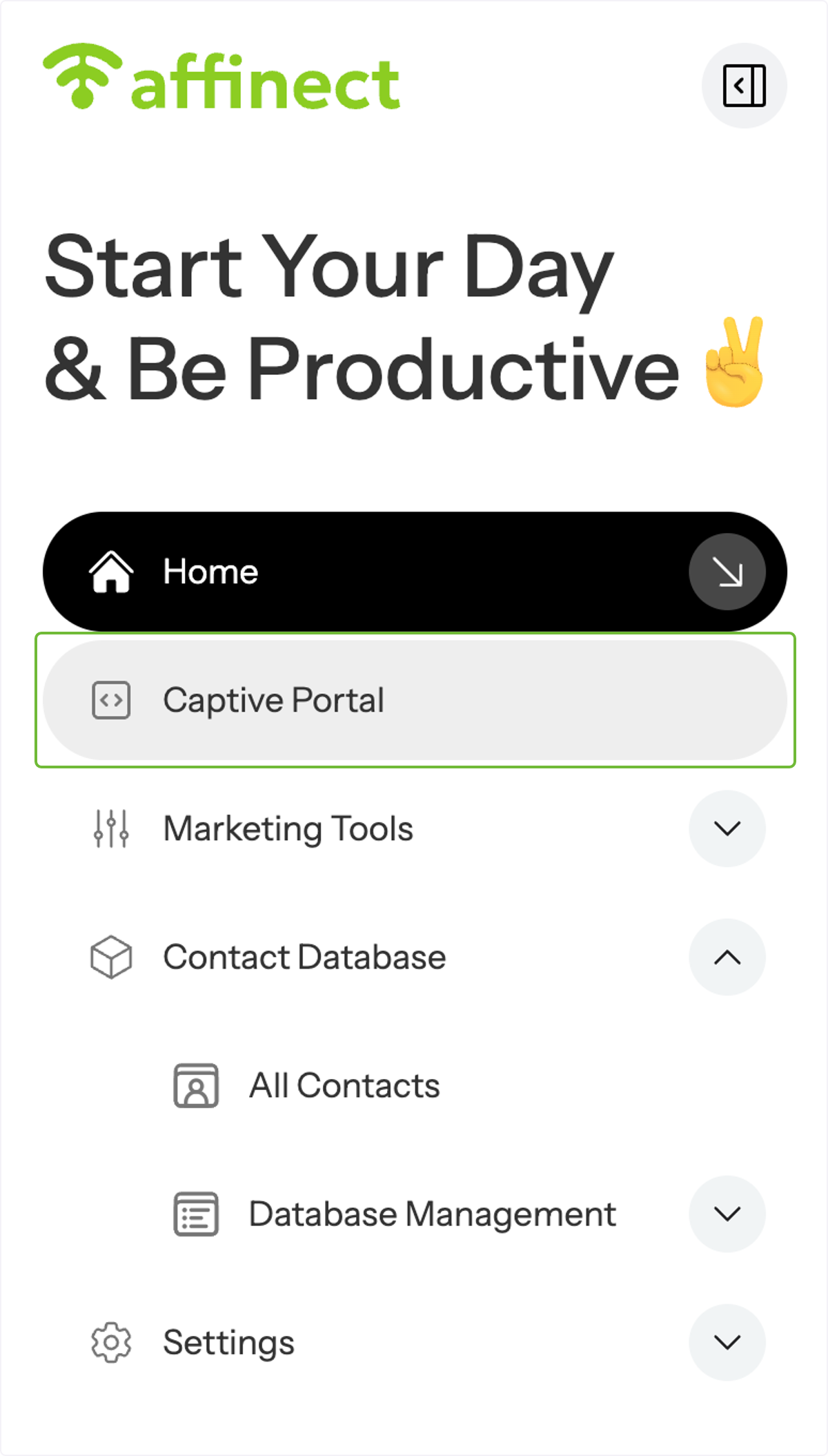
Click on Captive Portal on the left-hand side of the dashboard.
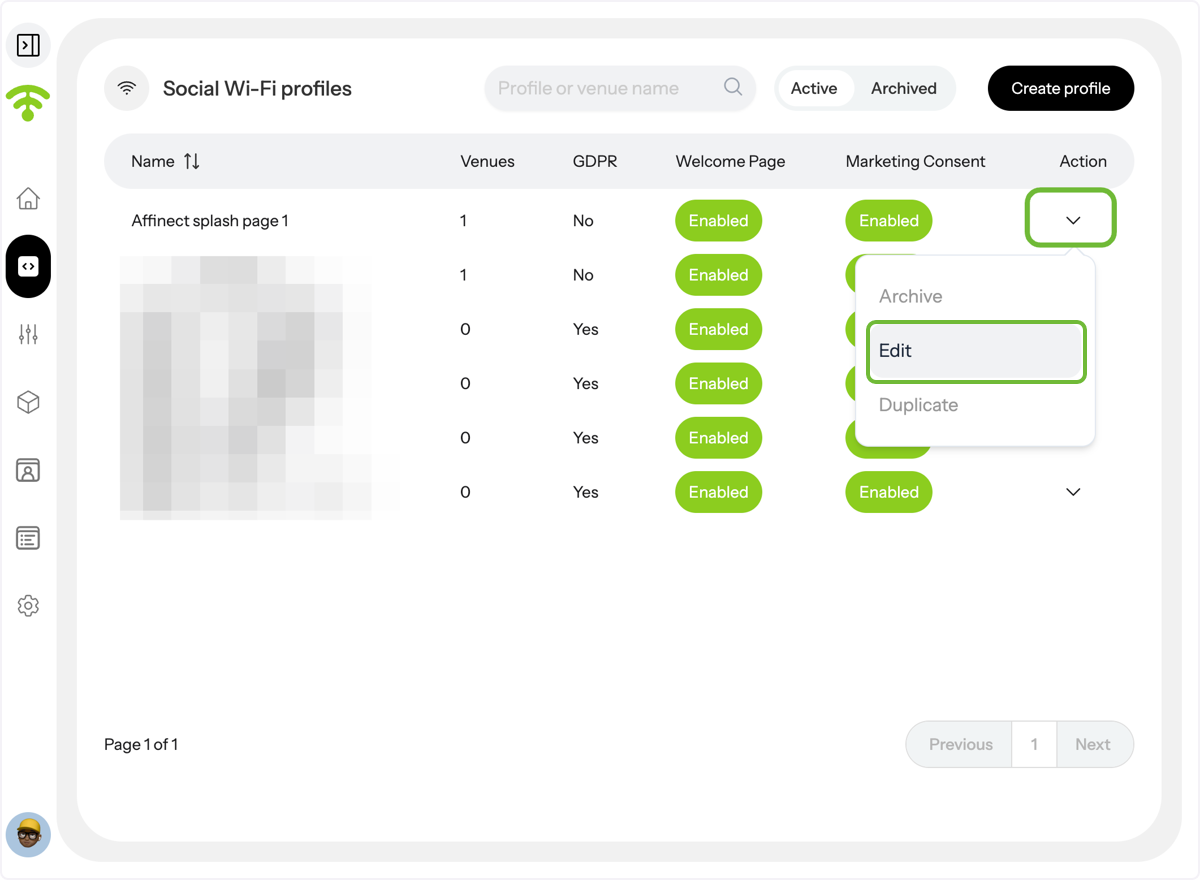
A preview of your social WiFi profiles will appear. Under Actions, click on the profile's drop-down menu you wish to update the login page for and click 'Edit'.
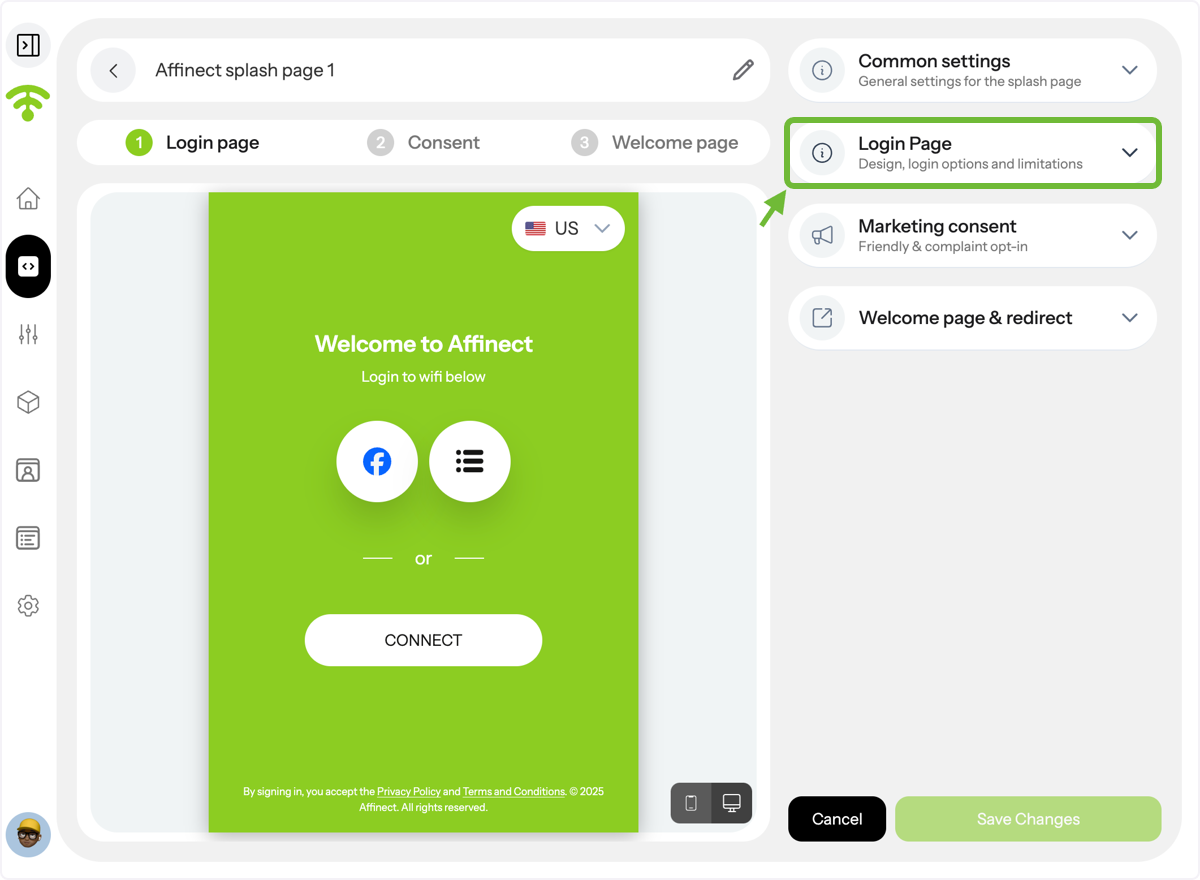
A preview of your splash page will appear with settings on the right-hand side. Click on the Login Page to customize.
Enable the Login page.
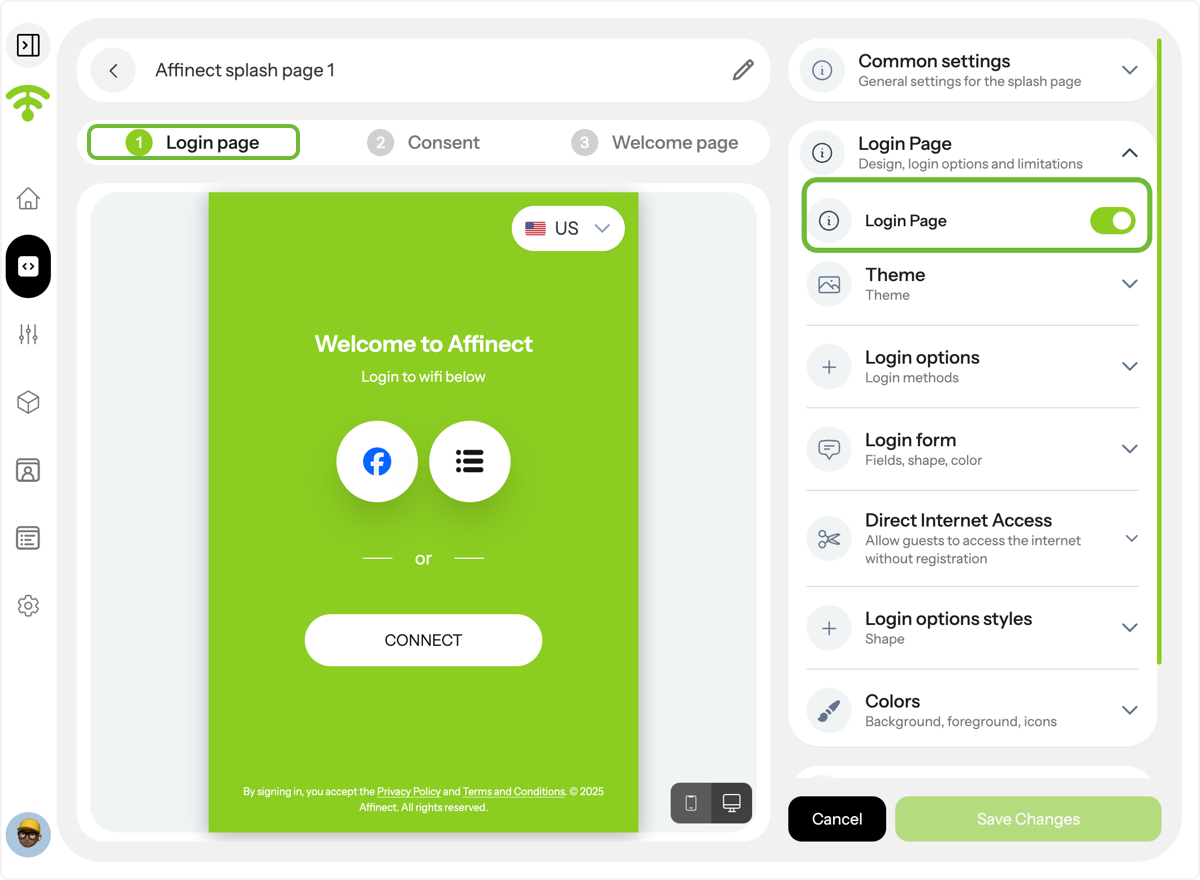
Login Page Themes- Affinect
Click on 'Theme' to pick one that suits your restaurant's ambiance.
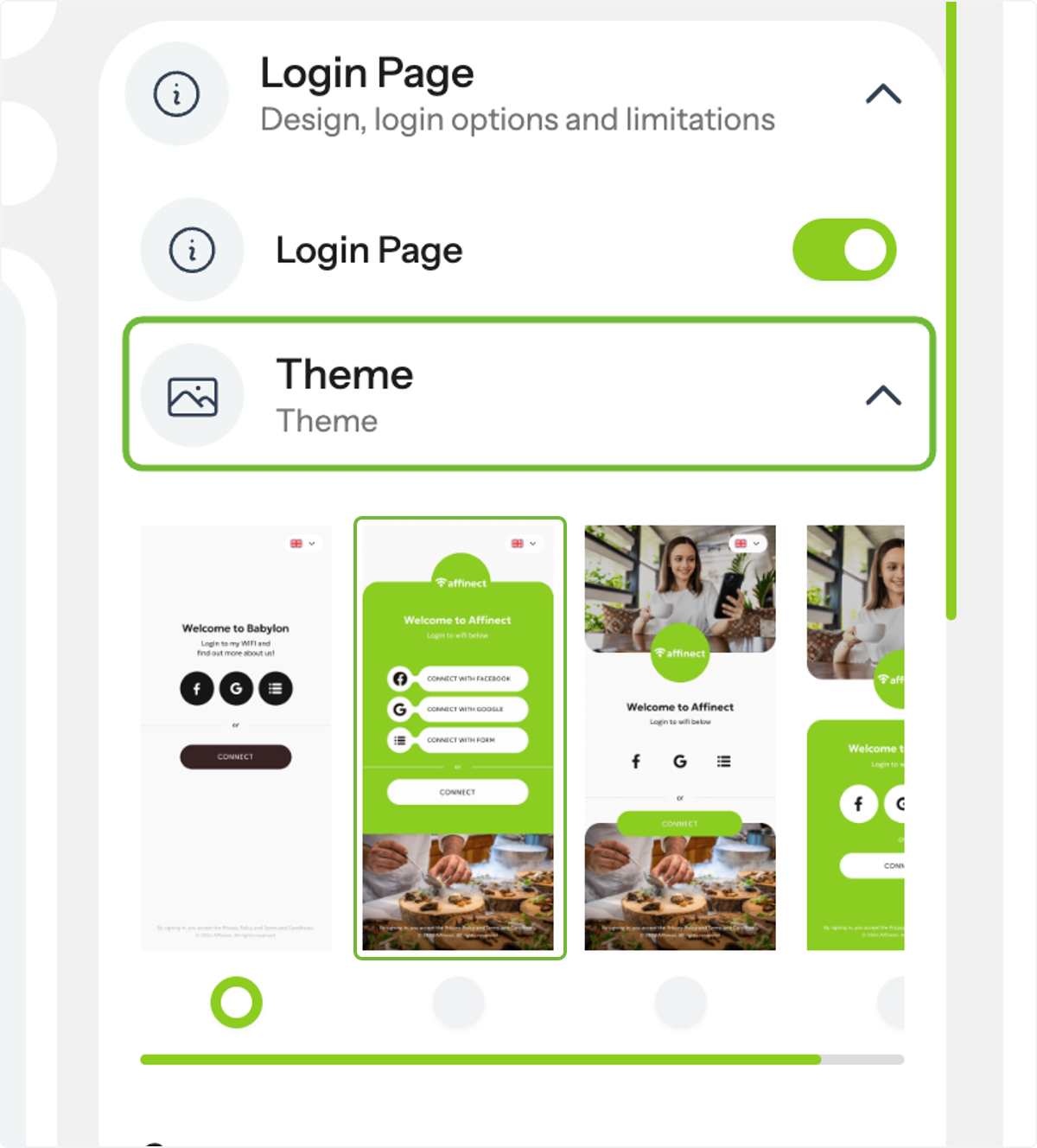
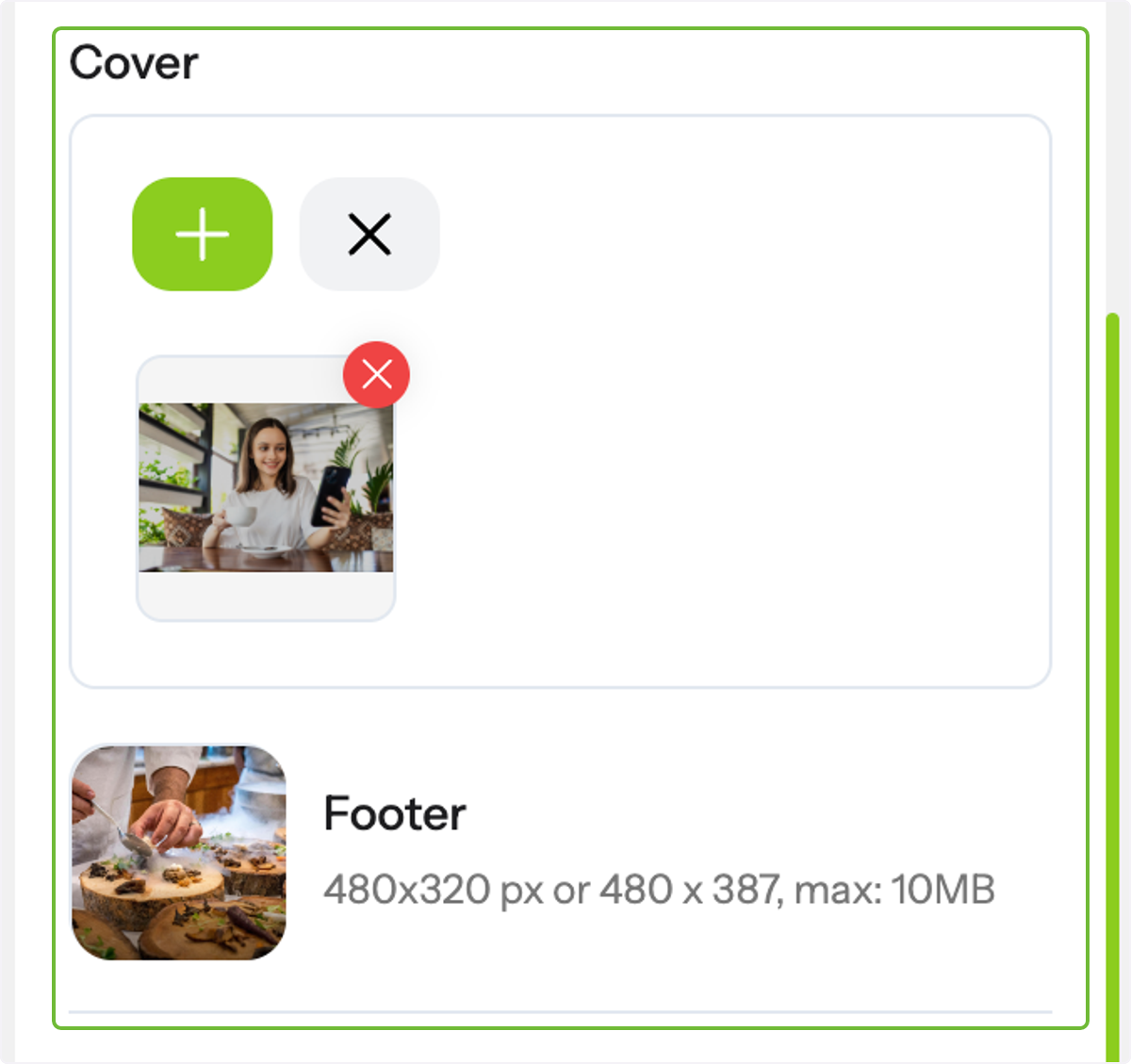
Under 'Themes', you can customize the cover and footer of your choice. You can upload images in GIF or PNG format, with a recommended size of up to 200KB. Multiple images can also be added for a more personalized look.
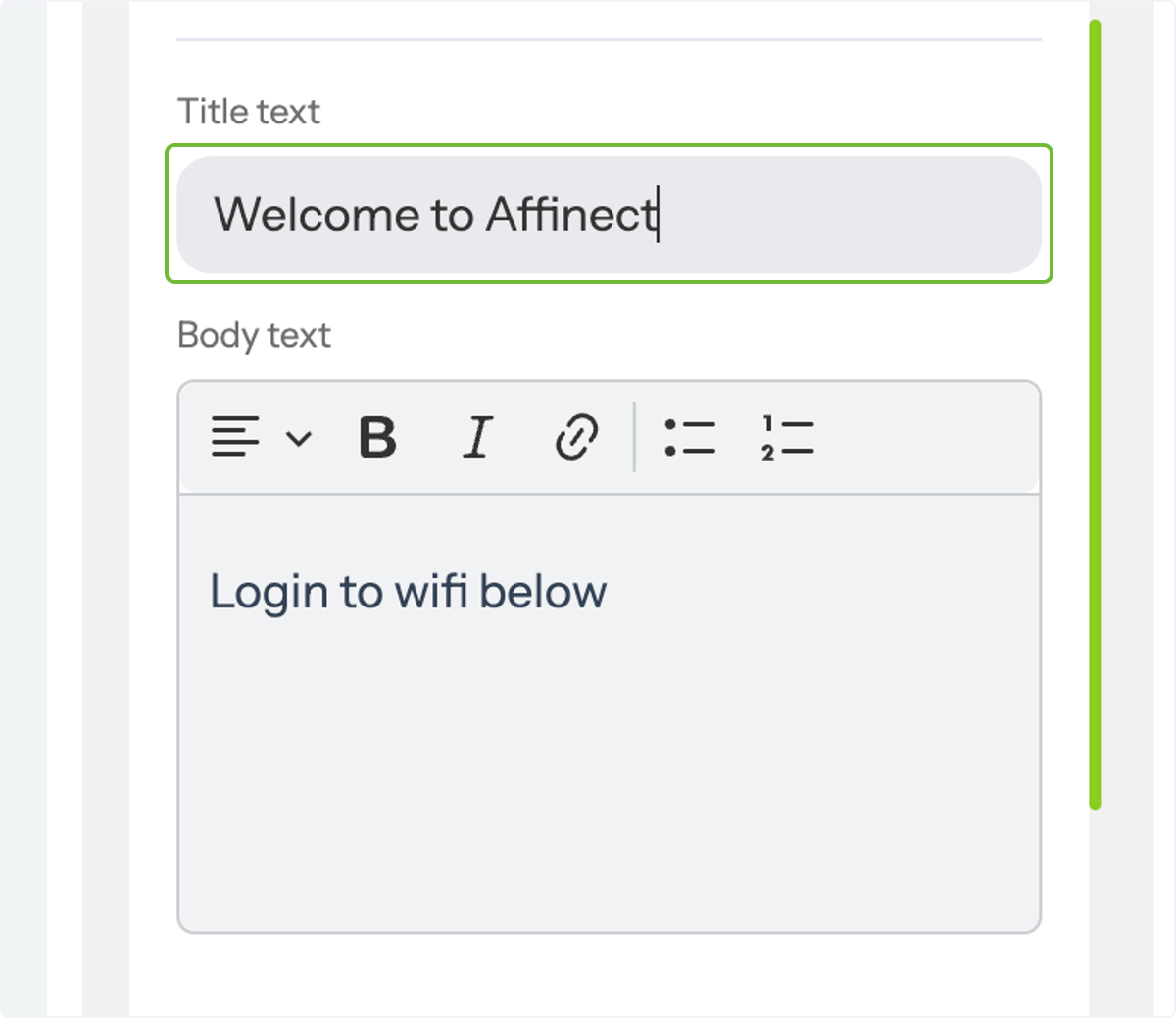
You can also customize the title and body text on the login page to match your brand’s tone and messaging.
Three Login Options to Access Guest WiFi
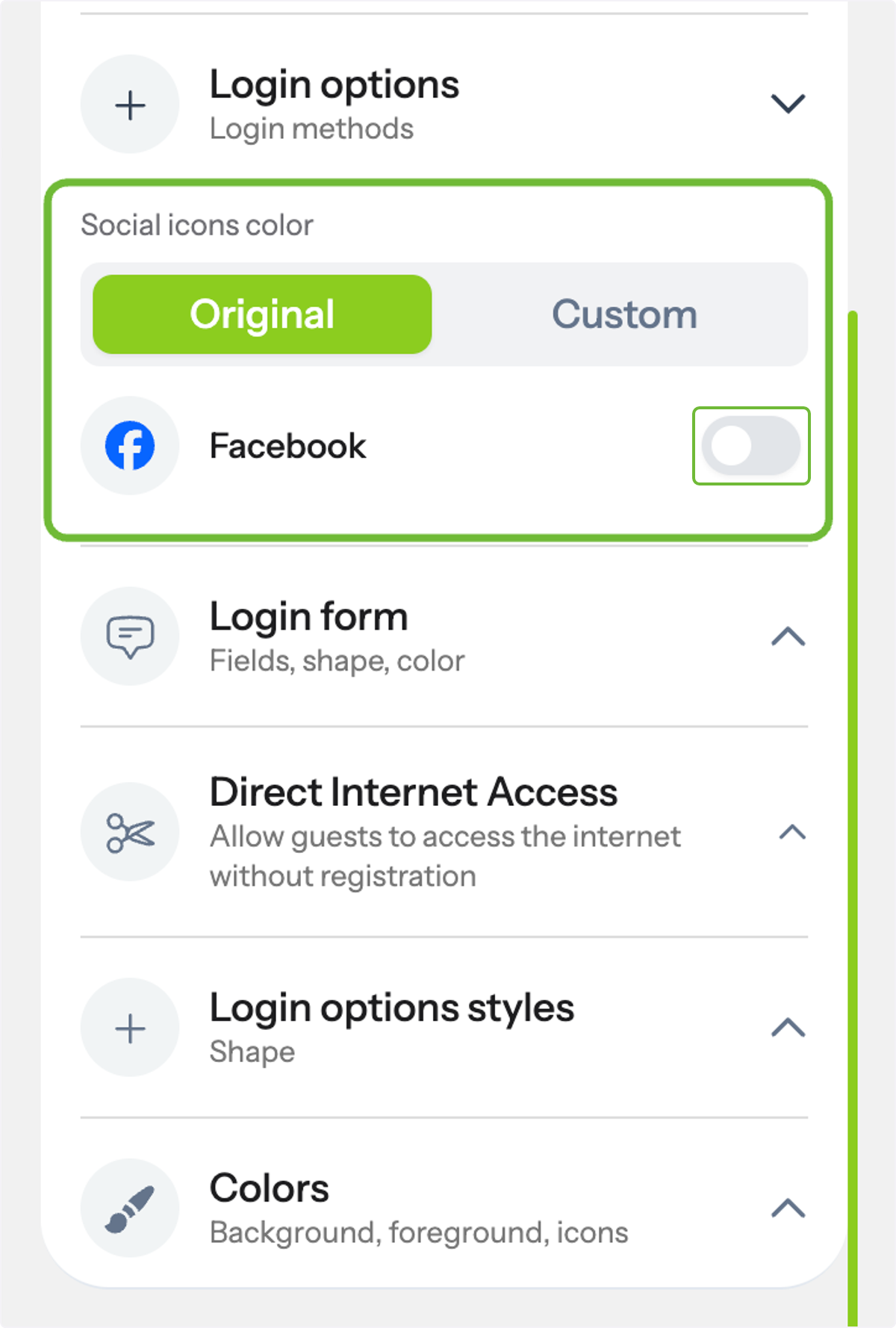
1. Facebook Login
Let users connect using their Facebook accounts. You can use the default Facebook icon color or a custom one to better match your branding.
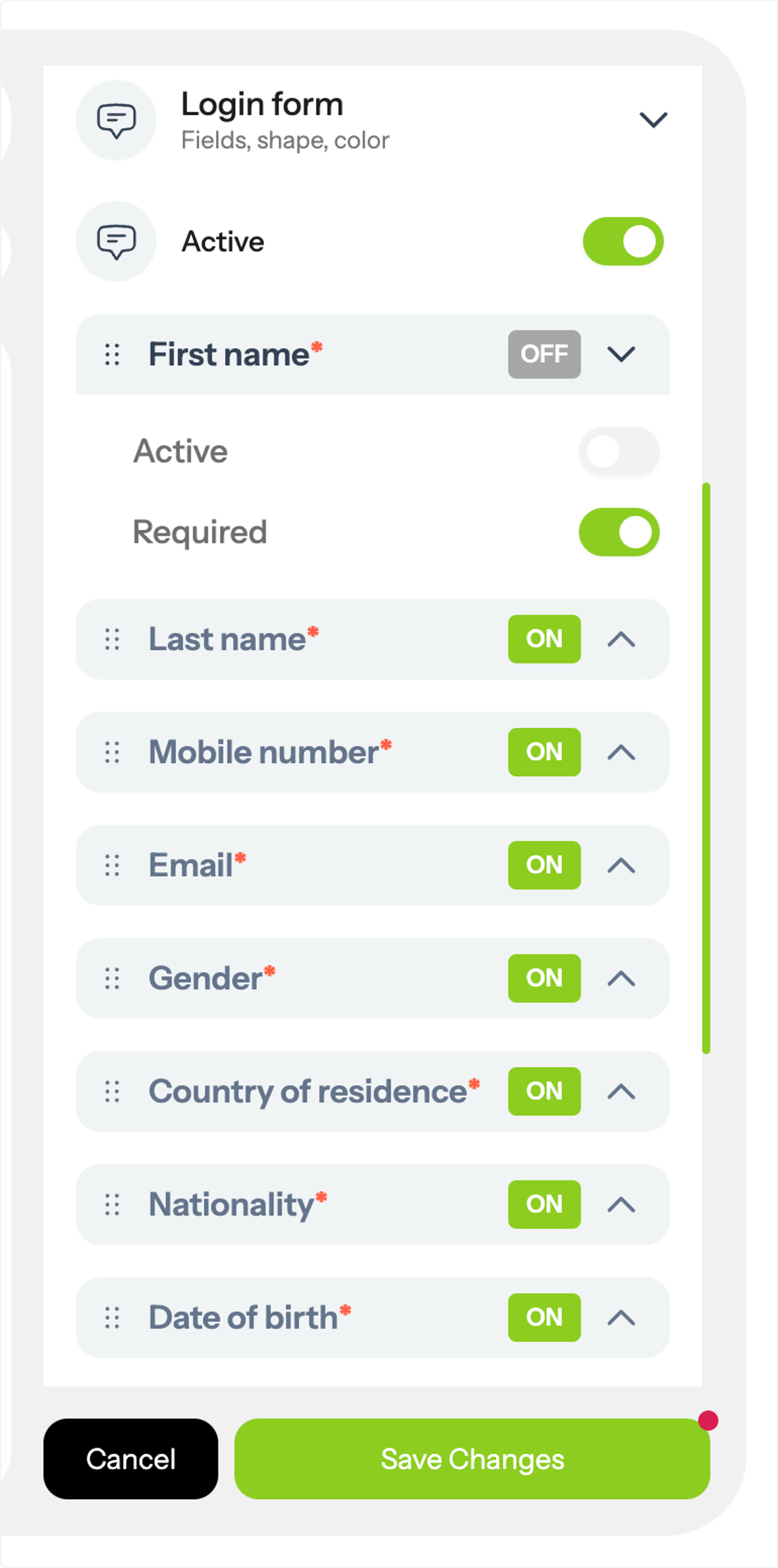
2. Custom Login Form
Let users connect using a login form. You can choose which fields to display, mark them as required or optional, and fully control the form’s layout.
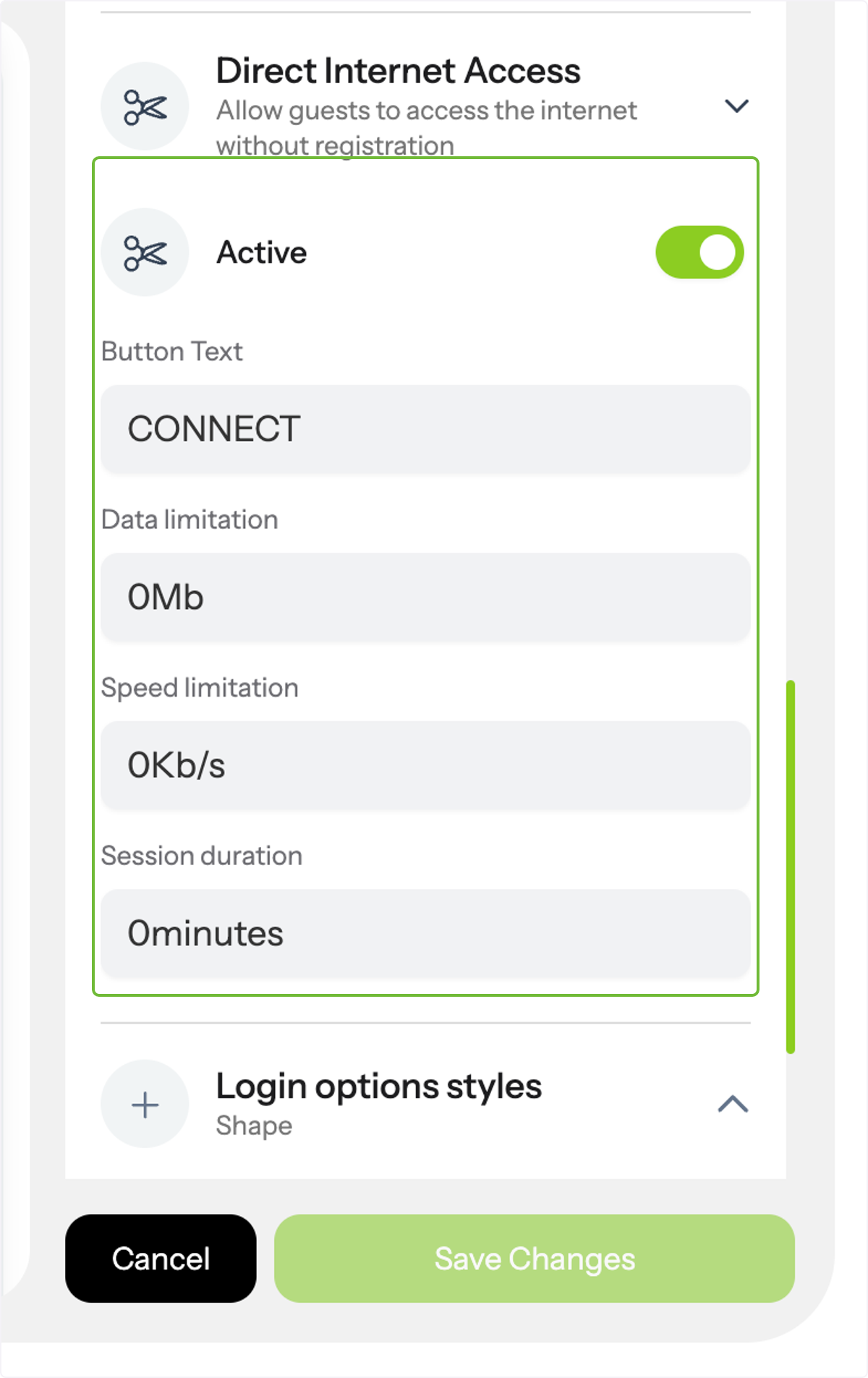
3. Direct Internet Access
Offer users instant internet access without requiring registration—ideal for quick and seamless connections. You can customize button text, set data limits, speed caps, and session durations to manage network usage.
Login Styles- Affinect
Login Options styles
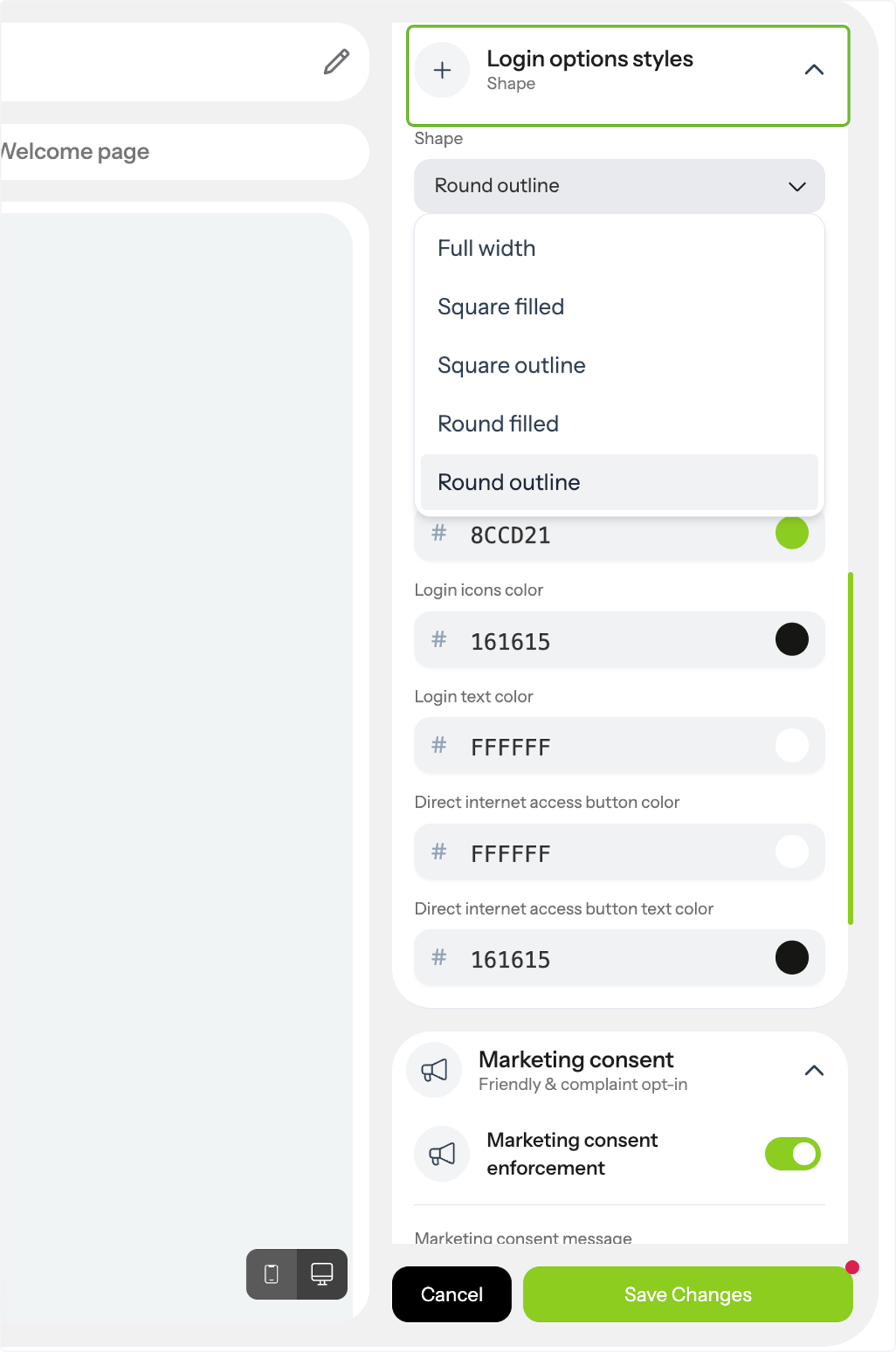
Click on Login Options Styles to begin customizing your login interface.
Choose the shape of your login buttons and personalize the colors of foreground text, input fields, login icons, and the Direct Internet Access button to match your overall theme and design.
Once you're done, do not forget to click 'Save Changes'. Tada! That's all. Happy Connecting and Customizing!