Segment smarter with multi-condition targeting. In this step-by-step guide, you will learn how to create audience groups using combinations of different conditions so you can run hyper-targeted campaigns like weekday lunch promos, location-based offers, and much more.
Go to the Targets Section in the Affinect dashboard.
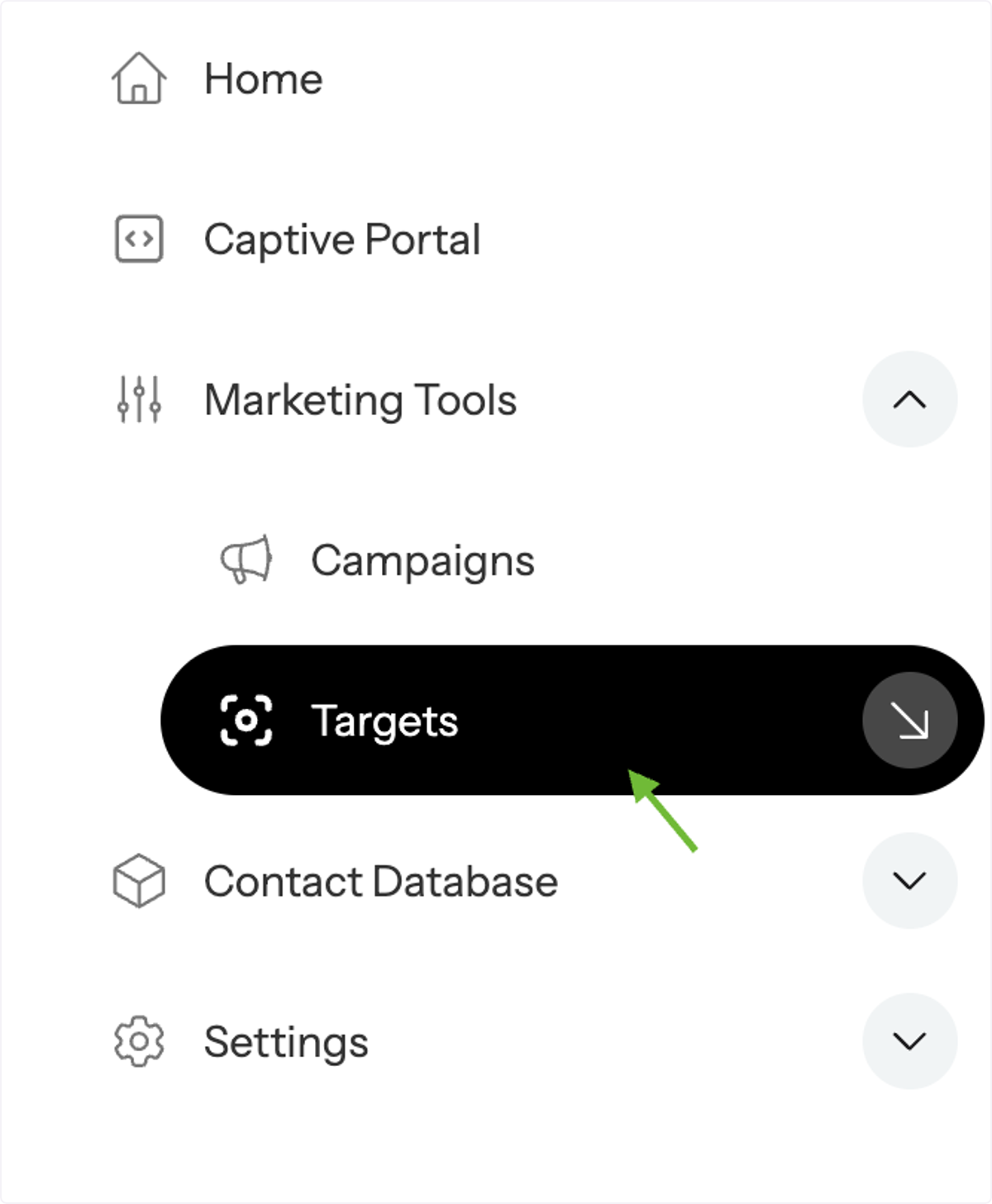
From the dashboard, click on Marketing Tools and select Targets from the Campaigns menu on the left-hand side.
Create a New Target.
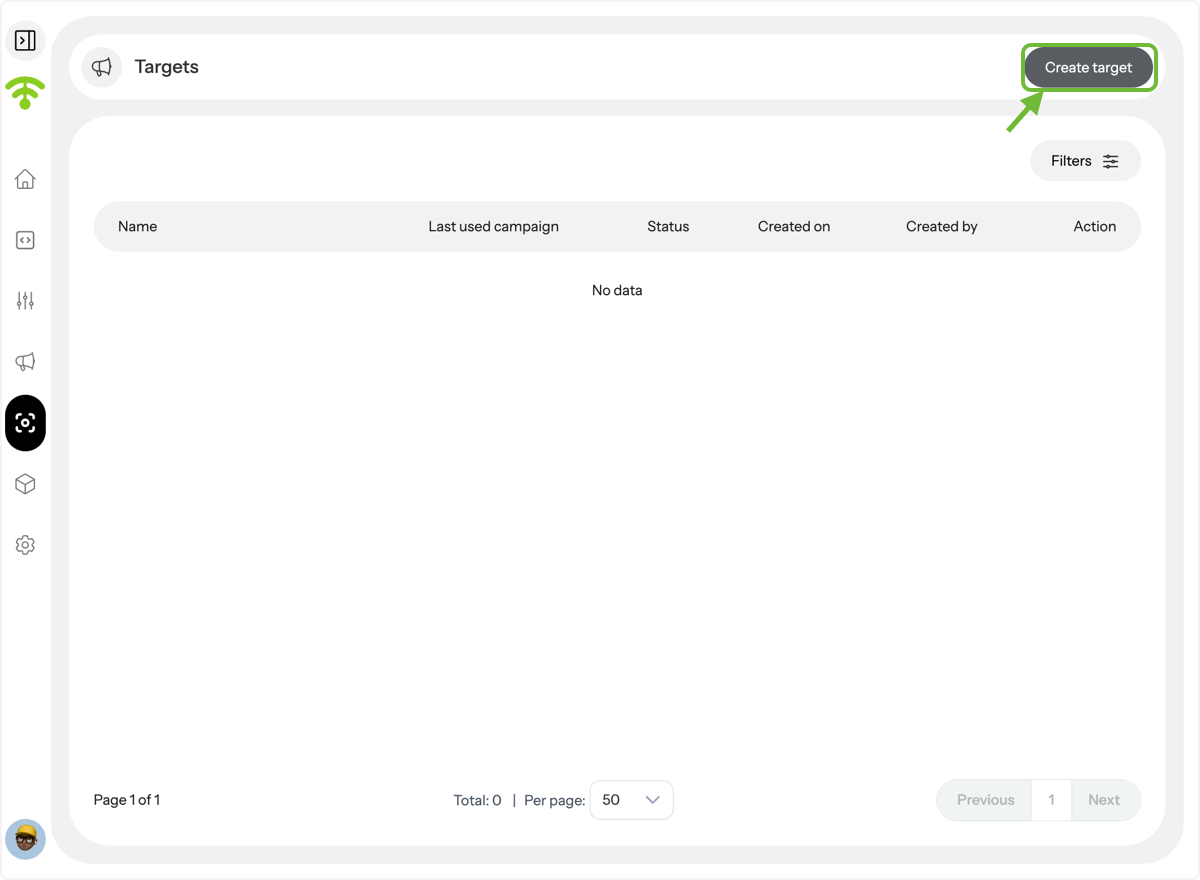
You’ll see a preview of all your existing targets. If none exist, the screen will show “No Data.” Click Create Target to begin.
Name Your Target.
Let’s say you want to target two types of visitors:
- Visitors who come during lunch hours at Venue A
- Visitors who visit Venue B on weekdays
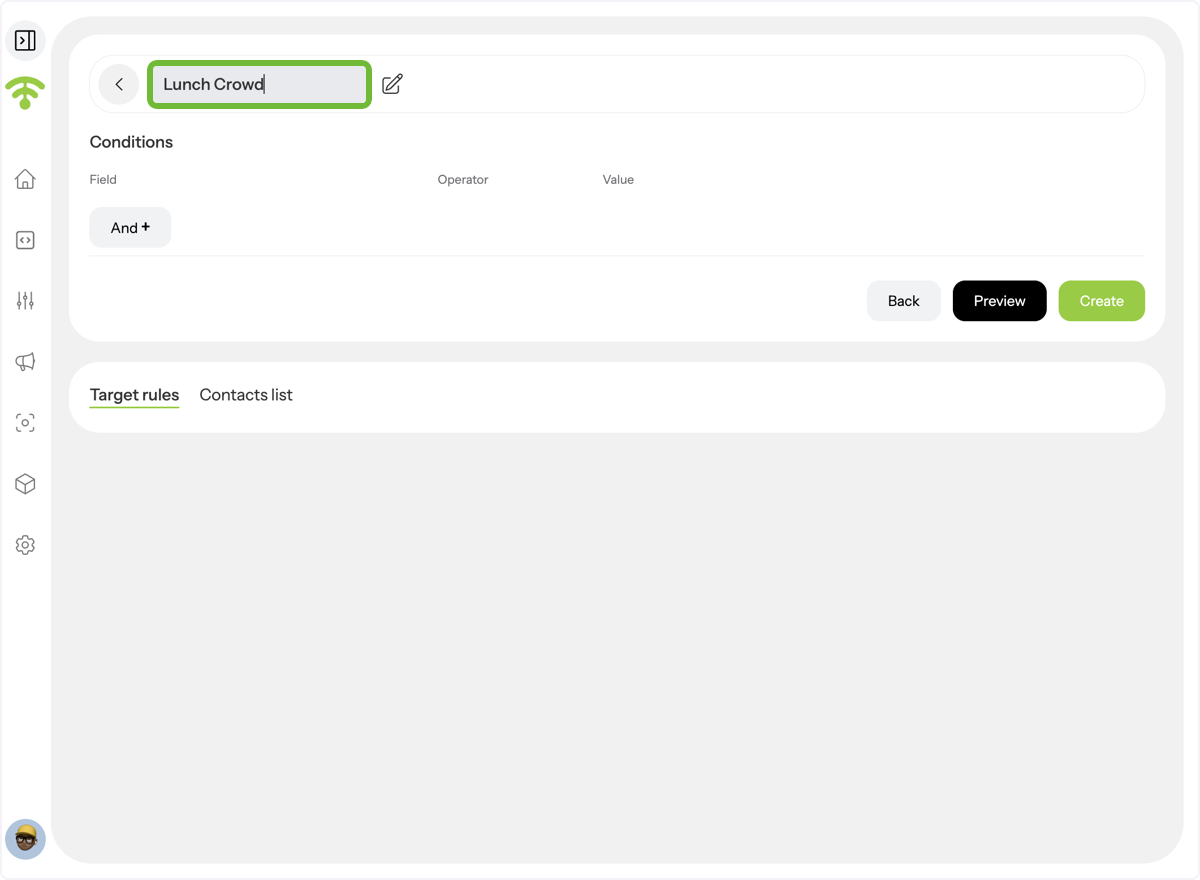
Let's create one smart target group using both of these conditions and name it "Lunch Crowd".
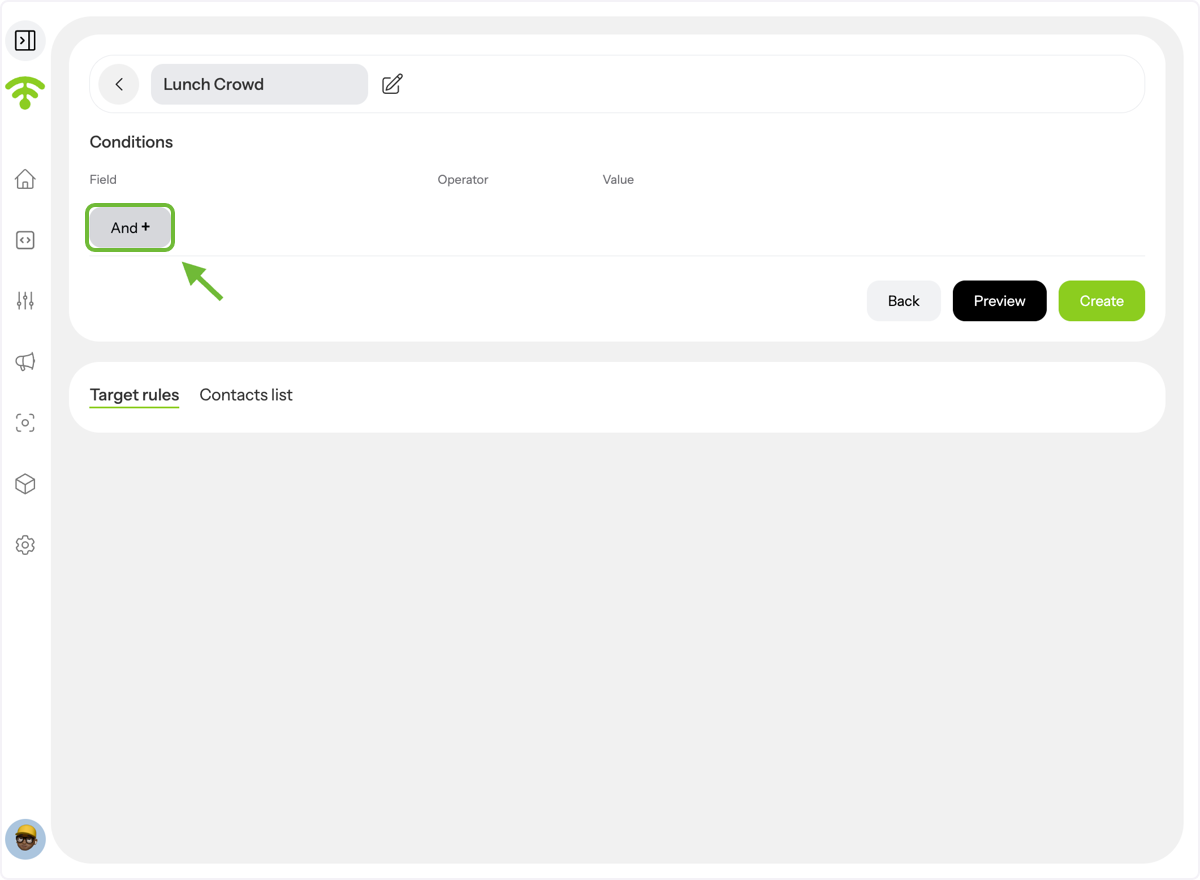
Add Your First Condition.
Click AND + to add your first condition.
Set the First Field.
Choose:
- Field: Venue Visited
- Operator: Equals To
- Value: Venue A
This targets visitors of Venue A.
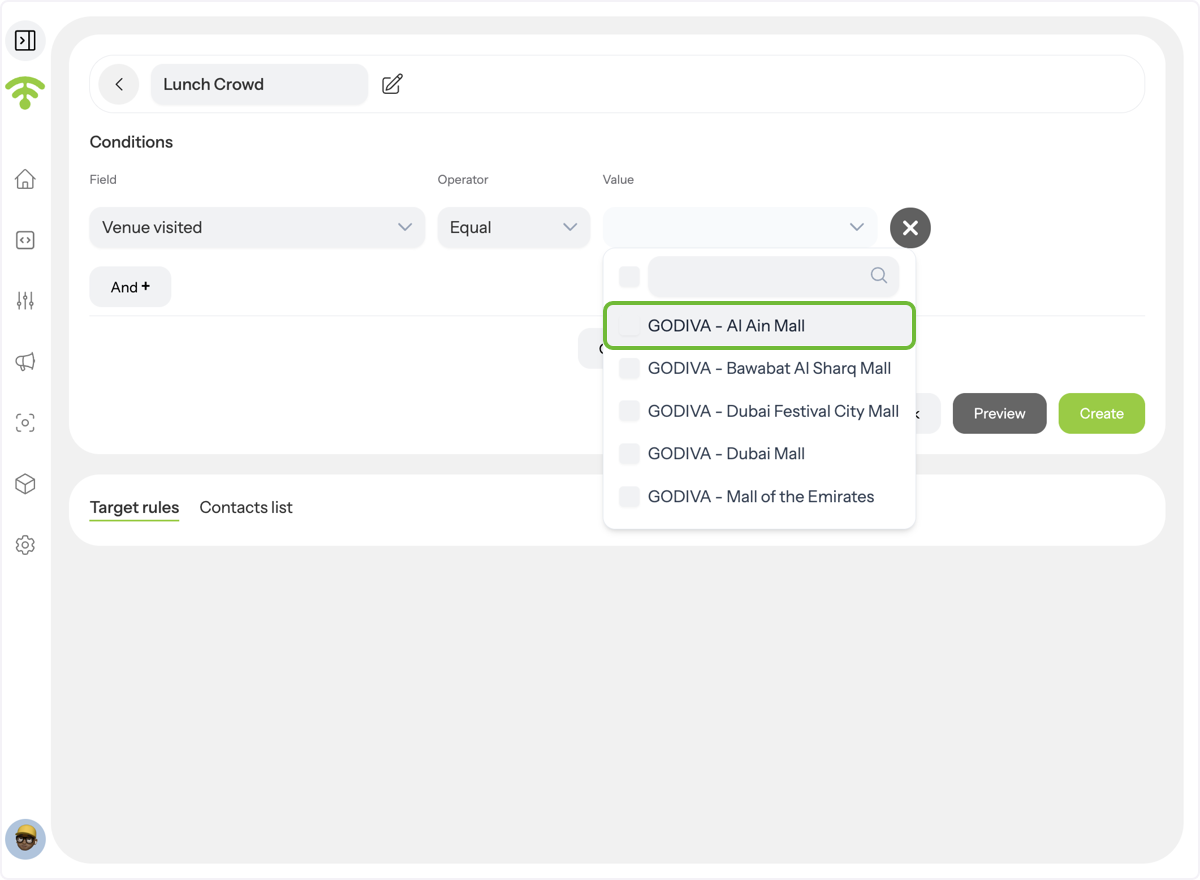
Select the criteria.
Click AND + again. (Note: In Affinect, AND + is used like "OR" — it adds alternative criteria.)
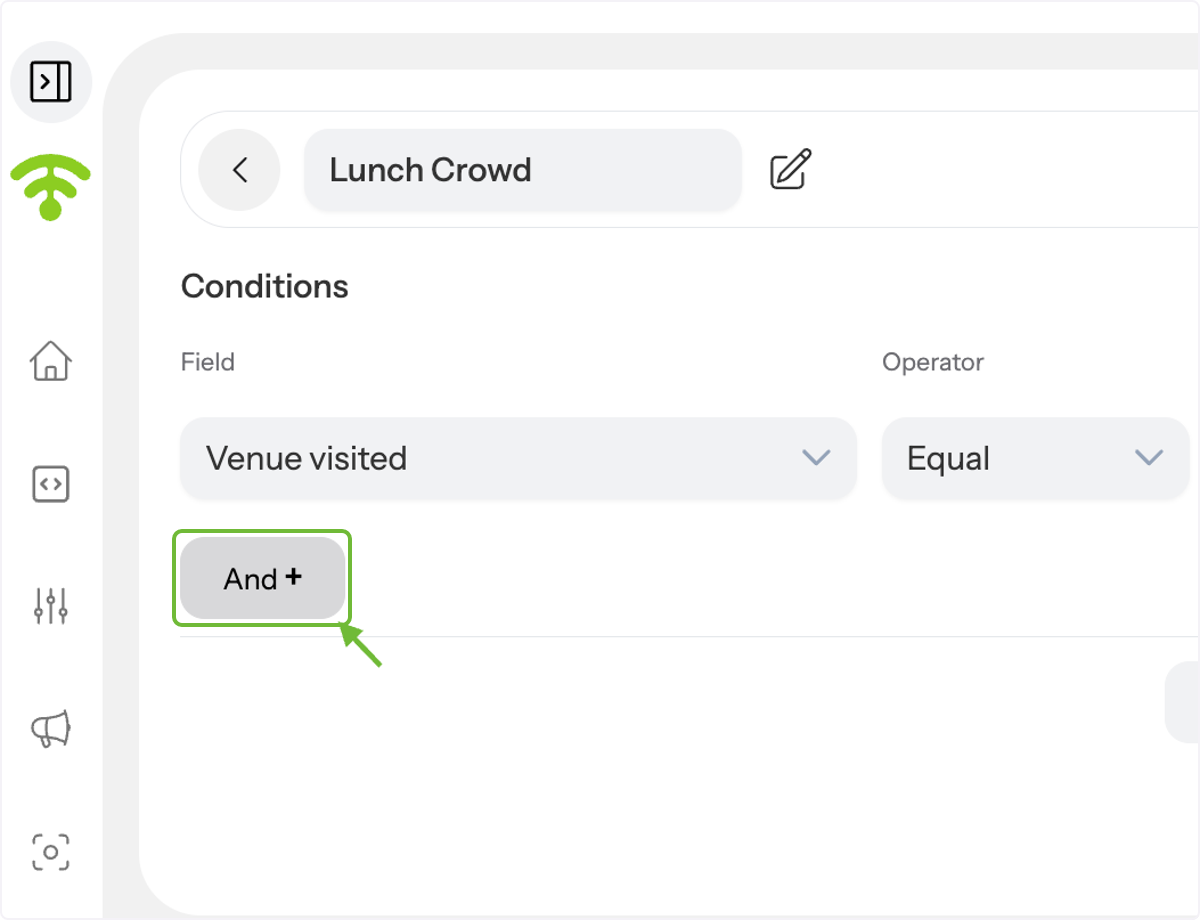
Add the Time Condition.
Choose:
- Field: Day Part
- Operator: Equals To
- Value: Lunch Time
Now, you’re targeting guests who visited Venue A during lunch hours.
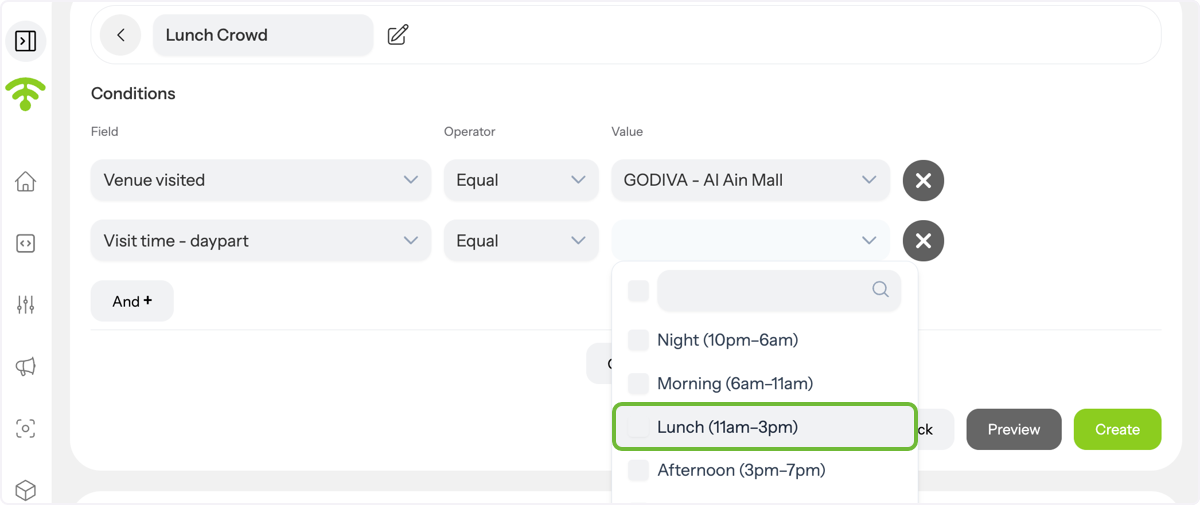
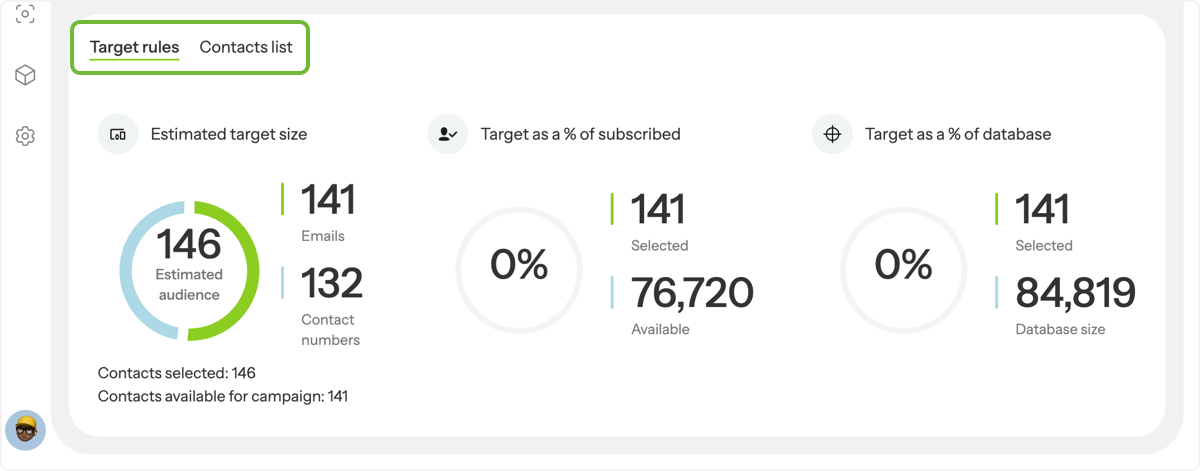
View Estimated Audience
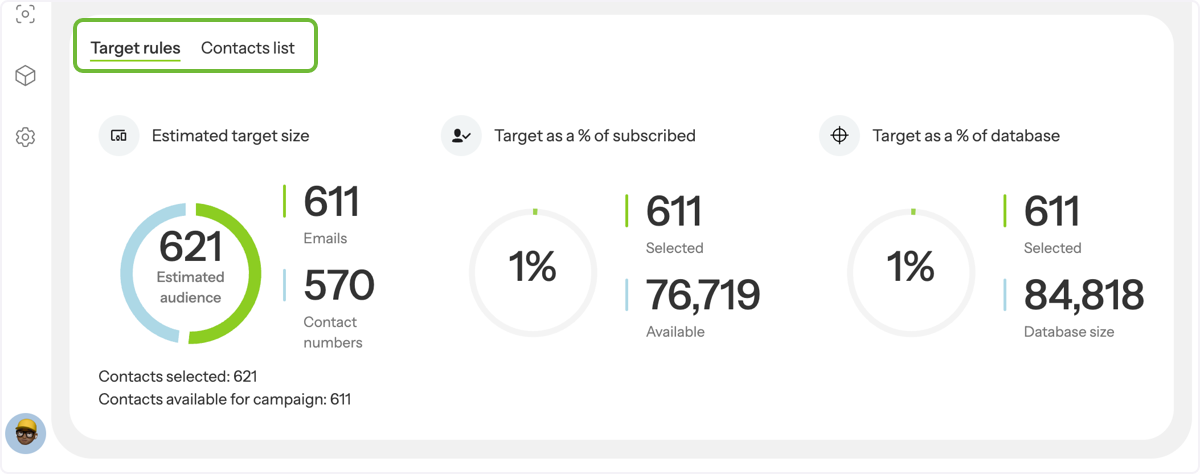
Below, you’ll see the Estimated Target Size, including total contacts and how many are eligible to receive campaigns (i.e. subscribed contacts).
Add a Second Condition Group.
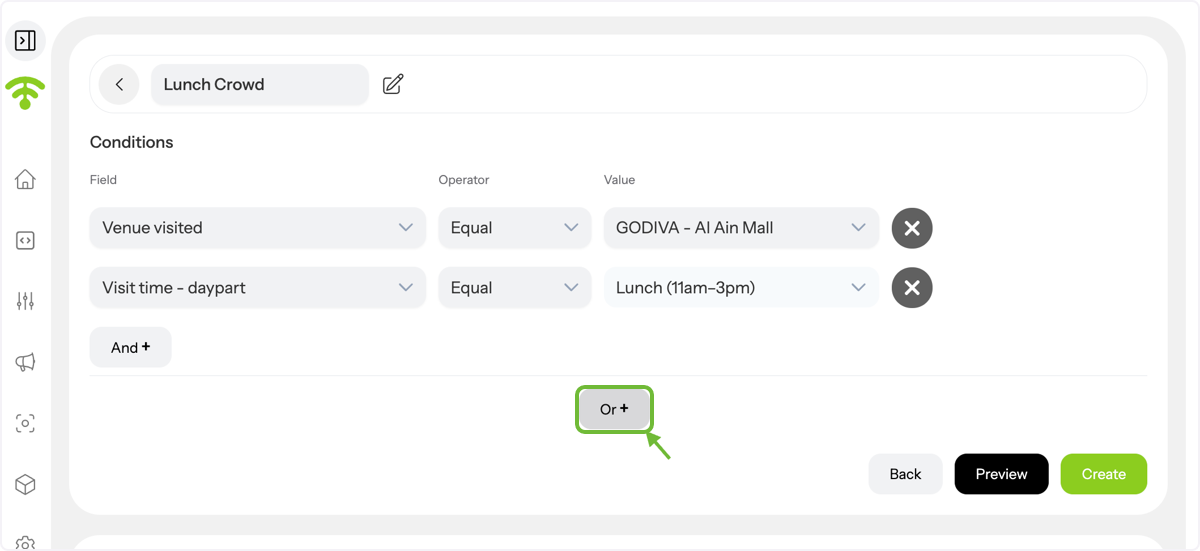
Click OR + to create a second set of conditions.
(Note: In Affinect, OR + acts as a true "AND" — allowing you to combine distinct conditions.)
Set the Second Field and Add Filter for the Second Group.
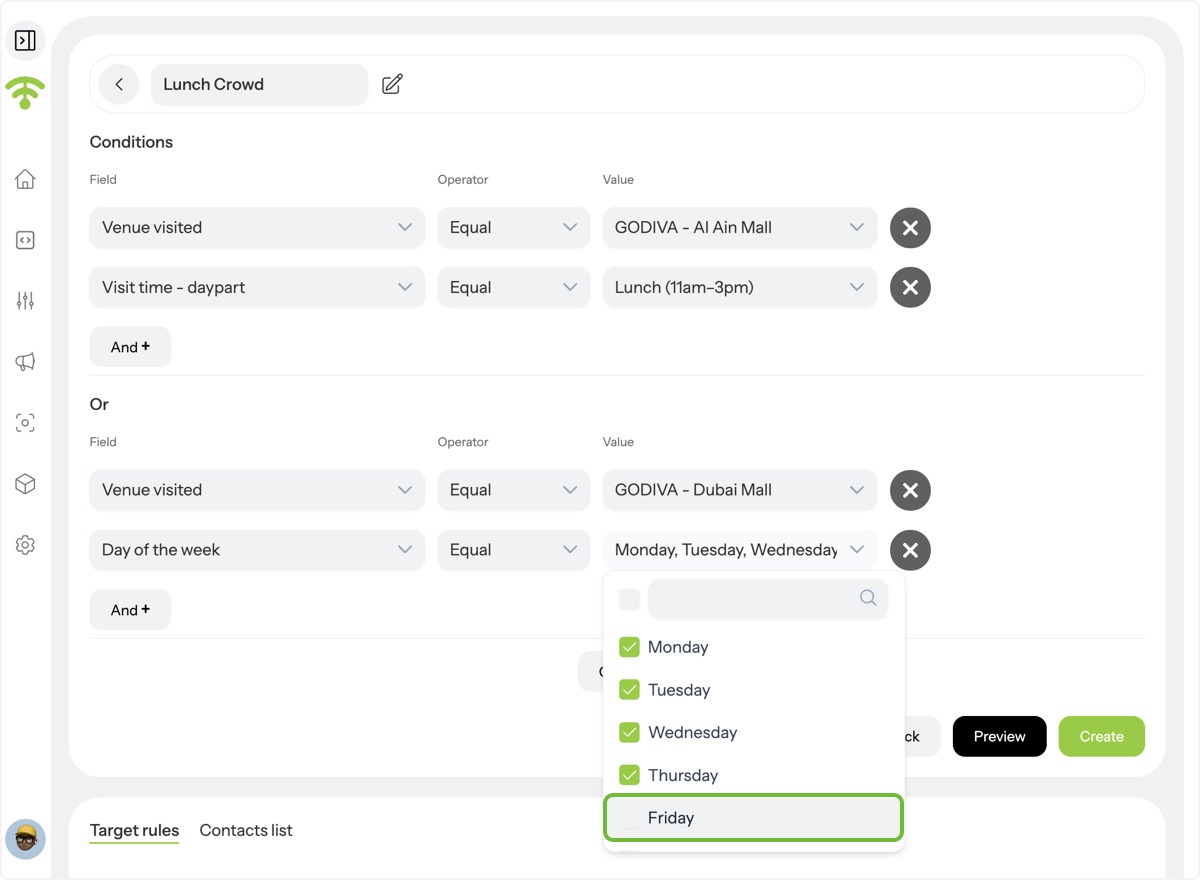
After clicking OR + to create a new set of conditions, set the fields.
- Field: Venue Visited
- Operator: Equals To
- Value: Venue B
Then, click AND + inside this group and set:
- Field: Day of the Week
- Operator: Equals To
- Value: Weekdays
Now you’ve created a target that includes:
✅ Guests who visited Venue A during lunchtime
✅ Guests who visited Venue B on weekdays
Final Review.
Check your estimated audience size in the panel below. This target group visitors with similar time-based behavior when visiting different venues. You can now run a weekday-only lunch promo without manually creating multiple segments.
_Example campaign:_
_"__This week only: Show this and get a free drink with any weekday lunch. Valid 12–3 PM.__"_
You can also continue building more groups using OR + to create complex, multi-venue conditions — all in a single, smart audience.