This guide walks you through creating an automated email campaign in Affinect that sends on specific days, triggered by customer behavior.
عاطفة
Access Campaigns
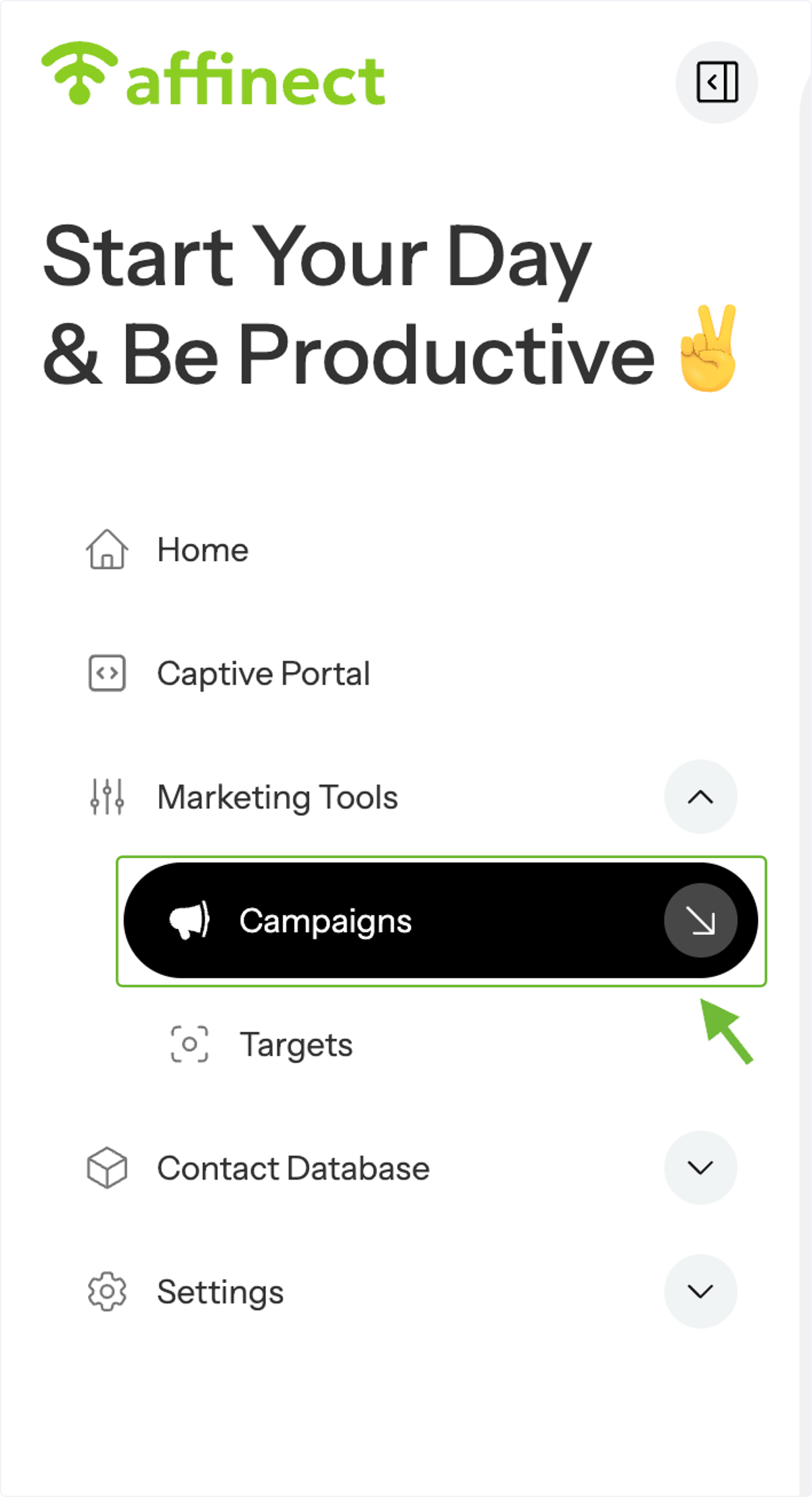
From the Marketing Tools dropdown menu, click Campaigns on the right.
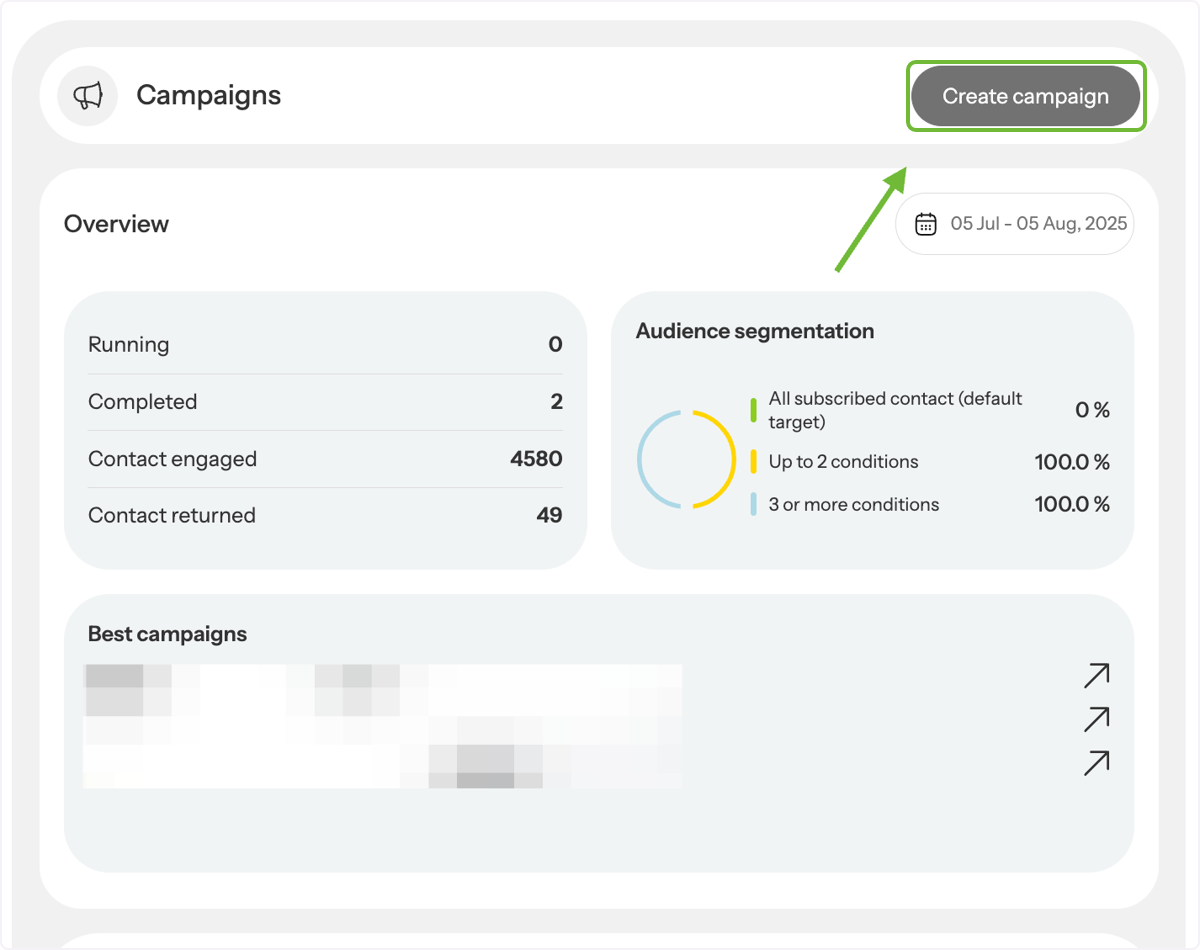
View Campaign List
A preview of your existing campaigns will appear. Click Create Campaign.
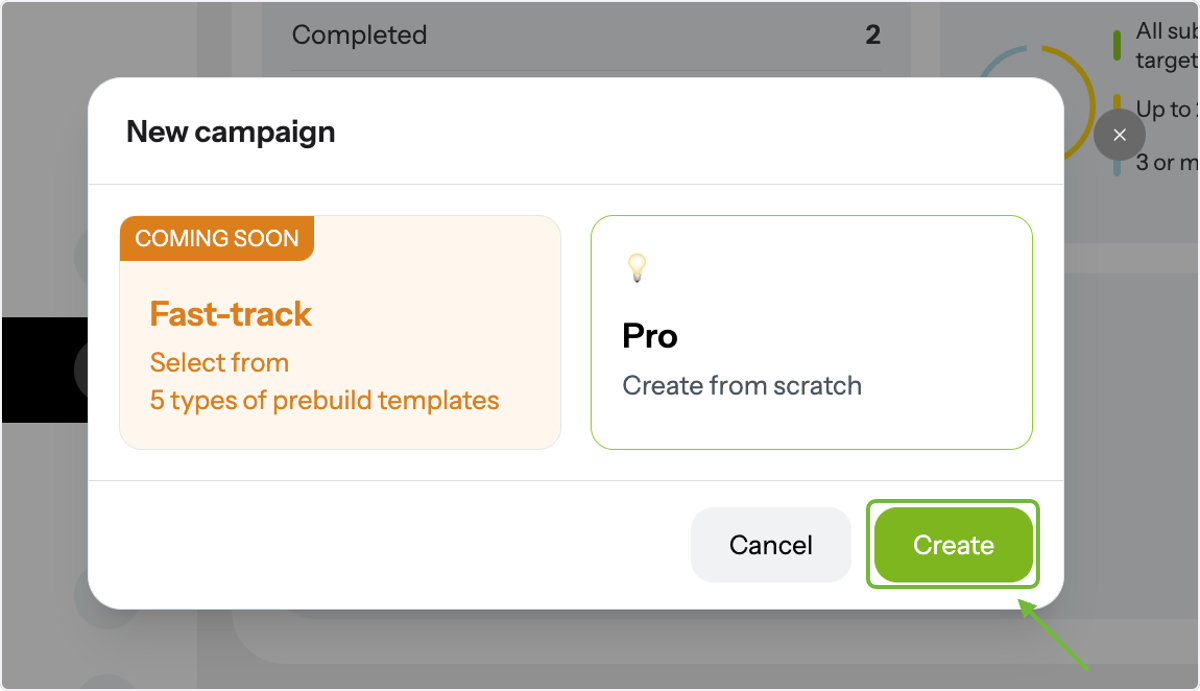
Start a New Campaign
In the pop-up box, click Create.
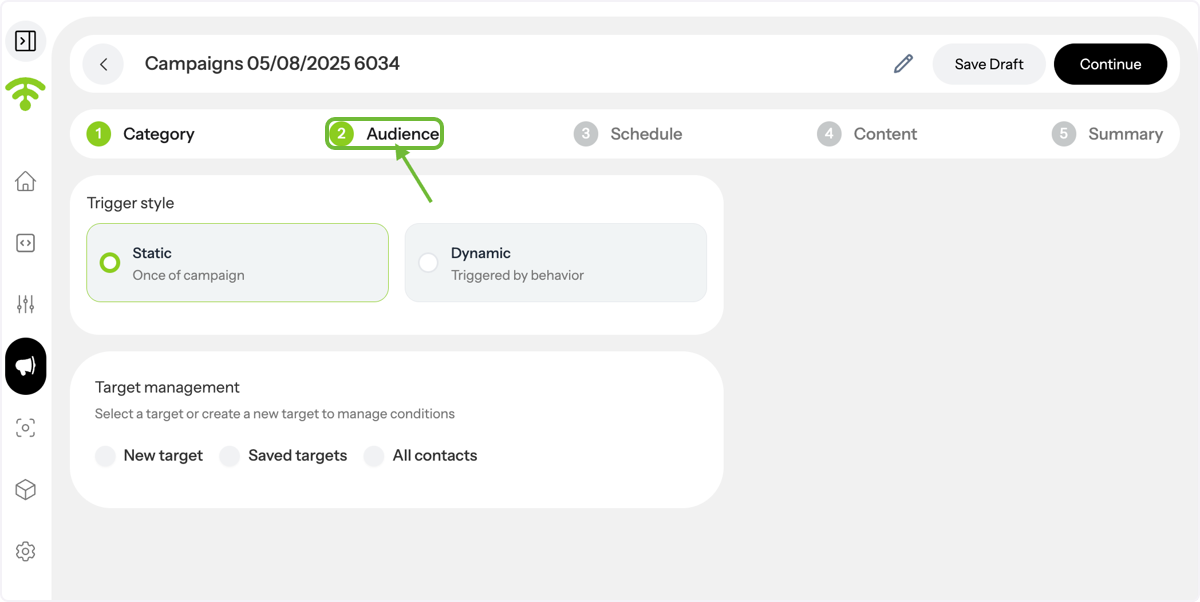
Choose Category & Audience
Select your campaign category, then proceed to the Audience section.
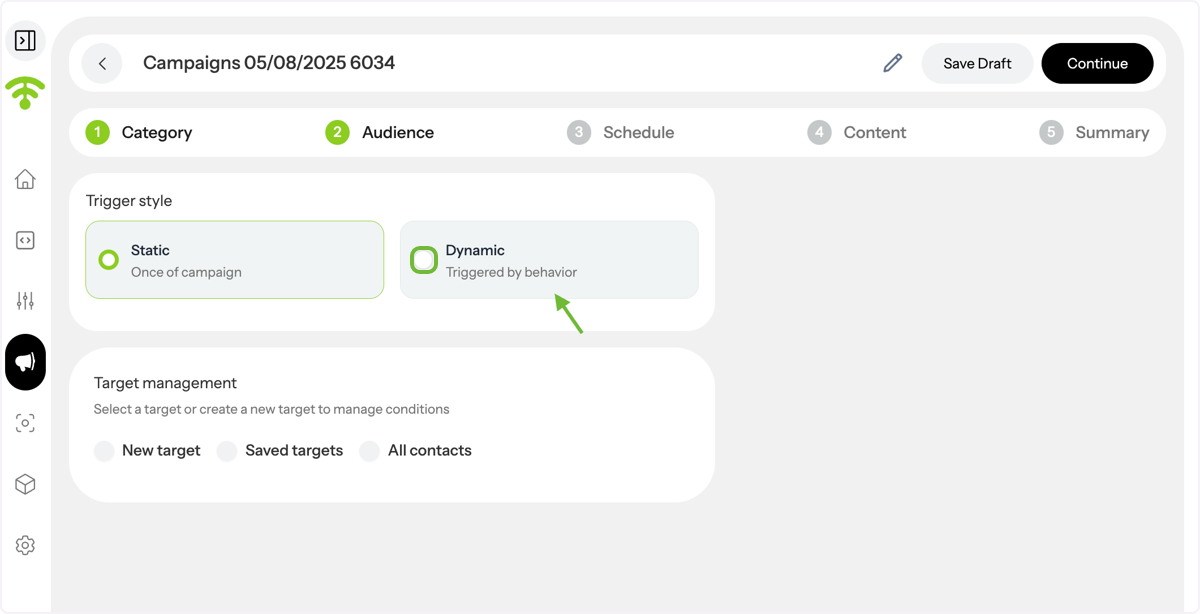
Select Dynamic Campaign Type
Click Dynamic — these campaigns are triggered by customer behavior.
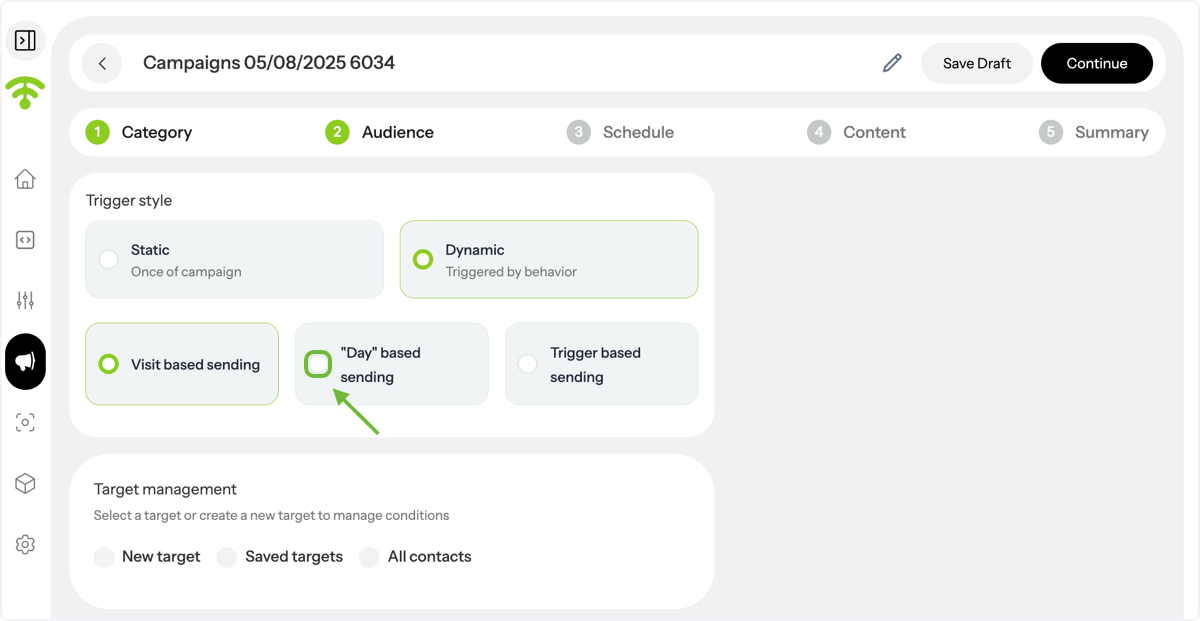
Choose Day-Based Sending
Select Day as your sending trigger.
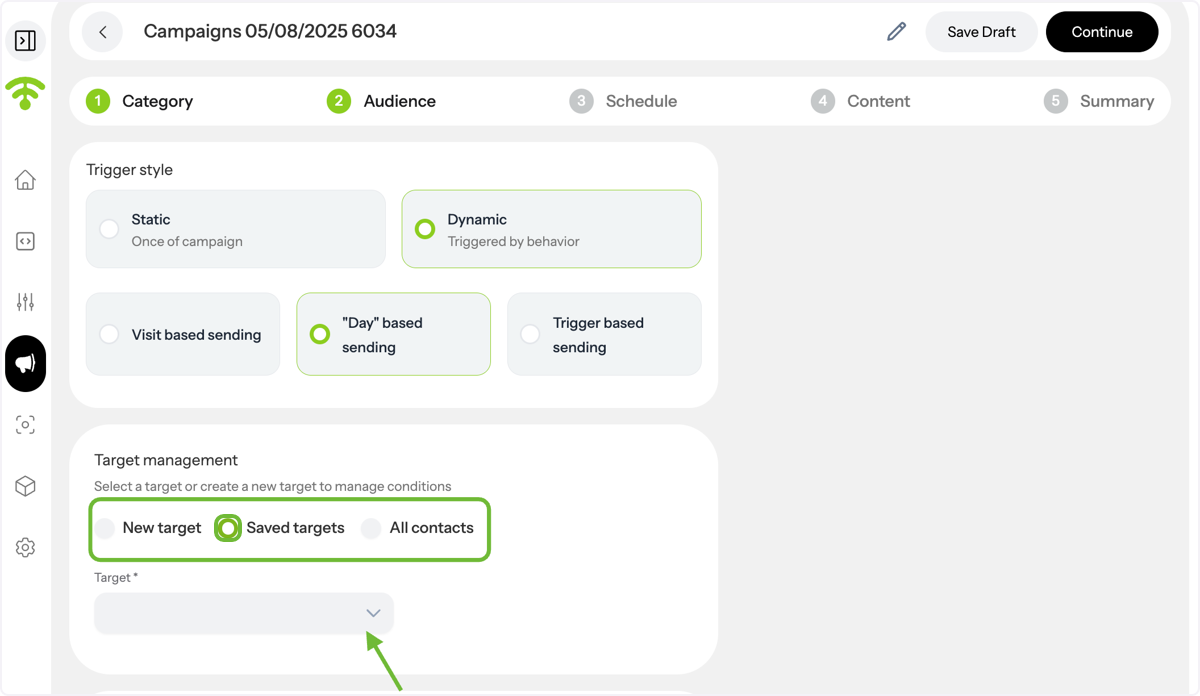
Pick or Create a Target
Either choose an existing saved target or create a new one.
Set Sending Frequency
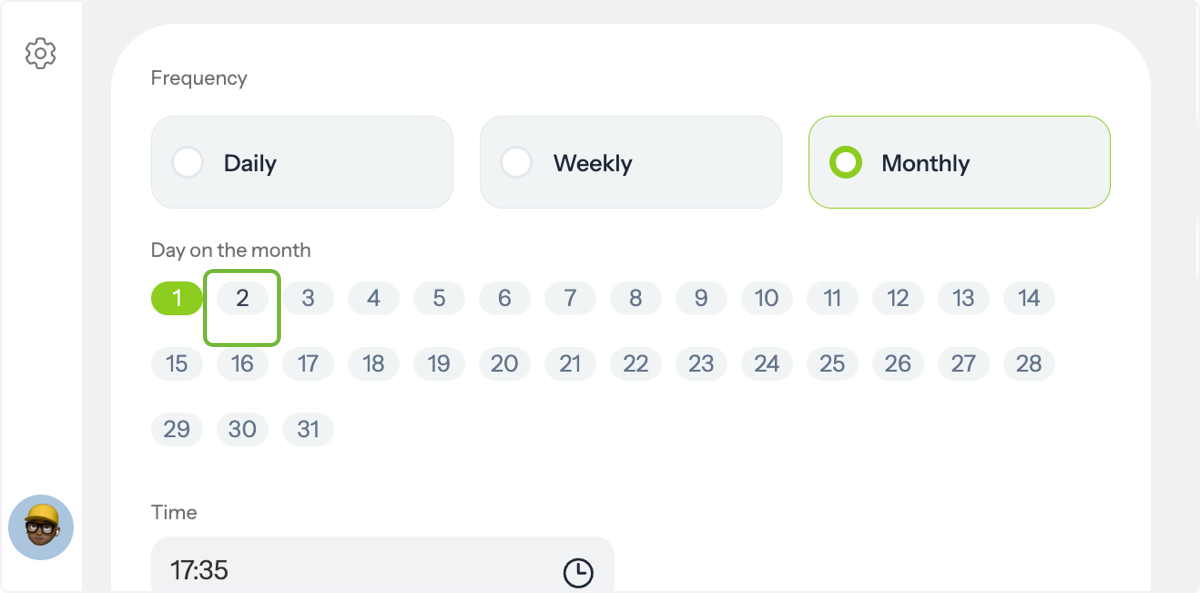
Choose whether the campaign sends Daily, Weekly, or Monthly.
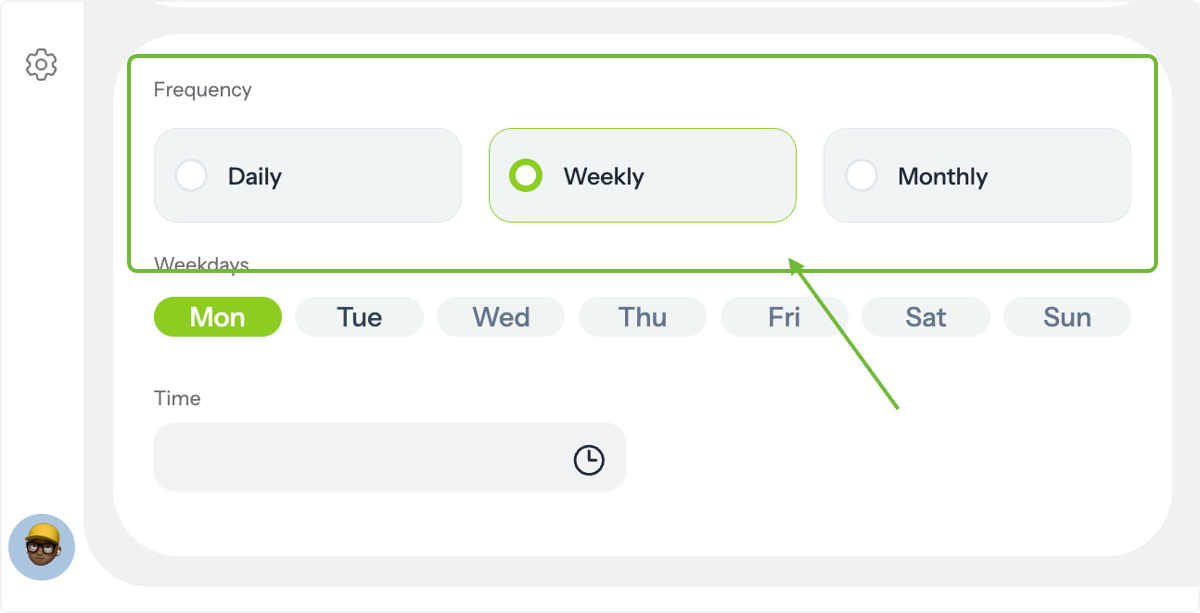
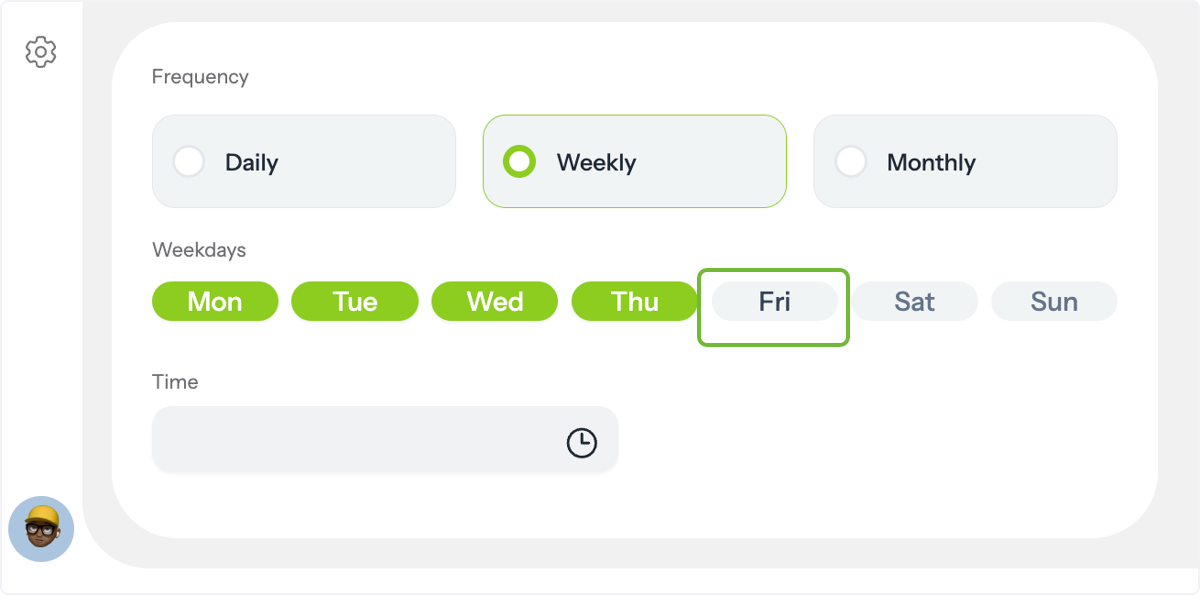
Configure Weekly Sending
If Weekly is selected, pick the specific days your campaign will send.
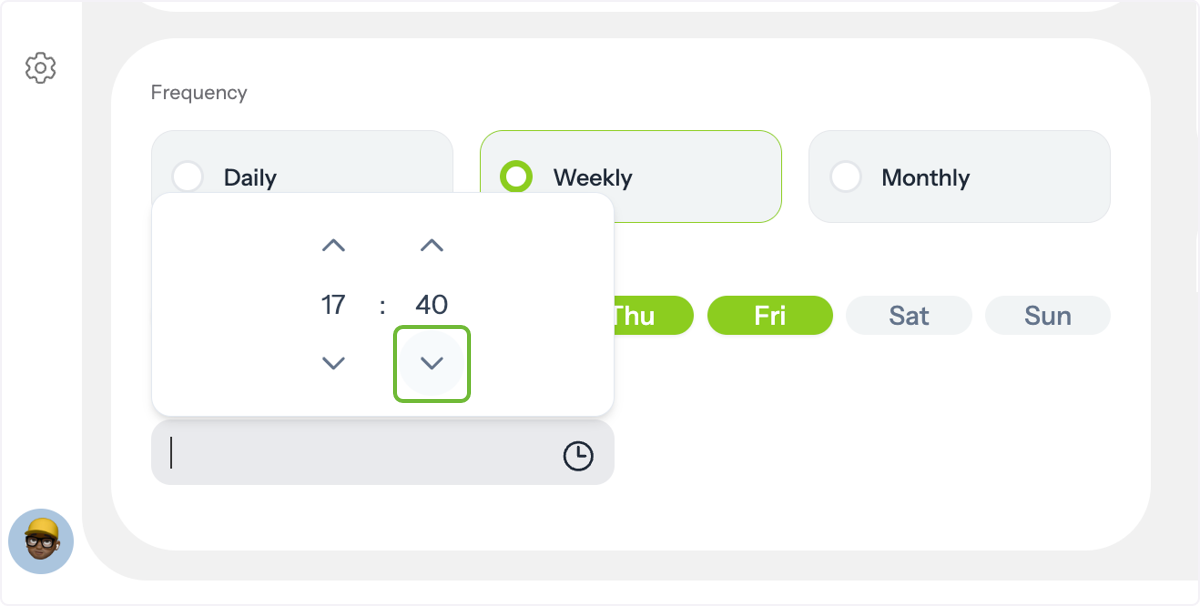
Set Sending Time
Choose the time of day for your email to be sent.
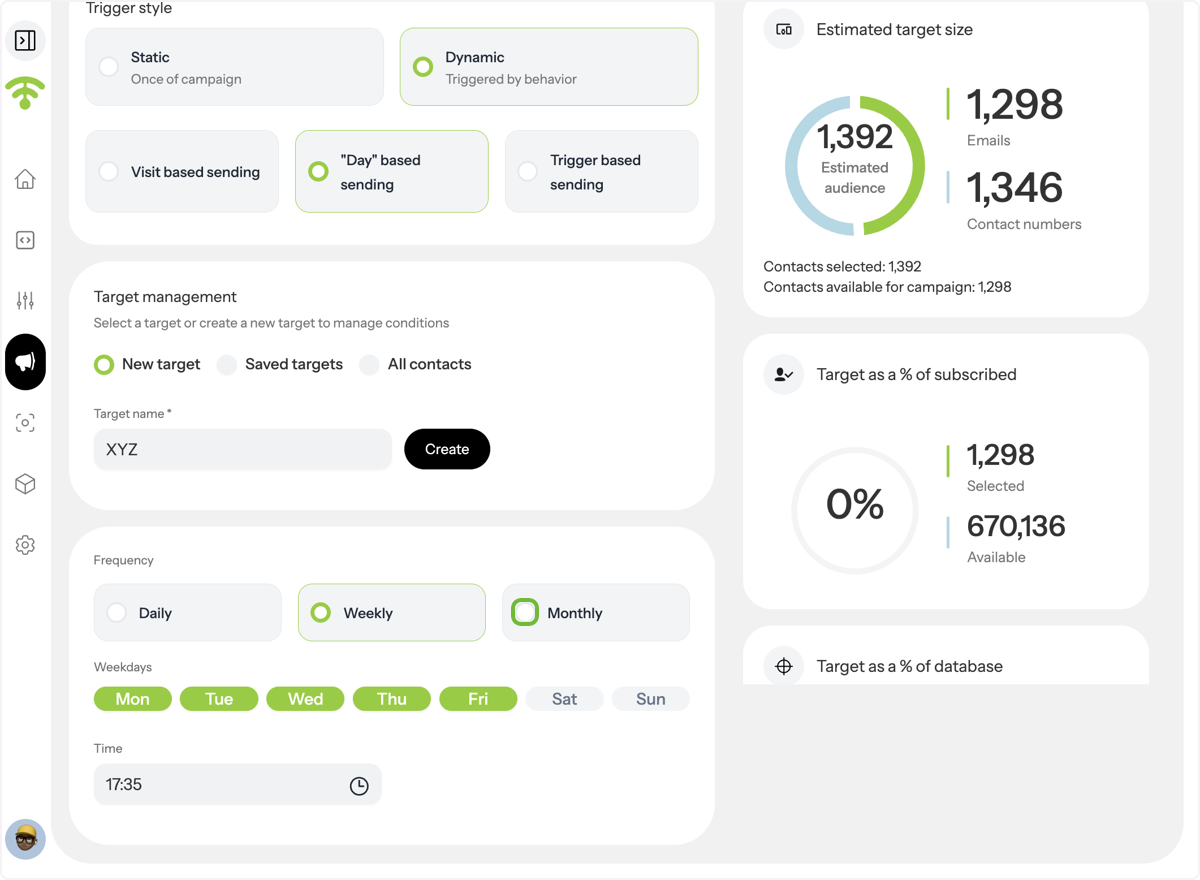
Configure Monthly Sending
If Monthly is selected, pick the days of the month to send your campaign.
Finalize & Continue
After setting the date(s) and time, click Continue in the upper left corner to proceed.