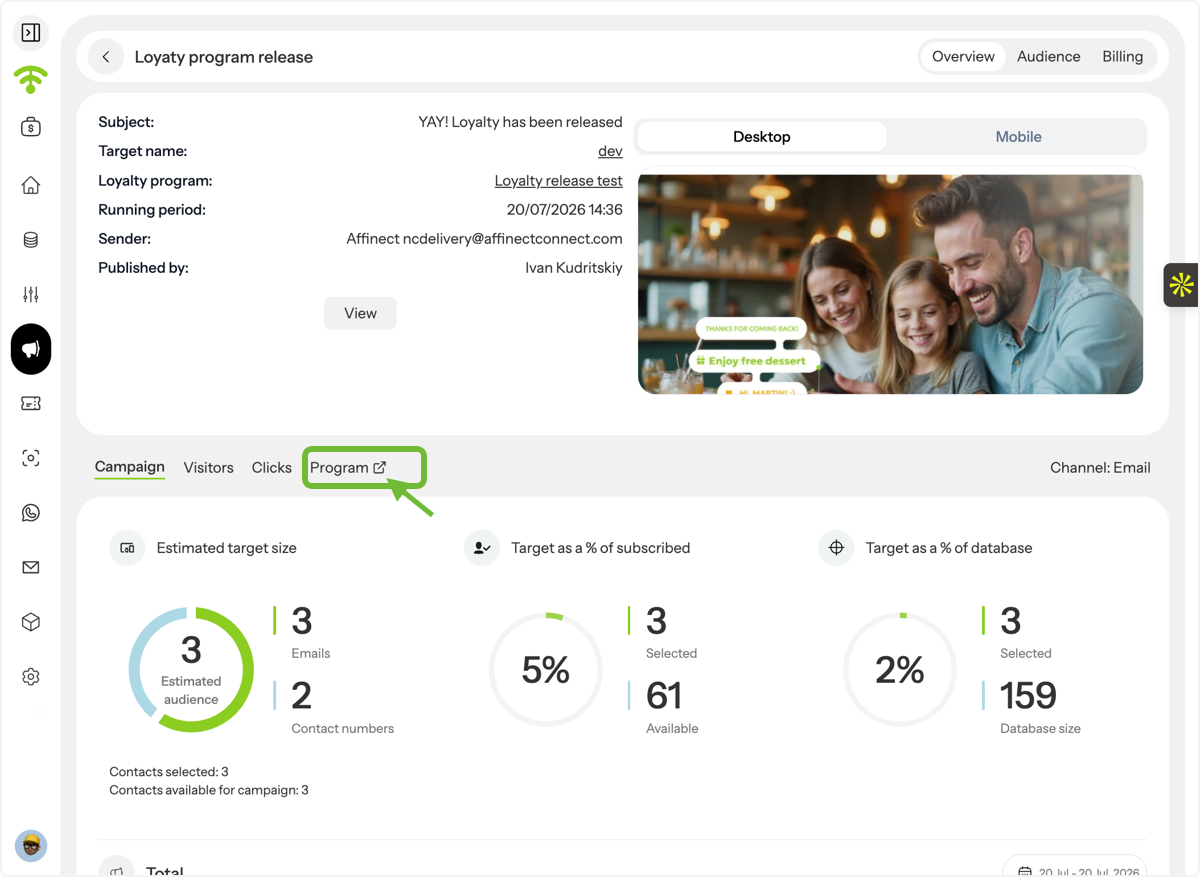
Monitor the performance of your loyalty programs with detailed analytics and activity reports. This guide explains how to access your loyalty program insights, understand key performance metrics, review customer activity, and analyse individual loyalty cards.
عاطفة
Overview
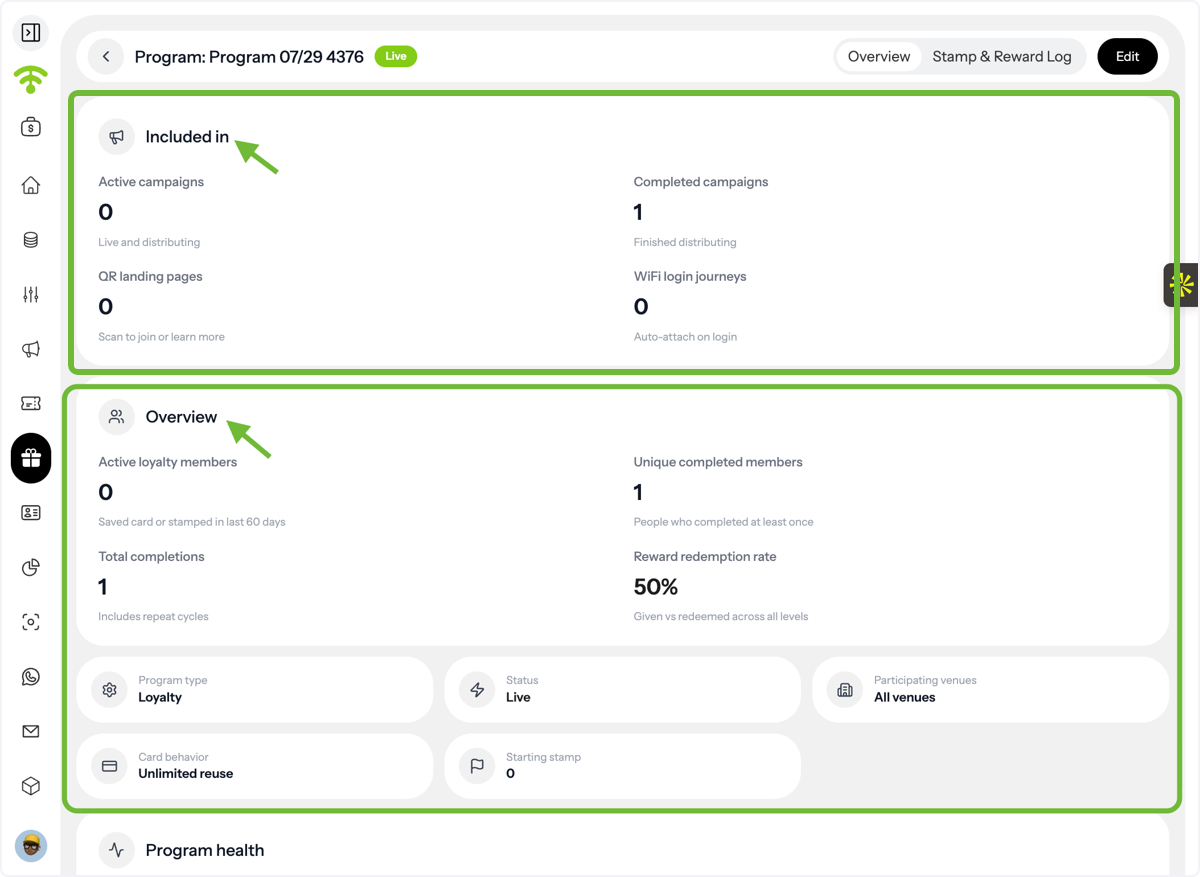
Access your loyalty program and review its overall performance, member activity, program health, and setup details.
- Cards in Active Campaigns – Loyalty cards currently being used in active campaigns.
- Cards in Completed Campaigns – Loyalty cards associated with completed campaigns.
- Joined via QR Landing Page – Members who enrolled through a QR Landing Page.
- Joined via WiFi Login – Members who enrolled through your WiFi Captive Portal.
- Active Loyalty Members – Members currently participating in the program.
- Unique Completed Members – Individual customers who have completed at least one loyalty cycle.
- Total Completions – The total number of completed loyalty card cycles, including repeat completions.
- Reward Redemption Rate – The percentage of issued rewards that were successfully redeemed vs given ones.
You'll also see your program configuration at a glance, including:
- Program Type
- Program Status
- Participating Venues
- Card Behaviour
- Starting Stamps
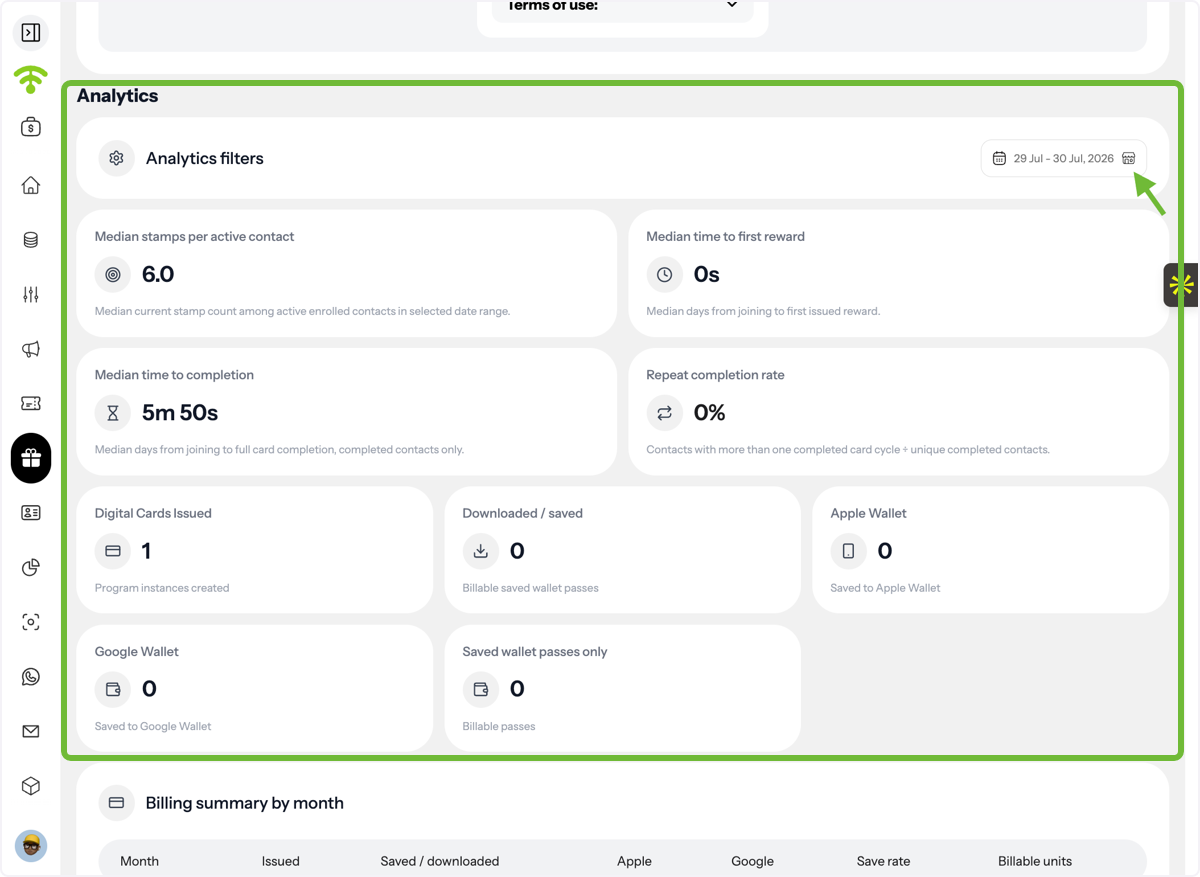
Dive deeper into your loyalty program with detailed performance metrics, billing information, activity logs, and individual customer card analytics.
- Median Stamps per Active Contact – The median number of stamps earned by active loyalty members.
- Median Time to First Reward – The typical amount of time it takes members to earn their first reward.
- Median Time to Completion – The median time required for members to complete an entire loyalty card.
- Repeat Completion Rate – The percentage of customers who complete the loyalty program more than once, helping measure long-term engagement.
Track how customers interact with their digital loyalty cards:
- Digital Cards Issued
- Digital Cards Downloaded or Saved
- Apple Wallet Saves
- Google Wallet Saves
- Saved Wallet Passes
These metrics help measure adoption of your digital loyalty cards.
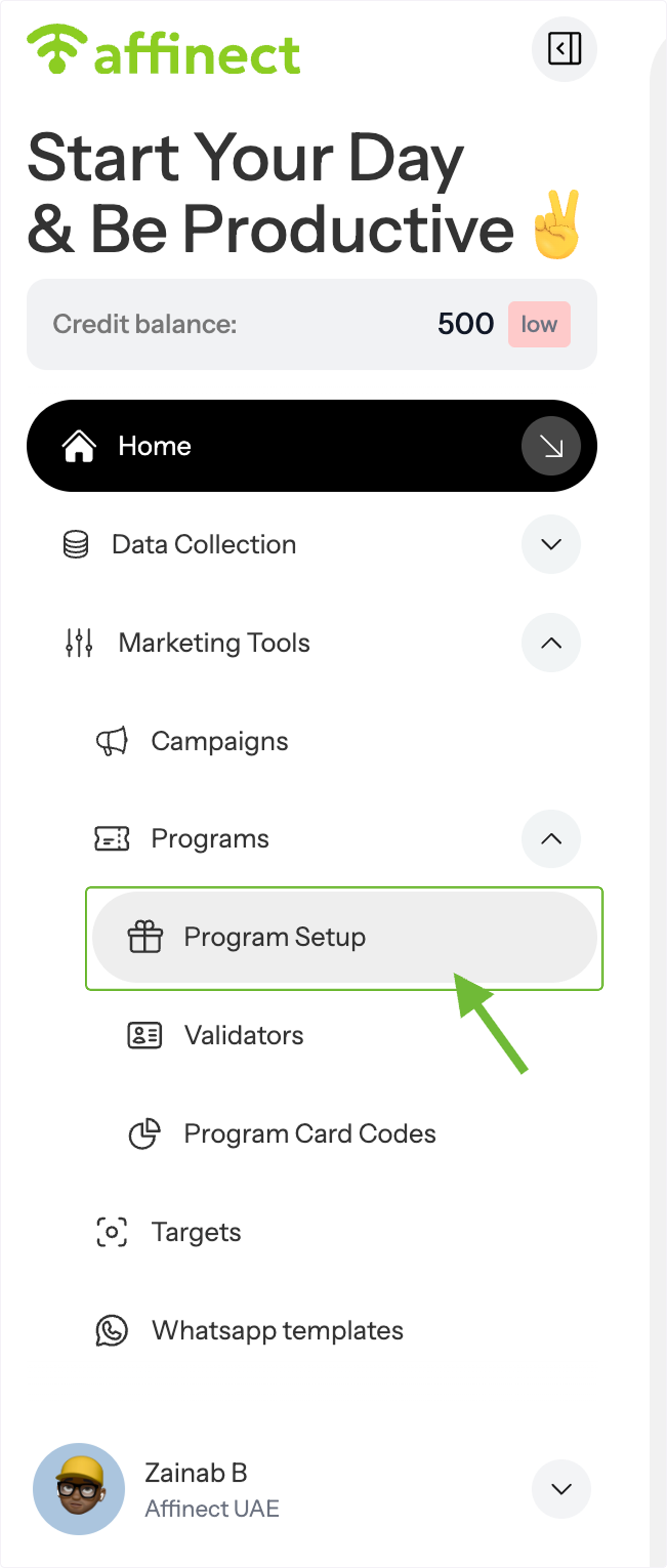
Open Program Setup
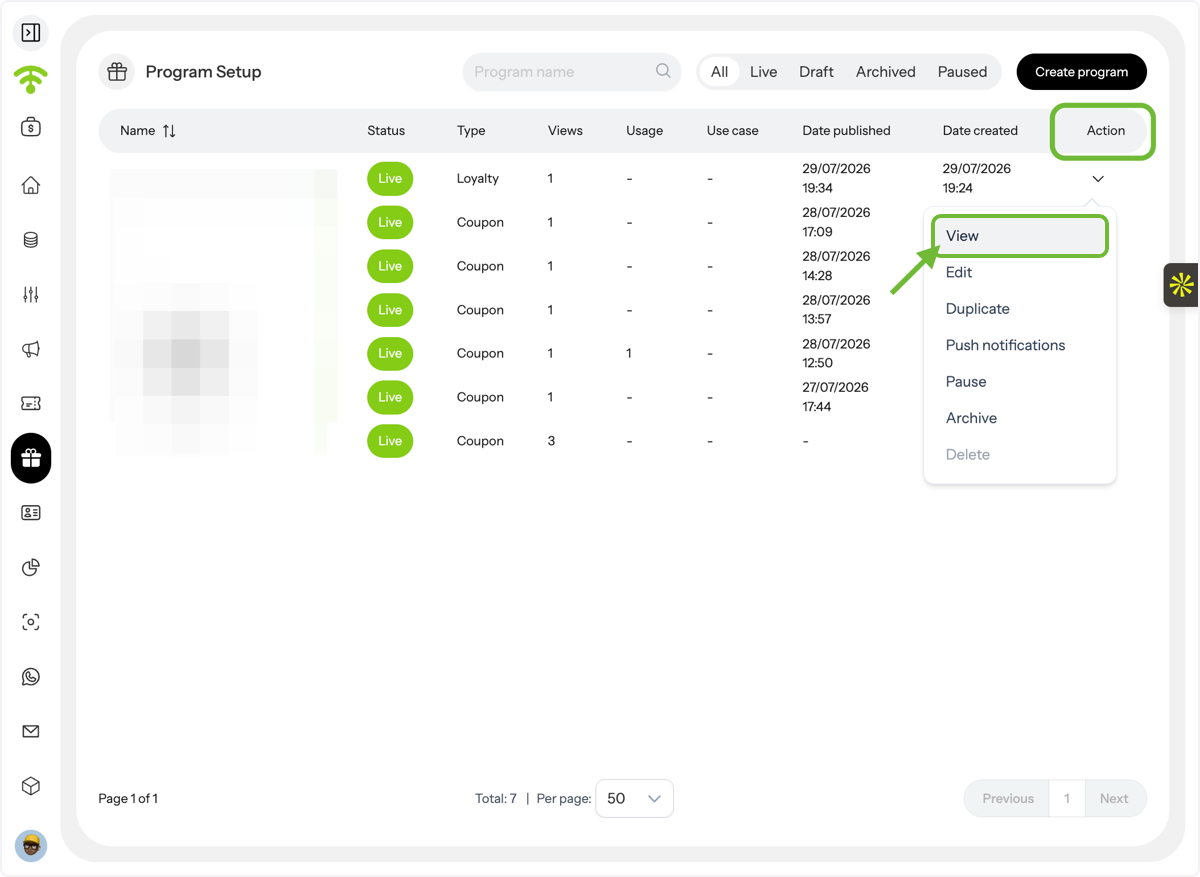
From the left-hand menu, navigate to Programs and select Program Setup.
Open Your Loyalty Program
The Program Setup page displays all your current and previous loyalty and coupon programs, along with their status (Live, Draft, Paused, or Archived).
Locate the loyalty program you want to review, then click Actions and select View.
Review the Program Overview
The Program Overview provides a snapshot of your loyalty program's performance and configuration.
You'll be able to view:
Campaign Participation
Program Performance
Program Details
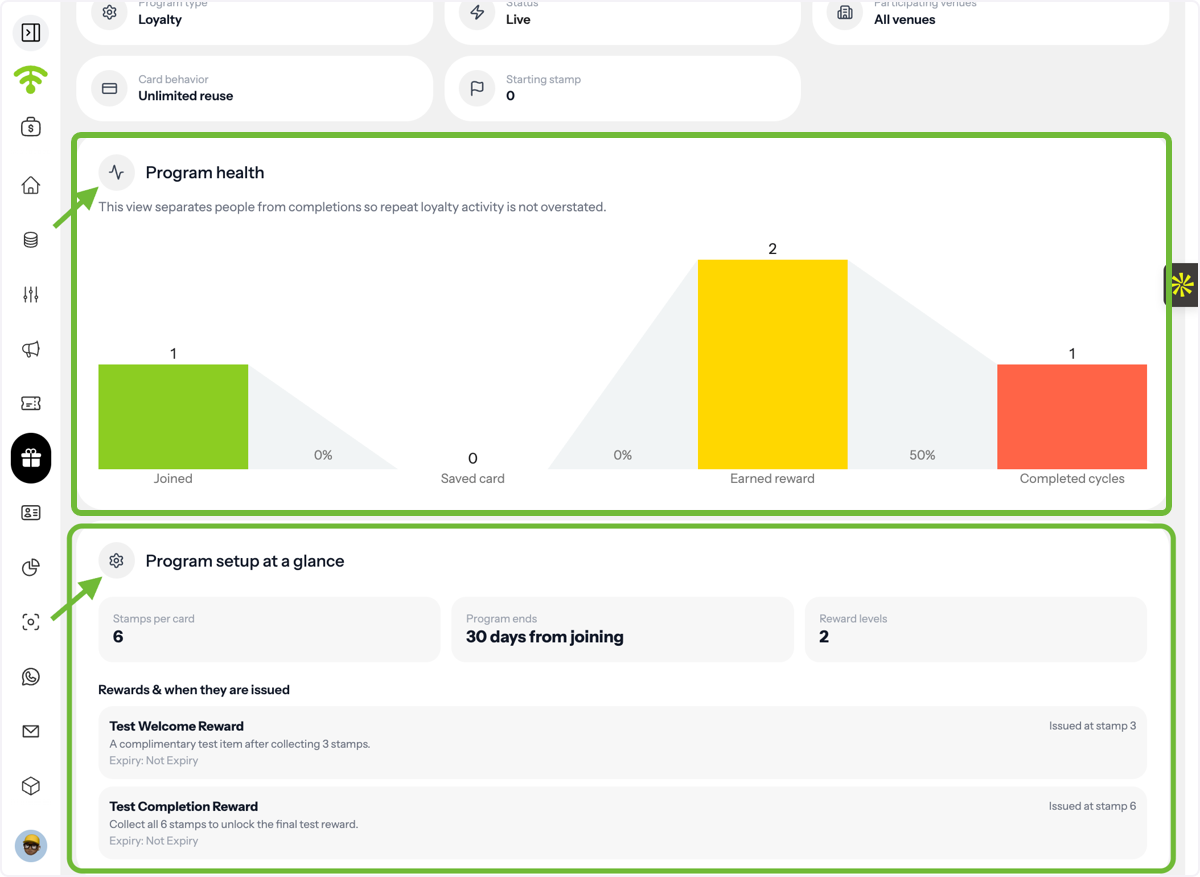
Review Program Health
The Program Health section helps you understand how customers progress through your loyalty program without overstating repeat activity.
Metrics include:
- Joined – Customers who enrolled in the program.
- Saved Card – Customers who saved the loyalty card to their digital wallet.
- Earned Rewards – Members who unlocked at least one reward.
- Completed Cycles – Total completed loyalty cycles.
Separating Completed Cycles from Completed Members provides a clearer picture of customer retention and repeat engagement.
You'll also find a quick summary of your program setup, including:
- Stamps per Card
- Card Duration
- Reward Levels
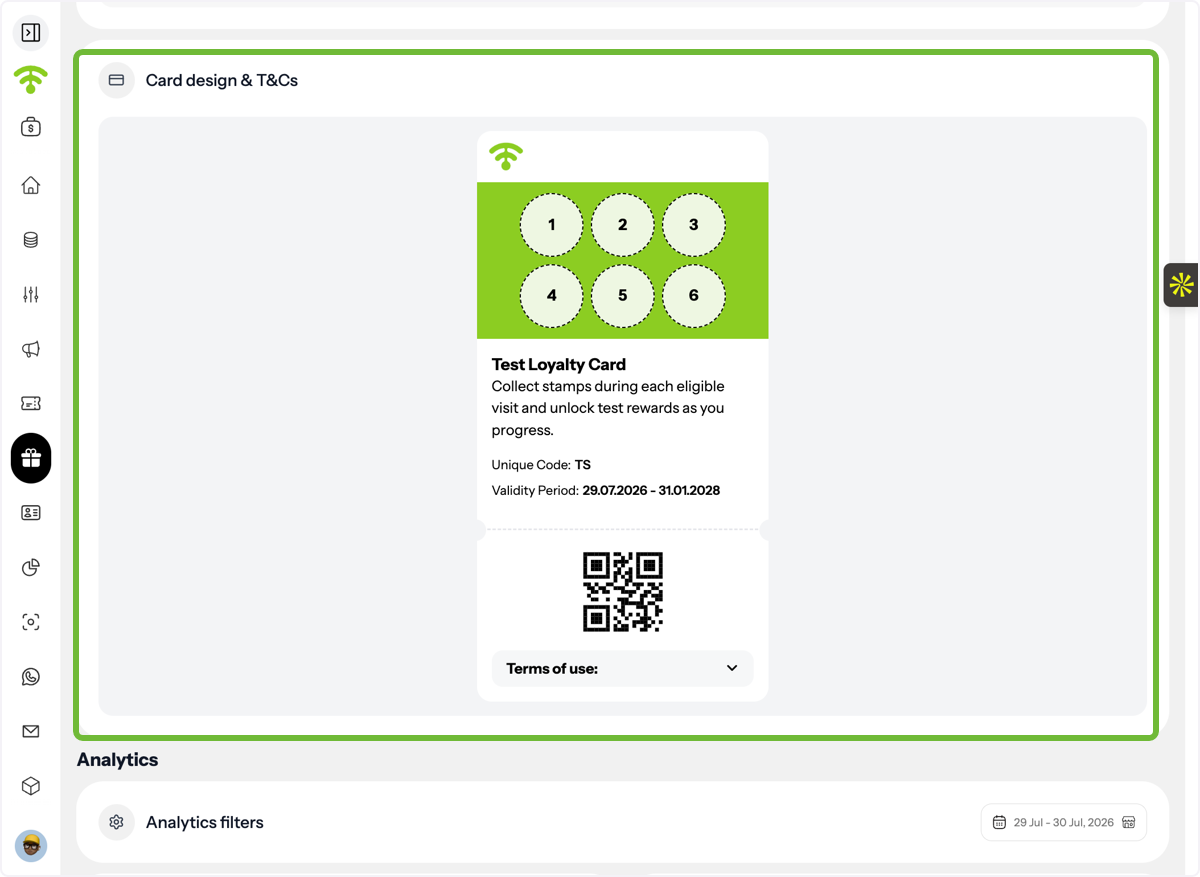
Review Your Loyalty Card Design
Scroll down to preview the loyalty card exactly as your customers see it.
You can also review the program's Terms & Conditions attached to the loyalty card.
تحليلات
View Performance Analytics
Open the تحليلات section and select the reporting period you want to analyse.
You'll see key performance indicators such as:
Customer Behaviour
Digital Wallet Performance
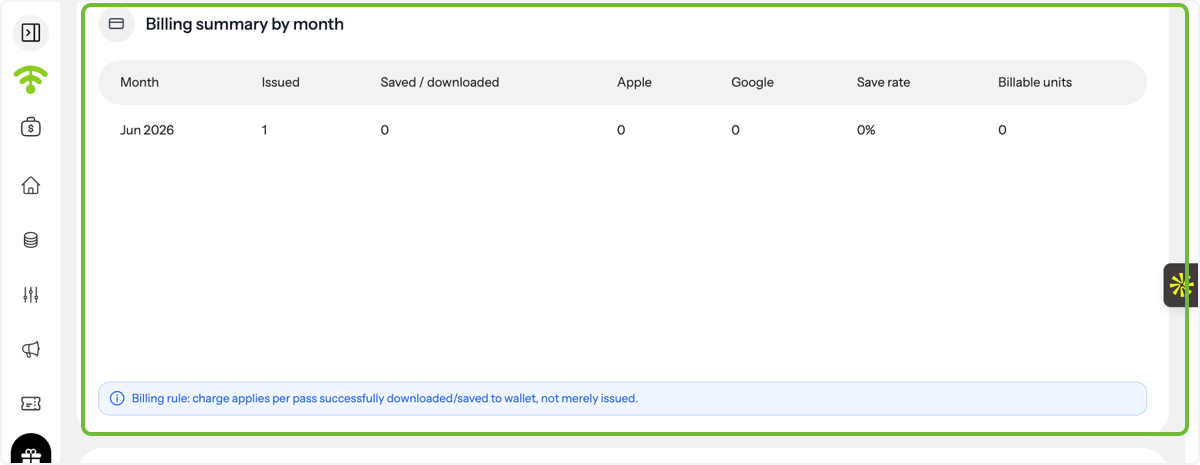
Review Billing Summary
The Billing Summary provides a monthly overview of your program usage.
You'll be able to monitor:
- Monthly Billable Units
- Save Rate – The percentage of issued cards that were saved to a customer's digital wallet.
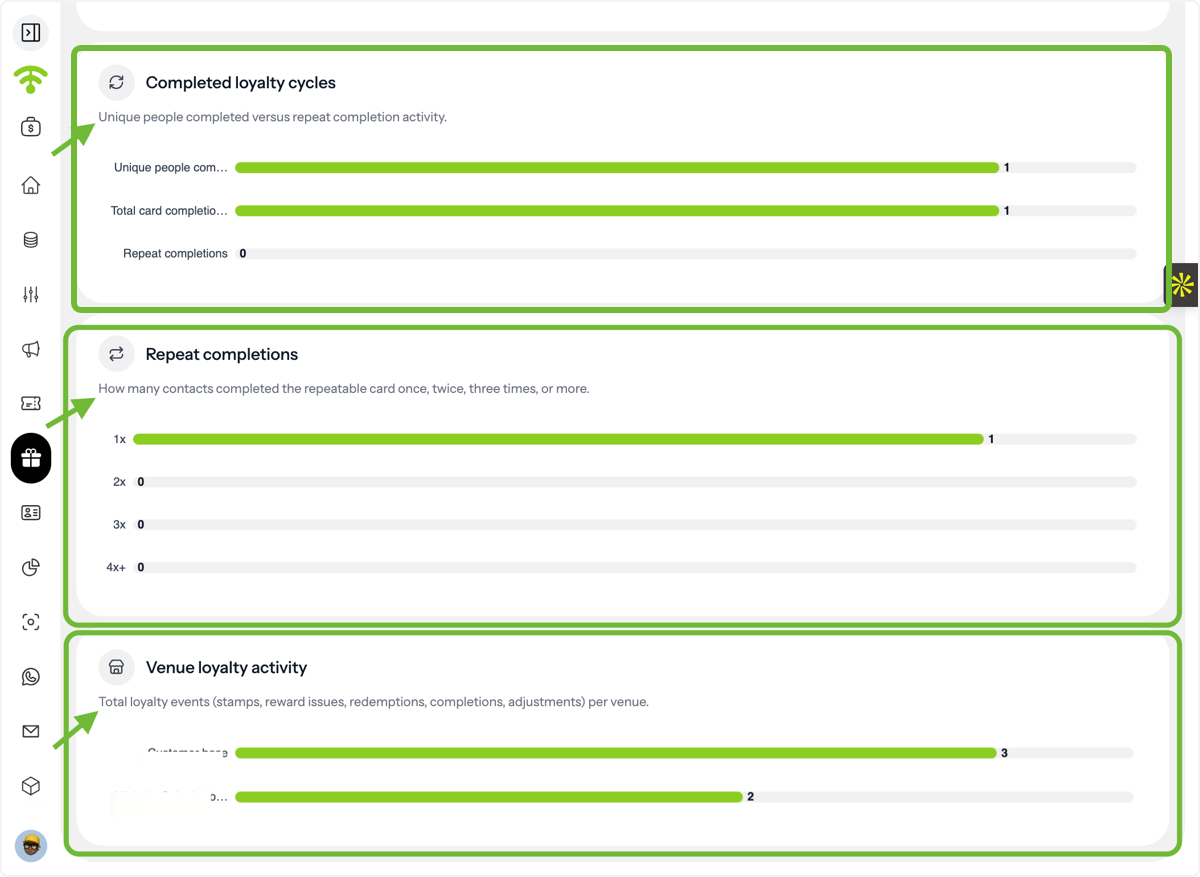
Analyse Loyalty Activity
Continue scrolling to view additional loyalty performance insights, including:
- Completed Loyalty Cycles
- Repeat Completions
- Venue-Level Activity
These reports help identify which locations generate the highest engagement and reward completion rates.
Review Stamp & Reward Logs
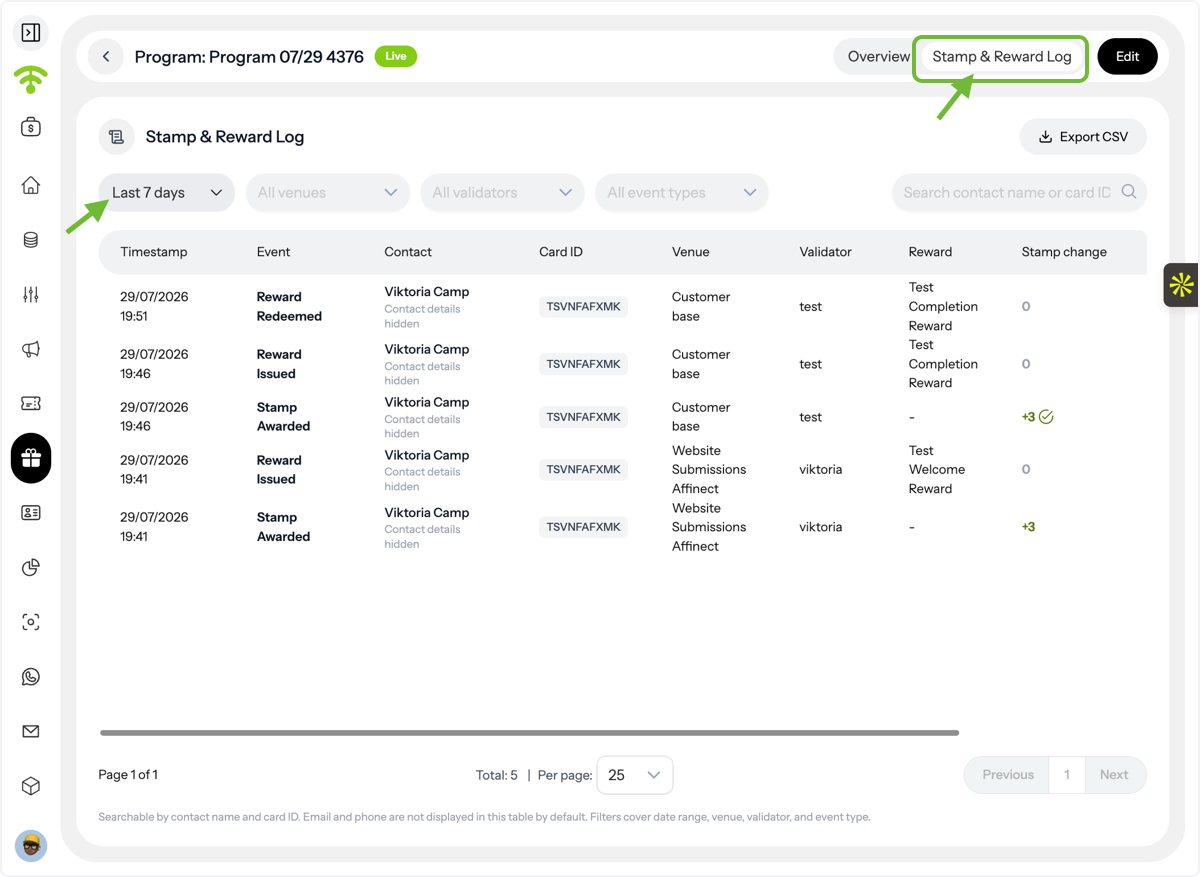
The Stamp and Reward Logs provide a complete activity history for your loyalty program.
You can filter the logs by:
- Date Range
- Venue
- Validator
- Event Type
This allows you to investigate stamp issuance, reward redemptions, and other loyalty events in detail.
View Individual Loyalty Cards
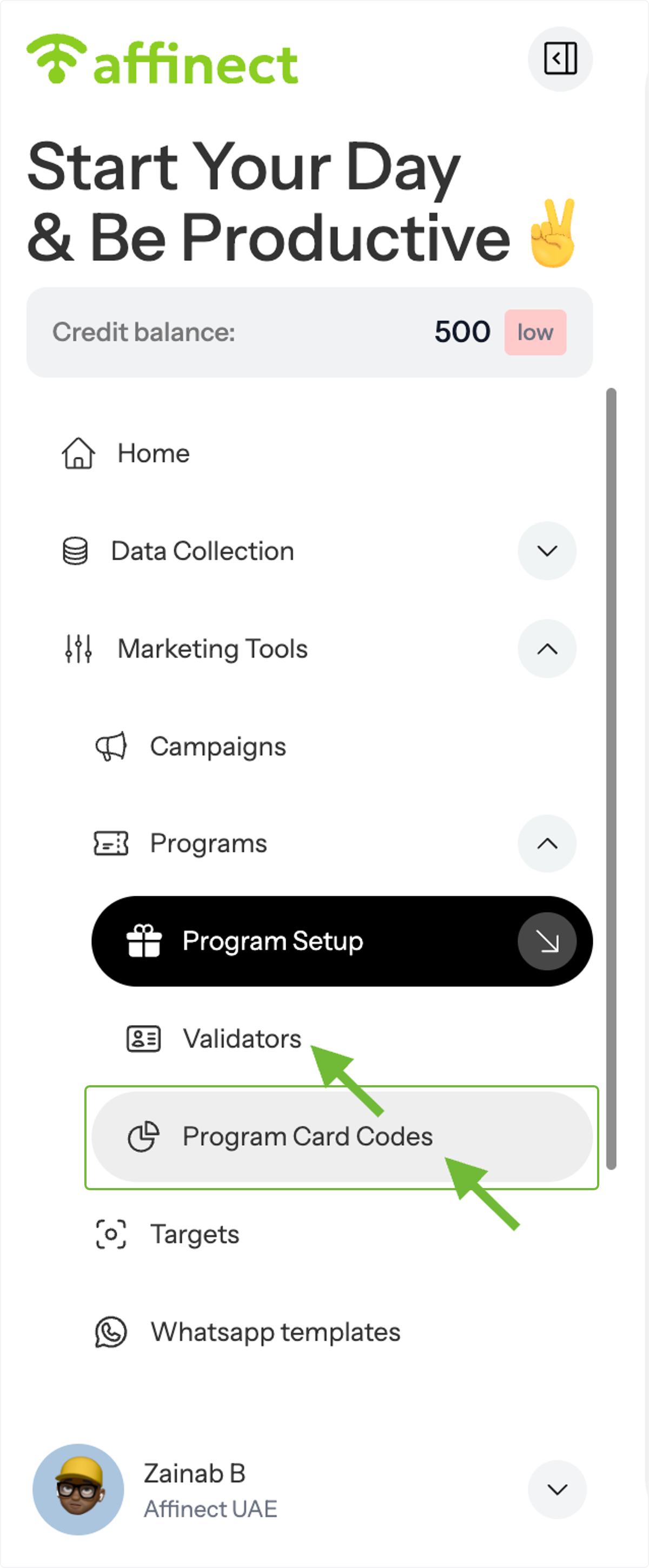
You can also review individual customer loyalty cards through Program Codes.
From the left-hand menu, navigate to:
Programs → Program Codes
Open Card Details
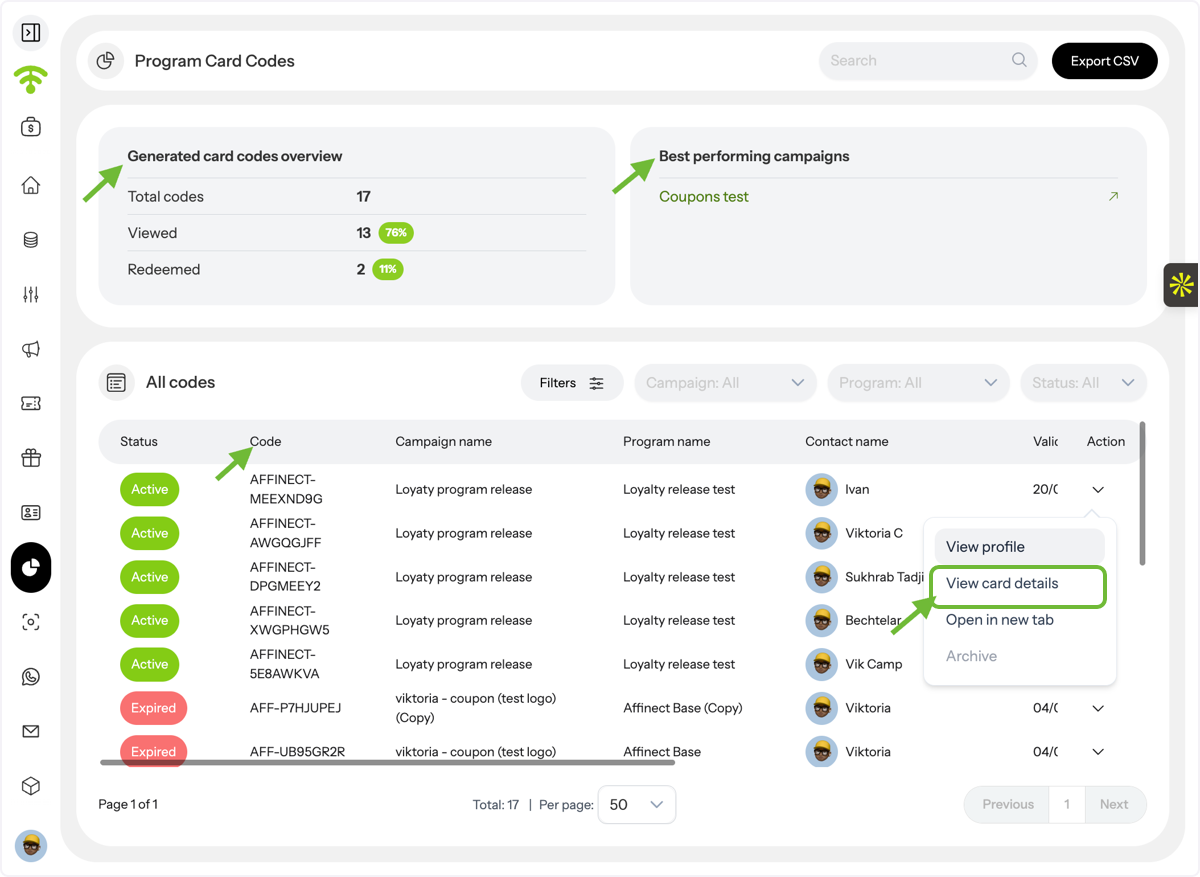
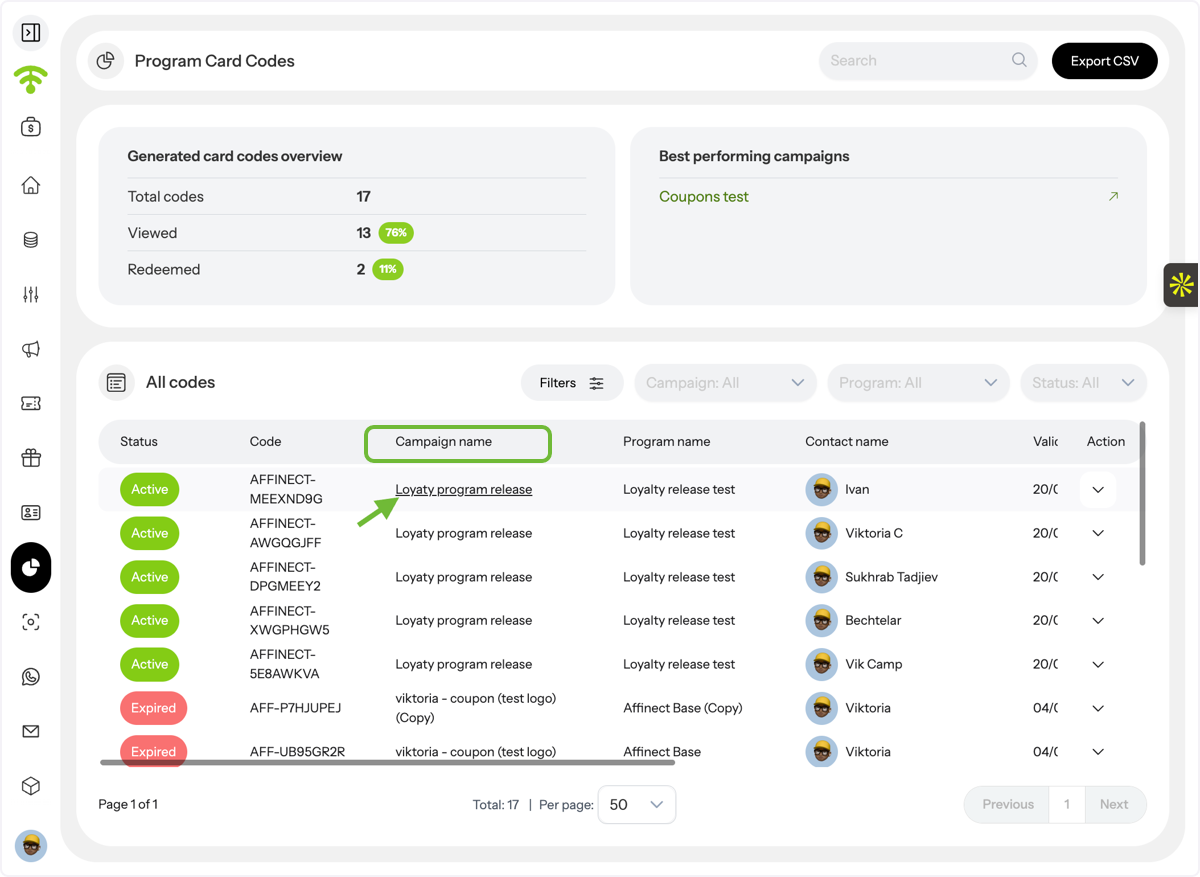
The Program Card Codes page displays all issued loyalty cards and their associated codes.
Locate the card you want to review, then click Actions → View Card Details.
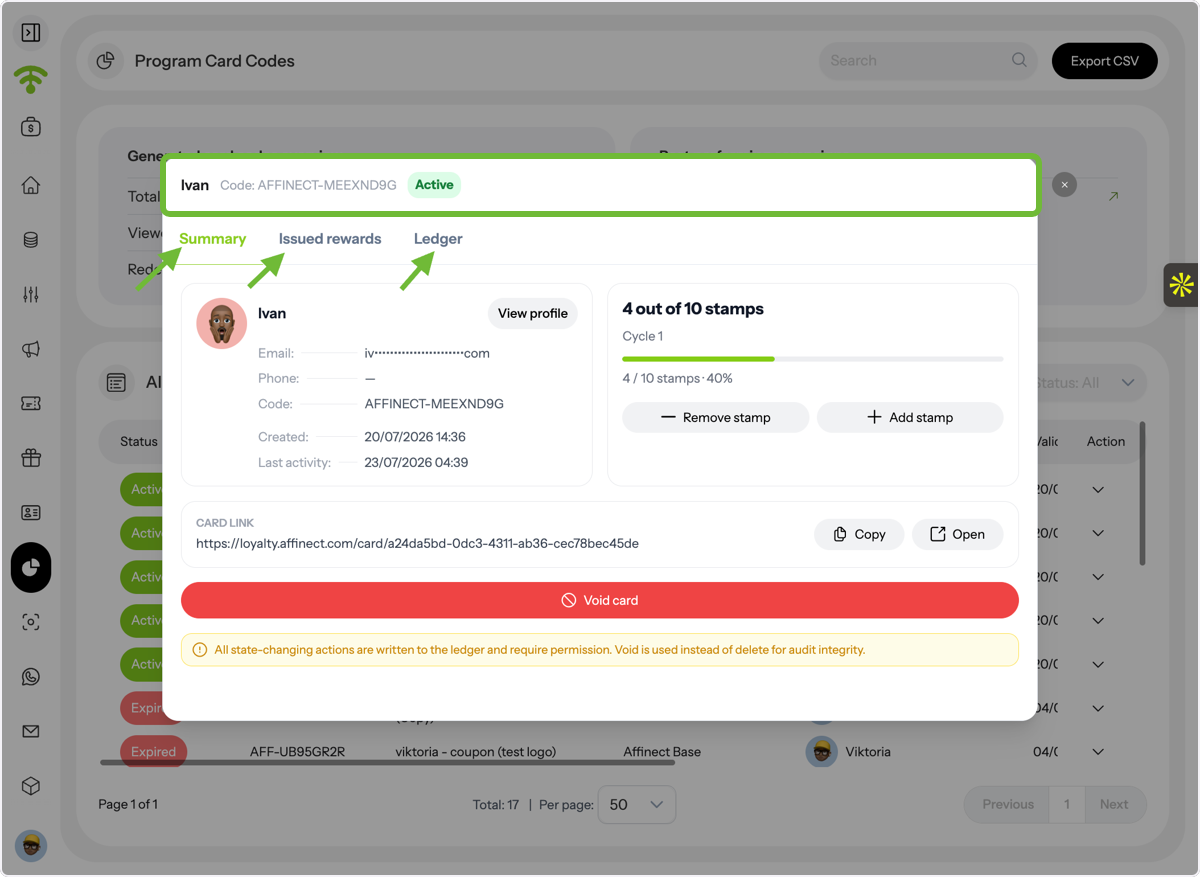
Review Customer Card Activity
The Card Details page provides a complete history of an individual customer's loyalty card.
You'll be able to review:
- Card Summary
- Issued Rewards
- Activity Ledger (including stamps earned, rewards issued, and redemption history)
This is useful for customer support, troubleshooting, or reviewing individual loyalty journeys.
Open Program Analytics from a Loyalty Campaign
To quickly return to your loyalty program analytics, click the Campaign Name displayed on the card details page.
View Program Analytics
Selecting the program name opens the corresponding Program Analytics page in a new browser tab, allowing you to continue analysing overall program performance without losing your place in the customer record.